Do you need to record a conversation and aren’t sure which app to use or whether or not it’s even legal?
If so, this guide is for you.
In it, we cover the best ways to record an in-person conversation and the things you need to think about before you tap record.
Please be aware that there could be legal consequences to illegally recording a conversation (scroll down for a summary of the law).
At Plaud, we design AI note takers and recording devices that capture conversations in person, online, and over the phone. Knowing the best way to record a conversation is literally our job.
In this guide, we’ll explain how to record a conversation in several popular ways, including:
- With a physical voice recorder, like Plaud
- With call-recording or meeting-recording software
- With the built-in recorder on a phone
We’ll also cover devices, apps, common use cases, and the laws you need to understand about privacy and consent.
How to Record a Conversation (Quick Answer)

The best way to record a conversation depends on where the conversation happens and what you plan to do with the recording afterward.
In most situations, these are the best ways to record a conversation:
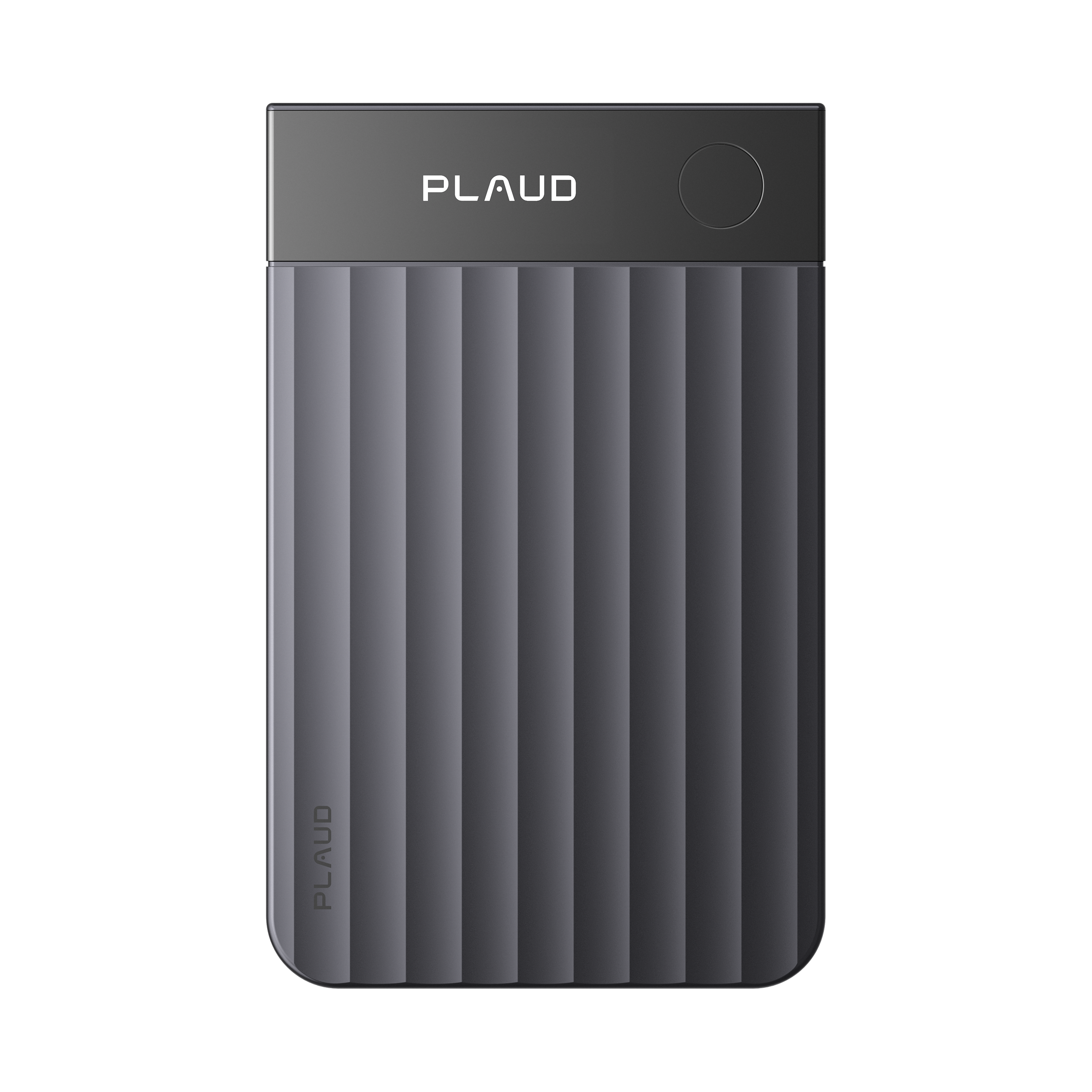
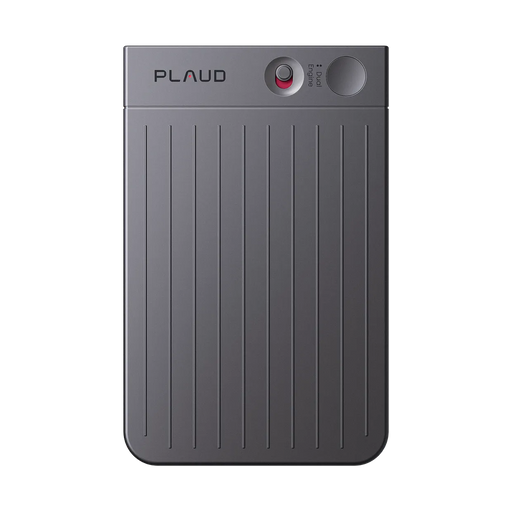
- Use a physical voice recorder: This is the most versatile option for recording phone calls, in-person meetings, interviews, online meetings, and any situation where audio quality is a priority. Hardware recorders are more reliable than apps and don’t depend on WiFi or platform permissions. We recommend Plaud Note in this case (surprise).
- Use call-recording or meeting-recording software: Software-based recorders work well for Zoom, Microsoft Teams, and some phone conversations, but they can be limited by app permissions, operating systems, and internet availability. You can also record incoming calls using the Google Voice app. Please note that it’s limited to only incoming calls on a personal Google Voice account.
- Use your phone’s built-in recorder: This option is ok for quick notes or personal reminders, but not for calls, group conversations, or anything you’ll need to reference later. The audio quality isn’t great, and you’ll be left with raw files (no structure or summaries).
Before you record anything, you also need to check the law. Some states are strict about getting consent from the people you record. We’ll discuss the legal stuff in more detail below.
How to Record a Conversation in 5 Steps
The steps below walk you through the process of recording a conversation legally and effectively. Follow our tips to make clear recordings you can use later.
1. Understand the Law
Before you think about devices or apps, you need to know whether recording is legal in your situation. This is where most people get it wrong, usually by assuming “it’s fine to record others if I’m part of the conversation” (that’s not always true).
Recording laws depend on where you are, who’s involved, and whether it’s a private conversation or not. Make sure to check your state’s recording laws before recording anyone.
Is it legal to record conversations?
It is legal to record conversations as long as you follow local laws regarding consent. That depends on your state or country and the nature of the conversation.
Recording laws are based on consent, so the legality depends on whether the people involved in the conversation agree to being recorded. On top of that, courts often look at whether the people involved had a reasonable expectation of privacy.
Let’s cover these legal considerations in more detail.
One-party consent
In one-party consent states, only one person in the conversation needs to agree to the recording. That person can be you.
Most U.S. states are one-party consent states, including Texas, New York, and Washington, D.C. (there are about 38 states in all).
In these places, it is legal to record a conversation without the other person’s consent as long as you are part of the conversation. However, this doesn’t override other rules, like expectations of privacy or platform policies.
Two-party (all-party) consent
In two-party or all-party consent states, everyone involved must agree to the recording before you tap record. There are about 12 of these states, including Florida, California, and Illinois.
That means you need to clearly inform the other person or people and get their explicit permission.
Recording without consent in these areas can lead to fines, civil lawsuits, or criminal charges.
Reasonable expectation of privacy
Consent laws don’t exist in a vacuum. Even in one-party consent areas, recording can be illegal if the other person has a “reasonable expectation of privacy.”
This refers to situations where privacy is generally assumed, like conversations in a private office, a medical setting, or a therapy session.
You need to get permission to record in these situations, regardless of your state’s general consent laws.
When you cannot record a conversation
It’s almost always illegal to record conversations in these situations:
-
You’re recording a conversation you’re not a part of (this breaks wiretapping laws)
-
The conversation takes place in a private setting with a clear expectation of privacy
-
Recording is prohibited by workplace policies, contracts, or platform terms
-
The recording is intended for harassment, surveillance, or misuse
For legal purposes, make it a policy to always tell people you’re recording and get their consent before you start.
2. Determine Your Conversation Type

The next step is figuring out what kind of conversation you need to record. Is it an interview in a closed office? A chat in a public place? Are there more than two speakers?
Different conversation types come with different technical limits and legal considerations.
The right method for recording a voice memo may fall short if you use it to record a group meeting.
Here are the different types of conversations and how to record them.
Phone call
The best way to record a phone call is with a physical recording device that has a special type of microphone called a Voice Pick-Up (VPU) mic. This allows you to capture phone calls without having to switch to speakerphone.
Plaud recording devices are built with two MEMS mics and a VPU, so you can easily switch from traditional recording to phone call recording.
Trying to record phone calls using other methods is tougher than you think. Software-based tools are mostly useless, and recording directly from your phone is often restricted (many phones and carriers block outgoing and incoming call recording entirely).
If you plan to record calls regularly, you’ll usually need either call-recording software designed for your device or a hardware recorder like Plaud Note.
Record on iPhone
iPhones don’t allow true call recording at the system level, but you can easily record iPhone calls using a physical call recording device like Plaud.
iPhone users can also use call recording apps, but they rely on workarounds like merging calls or routing audio through third-party services. These can work, but they’re clunky. They also raise consent and privacy considerations, especially if a third-party app is involved.
Record on Android
Recording calls on Android is easier than on iPhone, but it’s still inconsistent. Some devices support call recording, and others don’t. And to make things even more annoying for you, OS updates and regional laws can disable features without warning.
We wish that this was the only annoying thing you had to account for, but it’s not.
Even when call recording is available, audio quality and reliability depend on smartphone technology, which varies by phone model.
For reliable call recording using an Android device, you need to use a physical recording device with a VPU mic.
Online Meeting (Zoom, Teams, etc.)
Recording online meetings is quite easy, since there are so many popular tools for recording online conversations.
Online meetings are often the easiest to record because many platforms (like Zoom and Google Meet) include built-in recording features. These tools help you record audio and what you see on your screen. They also come with tools to manage consent.
That said, sometimes the meeting host needs to enable recording, and company policies can override personal preferences. Depending on the app’s permissions, you may need to use a separate meeting recorder (software or hardware) to record.
For more on this, see our guides on recording Zoom meetings and recording Teams meetings.
In-Person Conversation
The best way to record in-person conversations is with a physical voice recorder because they are built for real-world use cases. Using a hardware device (like ours!) will get you the best audio quality and access to more AI analysis features than any other method.
Your phone’s built-in microphone is not anywhere near as good as the mics on a hardware recorder, especially for group conversations. Many call recording apps also have in-person recording modes, but they’re not recommended because they rely on your device’s mic.
When having an in-person conversation, audio recording quality depends on mic quality, mic placement, room acoustics, and how many people are speaking. Remember to place your recording device at an equal distance between the speakers, and try to record in places without a lot of ambient noise.
For more on this, please see our article on using an AI note-taker for in-person meetings.
Secret Recording
Small or discreet physical recording devices are best for secret recording. But be very careful here. Recording secretly puts you at legal risk, even when recording on your own property.
If you’re considering recording others secretly, double-check the law, or better yet, talk to a lawyer first.
3. Choose Your Recording Software, App, or Device

Now it’s time to choose a tool that fits your recording situation. The tool you use can have a huge impact on the quality of your recordings.
Most recording problems actually happen after recording, when you realize that your files are a mess, your recordings are hard to decipher, or you can’t tell who is speaking in a group conversation.
The right tool can help solve these problems. Let’s cover the main options.
AI Note-Takers
AI note takers are tools that record conversations and automatically generate transcripts, summaries, and notes with AI. These tools can be software-based or hardware-based (like Plaud).
Software AI note takers are popular for online meetings and remote work because they integrate with platforms like Zoom or Google Meet. But they usually require internet access and come with restrictions like meeting time limits. They’re also not ideal for in-person conversations unless everyone is on a mic.
Hardware note takers are more versatile. You can use them offline, and they have no restrictions. But they don’t take notes in real time like some software-based services. Instead, they sync with an app after the recording is finished.
Here is our ranking of the best AI note-takers on the market today.
AI Voice Recording Device
These are hardware recorders designed specifically for capturing conversations, including in-person, online, and phone calls.
They don’t rely on your phone’s operating system or meeting software, so they’re more reliable in real-world settings. They’re commonly used for meetings, interviews, healthcare conversations, sales calls, lectures, and other situations where clarity is important.
One example is our Plaud Note Pro, which records audio and then syncs with a voice recorder app to turn it into searchable transcripts and notes.
Mini Voice Recorder
Mini recorders are discreet, offline devices that capture audio and store recordings as files. We recommend them for anyone who needs to record on the go or hands-free.
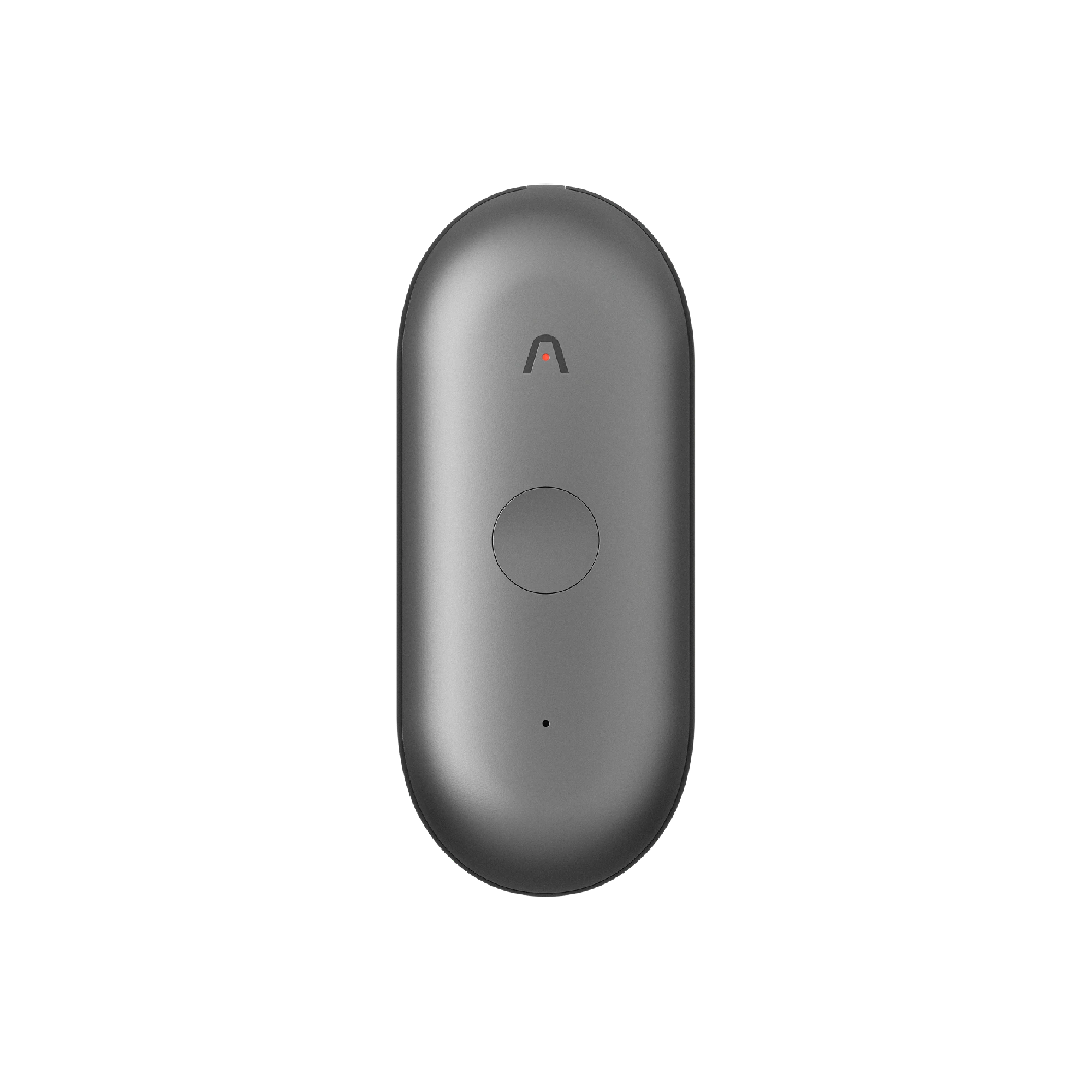
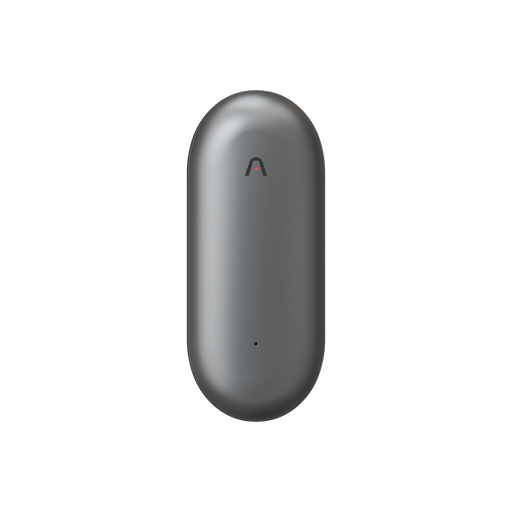
They’re affordable and easy to use, and some come with AI features to help keep you organized. For example, the wearable Plaud NotePin S is a tiny, wearable voice recorder, but it still includes all of Plaud’s AI features, like AI transcription, summaries, and notes.
Voice Recording Apps
Voice recording apps include built-in phone recorders and basic recording apps.
A simple phone app is fine for quick voice notes or personal reminders. But for calls, group conversations, or anything you’ll need to search later, they’ll probably cause headaches. Audio quality is inconsistent, and you’re left with raw recordings and no structure.
Some tools, like Google Voice, can record certain types of calls, but availability and legality depend on your location and call settings.
4. Record Audio

Now it’s time to start recording. This part is pretty straightforward, but a few small mistakes here can ruin an otherwise usable conversation.
Make sure everyone is aware that you’re recording, and tap record before the conversation begins. Please, please, please, don’t tap stop recording and restart mid-conversation. This will lead to missed context or incomplete audio.
Here are a few tips for capturing better audio quality when recording conversations:
-
Place the microphone as close to the speakers as possible
-
Avoid putting phones or recorders on soft surfaces that muffle sound
-
Reduce background noise when you can
-
Try not to talk over other speakers
-
For group conversations, position the recorder in the middle
5. Upload, Transcribe, and Use the Recording

Recording the conversation is the easy part. Getting audio that you can clearly hear and actually use is harder. If the audio just sits on your device, it doesn’t matter what you captured.
After recording, upload the file to the cloud or sync it with the software you’re using. If you’re not using a recording app, that’s your first problem. Without it, you’re stuck with raw audio files and no way to process the information.
Software like the Plaud app automatically transcribes, summarizes, and transforms audio into searchable notes. Turning audio into text makes it easier to review, share, and reference later without replaying long recordings.
From there, you can pull out key points, action items, or key decisions. This makes it way easier to use the conversation for follow-ups, documentation, or records.
How to Record a Conversation With Plaud
Since you’re still here and need to record a conversation, we want to recommend you use our Plaud devices. Over 1.5 million professionals worldwide use our AI note-taking devices to record online and in-person meetings for a range of use cases.
With Plaud, you can record conversations wherever they happen, including phone calls, in-person conversations, business meetings, virtual meetings, and more.
It’s all pretty simple.
There are zero limits or restrictions, and unlike software-based recording apps, you won’t see annoying bots on your screen.
Just record the conversation on your Plaud device. It has 64 GB of internal storage space. Afterward, sync with the Plaud app, where the audio is automatically transcribed and organized into notes.
Here’s a quick step-by-step guide:
-
Get ready: position Plaud between the speakers (or place it on your phone using the MagSafe case to record phone calls).
-
Get consent: Tell the conversation participants you’re going to record and ask if it’s OK.
-
Begin recording: Long-press the record button until you feel a single vibration.
-
Stop recording: Long-press the record button until you feel two vibrations.
-
Sync with the Plaud app: Open the Plaud app to wirelessly sync. Plaud will now automatically transcribe, summarize, and generate notes based on your recordings.
-
Review and edit: Edit your notes, add speaker names, add images (slides, photos, etc.), and leave comments.
-
Export and share: Share your notes directly or connect with the tools you use every day via Zapier, like Notion, Slack, and Google Workspace.
Plaud is probably the most convenient way to record any type of conversation. The audio comes out crystal-clear thanks to our dual-mic setup, and you get tons of AI features to help you organize audio into notes.
All you have to pay for is the Plaud device itself. Then you get 100% of its AI features + 300 minutes of transcription per month for free.
If you want to make the most of your conversation recordings, you need Plaud.