
If you still replay recordings and type every word, you are spending your best attention on the wrong job. AI tools can now turn audio into text in minutes. Your real work is to check, adjust, and use the text, not to act as a typist.
In this guide, you’ll learn:
- Method 1 - Use an online tool when you already have audio files
- Method 2 - Use an AI note taker or meeting assistant in live conversations
- Method 3 - Use speech-to-text APIs when you need custom, automated workflows
Method 1 – Use an online transcription tool when you already have files
If you already have recordings, such as Zoom files, podcast tracks, or phone audio, an online audio-to-text tool is the fastest way to get your text. You keep your current recording habits, hand the files to an AI service, and do one quick review in the browser before you export.

Step 1: Collect and export the audio you want to transcribe
First, you must collect and export the audio you want to transcribe. You can:
- Export recordings from Zoom, Teams, or Google Meet as MP4 or M4A.
- Pull voice memos, interviews, or lectures from your phone or recorder as MP3 or WAV.
- Put all the files you want to process into a single folder so they are easy to upload.
Step 2: Upload to one tool and run the transcription
Choose one tool that supports your language and typical file length (for example, Sonix-type, Happy Scribe-type, Notta-type services).
- Open the website, upload your audio, and select the language plus any options like timestamps or speaker labels.
- Start the transcription and wait a few minutes for the first draft.
Step 3: Fix key details and export usable text
Once the initial audio transcription is complete, focus on fixing key details.
- Focus on names, technical terms, numbers, and dates.
- Delete obvious noise or small talk that you don’t need in the final text.
- Export as TXT, DOCX, or SRT and move the file into your notes, document, or editing project.
Next time you write or study, you search inside the text instead of scrubbing through raw audio.
Method 2 – Use an AI note taker or meeting assistant in live conversations
In live meetings, you need to participate and still walk away with a clear record. AI note takers and meeting assistants record, transcribe, and surface key points so you can stay present.
Step 1: Decide how you will capture and tell people up front
Choose your setup:
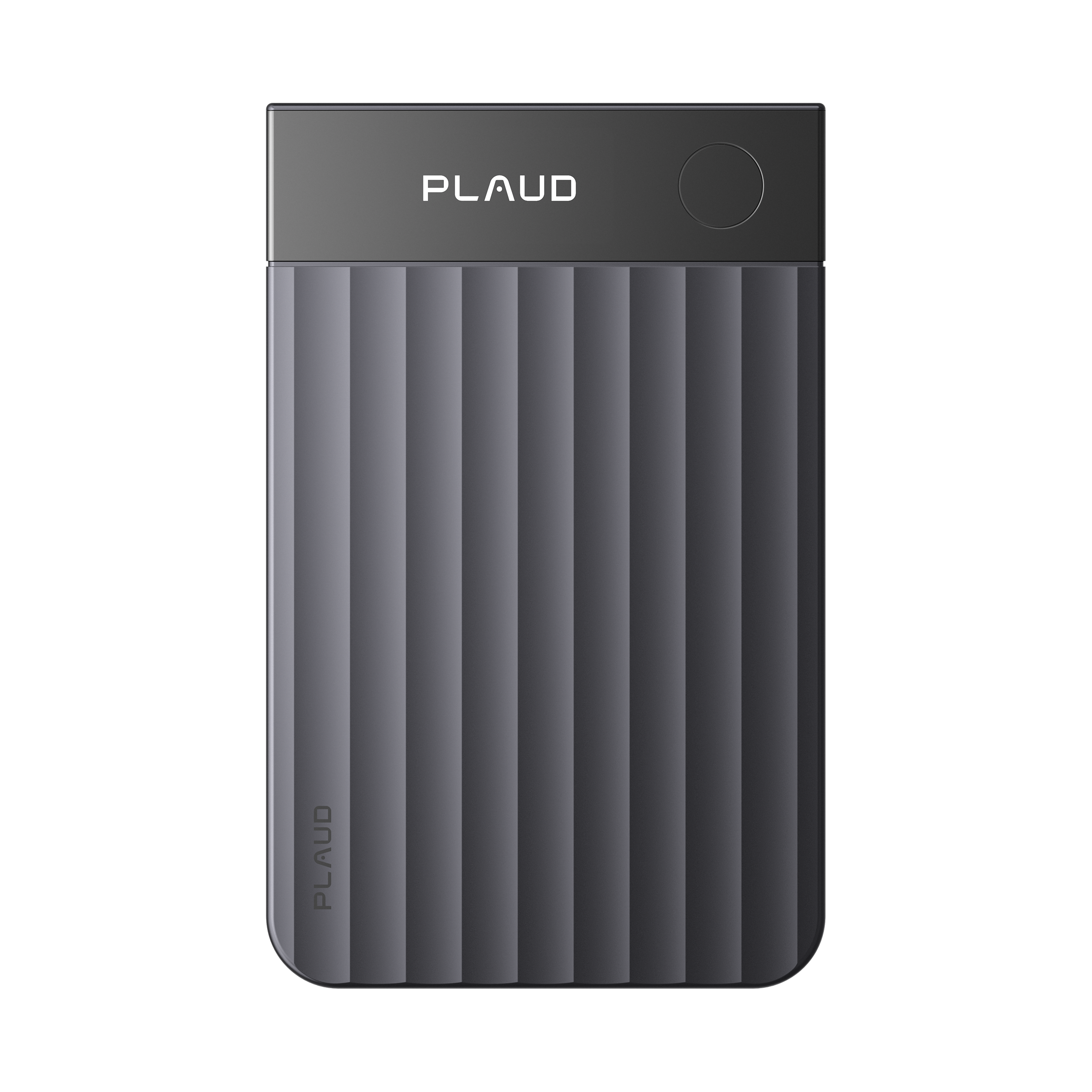
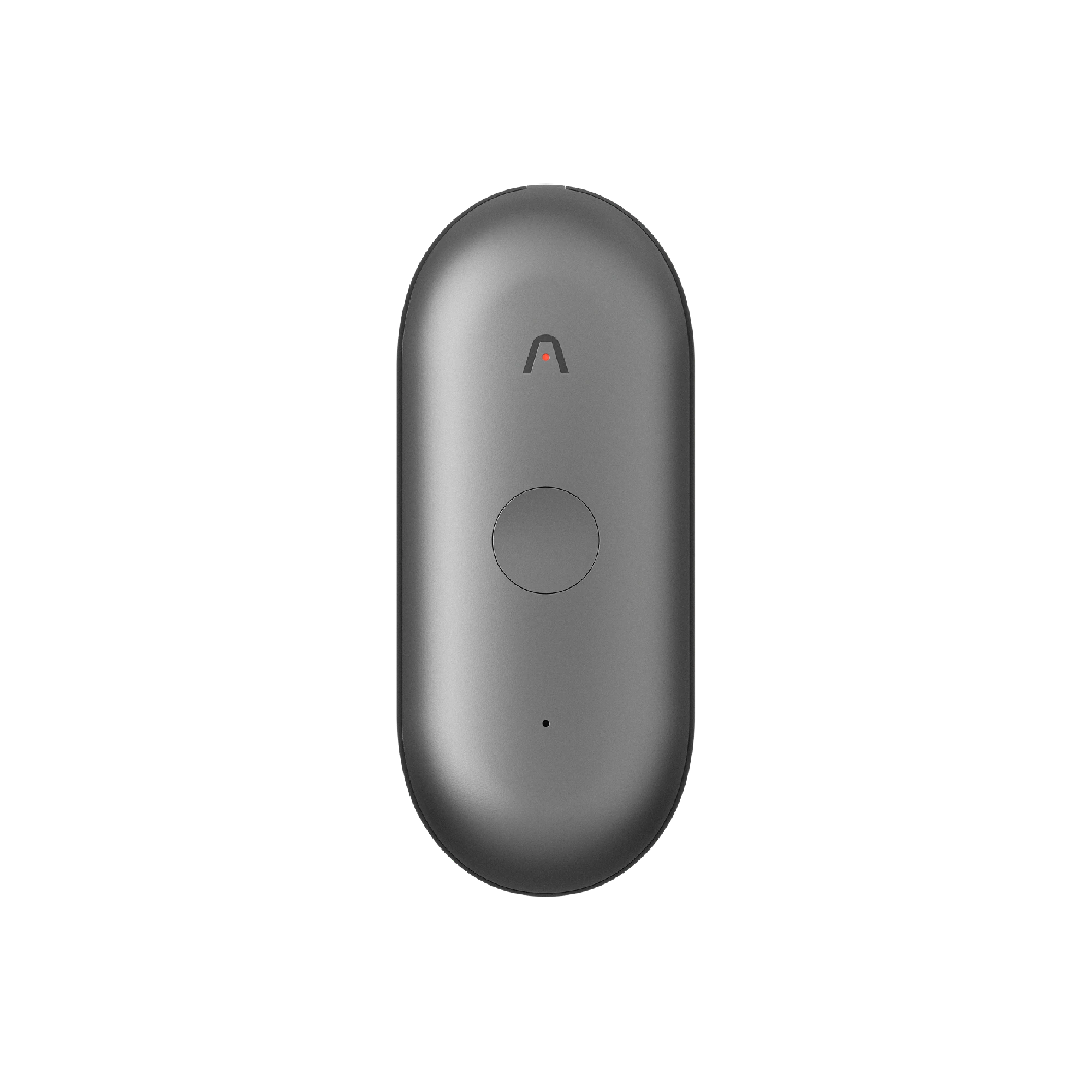
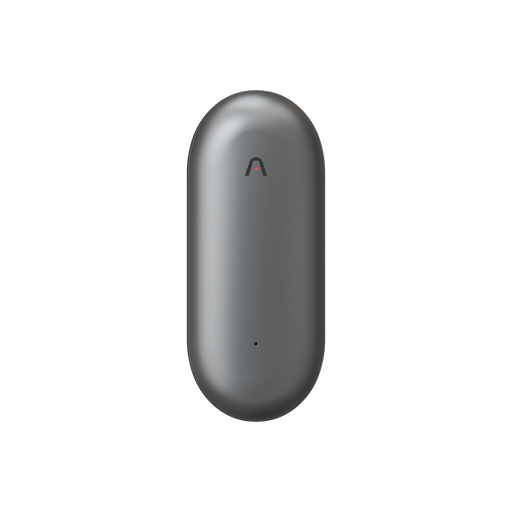
- For in-person or hybrid meetings, use an AI note-taking device like Plaud Note Pro.
- For online-only sessions, use a meeting assistant that joins Zoom, Meet, or Teams as a bot.
Please note, at the start of the meeting, briefly say something like: “We’ll record this and use AI to generate notes so we can share an accurate summary afterwards.”
The aim is to set expectations: people know there is a recording and how the notes will be used.
Step 2: Let the tool record everything while you only mark what matters
At the beginning, long-press the device button or let the AI assistant join the call to start recording. Move your hand only when something important happens:
- A clear decision
- A major risk or concern
- A specific owner plus a deadline
With Plaud Note Pro, a short press on the button drops a highlight at that exact second in the audio so the AI can treat that segment as a higher priority later.

Step 3: Turn the transcript into something your team can act on
After the meeting, open the app or web view and review the automatic transcript and summary.
- Start with the highlighted sections and check that decisions, tasks, and risks are described clearly.
- Use built-in templates to format the output as:
- Weekly meeting minutes
- Client call recap
- Interview notes
- Share the results using a link, email, or an automated workflow that posts to your usual channel or project tool.

In this flow, you only do three actions: start recording, tap to highlight key points, and stop recording. Recording, transcription, structuring, and distribution are handled by the system.
Method 3 – Use speech-to-text APIs when you need custom workflows
If you run a product or internal system that has to process large volumes of audio, an API is usually the right choice. Your engineering team connects to a speech-to-text service, and transcription becomes a quiet backend capability instead of a visible, separate tool.
This is the ideal method when you need to convert audio to text at scale within your existing infrastructure.

Step 1: Ask your technical team to choose and connect an API
Clarify your needs: languages, latency, expected volume, and compliance requirements.
Then have engineers evaluate major APIs such as Amazon Transcribe, Google Cloud Speech-to-Text, Whisper-based services, or AssemblyAI. Let them enable one provider in the cloud console and obtain API keys and sample code.
The goal is to make “audio to text” a reliable service in your infrastructure, not a one-off script.
Step 2: Send audio automatically from systems you already use
Wire your existing platforms to send audio to the API:
- Call center recordings
- Lesson or webinar audio tracks
- Internal meeting recordings saved by your conferencing tool
On each new call or recording, have the system automatically upload or stream the audio to the speech service.
For example, a support platform can push every completed phone call to the API without asking agents to download and upload anything.
Step 3: Store and use transcripts where your team already works
Save the returned text in your own database or search index. In your CRM, help desk, or admin panel, show transcripts or short summaries next to each record. Add simple use cases on top:
- Keyword search across calls or lessons
- Automatic QA or training reports
- Tags, alerts, or follow-up tasks triggered by certain phrases
From the user’s point of view, they see that calls, lessons, or meetings now have text attached and a more powerful search. The transcription layer stays behind the scenes.
Tips to improve accuracy, cost control, and privacy
- Record in the quietest space you can, with the microphone close to the main speaker.
- Expect to fix key names and specialist terms in a short review.
- Start with free or trial plans, then upgrade only when real usage justifies it.
- Check where audio and transcripts are stored, how long they are kept, and how to delete them when needed.
Conclusion
AI transcription is mainly about choosing the workflow that fits your work. Use online audio-to-text converters when you already have recordings. Use AI note takers for live meetings, and speech-to-text APIs when you need transcription built into a product or internal system.
Pick one as your default, test it on real conversations, and let it handle the typing so you can focus on decisions instead of replaying audio.