
Every Android phone can turn your voice into text with a single tap. Google's Voice Typing is built into Gboard and most default keyboards, so a microphone icon sits ready in any text field you open. For quick messages, notes, and searches, it works well right out of the box. The catch is that it still needs your phone in hand, awake, with the right app open before it hears a word. The moment an idea hits while you're driving, walking, or your hands are full, that gap is where a hands-free wearable like Plaud NotePin S picks up the work.
How to turn on voice to text on Android
Most Android phones ship with voice typing already active. Tap and hold the microphone icon on your keyboard, or say "Hey Google, type" if Assistant voice typing is set up on your device.
If the microphone icon is missing, turn it on manually:
- Open Settings and go to System, then Languages & input.
- Select On-screen keyboard, then choose your keyboard (Gboard or Samsung Keyboard).
- Tap Voice typing and turn the toggle on.
- Grant microphone permission when prompted.
- Open any app with a text field and tap the microphone icon to start dictating.
Samsung phones route through the same settings menu, with Samsung Keyboard listed as the default and a choice between Samsung Voice Input and Google Voice Typing underneath it. For the full step by step across stock Android, Samsung, and even WhatsApp, our Android voice-to-text walkthrough covers every menu variation and the most common fixes, including how to turn the feature back off.
Speak clearly and add punctuation out loud (say "period" or "comma") to keep the output clean. Google's official Gboard voice typing guide covers language switching and word replacement in more detail. Google Voice Typing supports dozens of languages, and you can switch languages from the keyboard's globe icon mid-conversation.
Android also ships a separate accessibility app called Live Transcribe, which captions spoken conversations on screen in real time instead of typing into an app. It solves a different problem: following along with a conversation as it happens, not producing a saved, editable transcript. Google's Live Transcribe support page has setup steps if that is what you need. 
Tips for more accurate results
Accuracy depends on more than the app itself. Your phone's microphone quality, your accent relative to the language model, background noise, and your internet connection all shape how clean the output looks. Short, everyday phrases in a quiet room come out nearly perfect. A long sentence shouted over traffic noise will not.
A few habits make a real difference in how clean your dictated text comes out:
- Speak in short, complete phrases instead of one long run-on sentence. Voice typing punctuates better when it can find natural breaks.
- Say your punctuation out loud. "Comma," "period," "question mark," and "new line" all work as spoken commands.
- Correct words as you go. Touch and hold a misheard word, then say the replacement instead of retyping it by hand.
- Cut down background noise when you can. A quiet room or a directional headset microphone improves accuracy more than any setting change.
- Keep your language list current. If you switch between two languages often, add both under Voice typing settings so the keyboard can detect the switch automatically.
Get more from Pixel's advanced voice typing
Pixel 6 and later models include an upgraded voice typing mode. Open your keyboard settings, tap Voice typing, then turn on Advanced voice typing features. Once it is active, the microphone stays open so you can keep talking without holding the button down, punctuation gets added automatically, and voice commands like "delete" or "clear" let you edit without touching the keyboard.
This mode still listens to one voice at a time and works best for drafting a message or a quick note. It was not built to track a group conversation or a meeting with several people talking.
Samsung Galaxy phones offer a comparable feature through Samsung Voice Input, with similar punctuation and editing support layered on top of the Samsung Keyboard. The setup path differs slightly by One UI version, so if a menu name in the steps above does not match what you see, check Settings, then General management, then Keyboard list and default, then Samsung Keyboard.
Where built-in voice typing runs out of road
Voice typing on Android was built for typing, not for catching a thought the instant it happens. A few limits show up fast once you try to use it for anything spontaneous.
- It needs your phone in hand first. Wake the screen, open the right app, tap into a text field, then tap the microphone. By the time all that is done, a fast-moving idea has often slipped.
- It does not work with your hands busy. Driving, cooking, exercising, or carrying a bag or a kid all rule out pulling out a phone, even briefly.
- Output lands wherever you happened to open it. A thought dictated into whatever app was open is not organized anywhere you can find it again later.
- It is not built for a phone that is out of reach. In a pocket, in a bag, or mounted across the room, the phone might as well not be there.
None of this makes Google's tool bad. It is free, fast, and already on your phone. It just answers a narrower question than "how do I capture this thought right now," which is the question a hands-free wearable is built to answer.
The gap shows up in ordinary moments. An idea for a project crosses your mind on a run, but your phone is armband-mounted and locked. A good line for an email comes to you while you are driving, and pulling out your phone is not an option. You are elbow-deep in dinner prep when you remember something to add to tomorrow's plan. None of these moments wait for you to find your phone, wake it, and open the right app.
It is also worth noting what built-in voice typing was never meant to do. It only hears the person holding the phone, so a meeting, an interview, or any conversation with more than one speaker is a different problem entirely, one a wearable recorder can pick up at the same time.
What to look for in a dedicated voice to text tool
If you regularly lose ideas to the time it takes to reach your phone, a handful of criteria separate a tool that genuinely helps from one that adds an extra step:
- Hands-free capture, for real. Starts recording with a press of something you are already wearing, not a tap on a screen you first have to find and wake up.
- Always on you. A device clipped, pinned, or worn stays within reach in the car, on a run, or at the sink. A phone in a bag does not.
- Structured output, not a wall of text. A note you can search and organize later saves more time than raw text sitting in whatever app happened to be open.
- Accuracy across accents and background noise. Look for transcription that holds up in a moving car or a noisy kitchen, not only a quiet room.
- Multiple speakers, labeled, if you need it. A bonus for anyone who also uses the same device for meetings or interviews, though not the main reason to pick one up.
- Clear privacy standards. Check where recordings are stored, whether the vendor trains models on your data, and which compliance certifications back that up.
Weigh these against how you lose ideas today. Someone who mostly types notes at a desk is usually well served by what is already on their phone. Someone who keeps losing a thought between the moment it happens and the moment they can act on it is the one a wearable device is designed around.
Plaud NotePin S: catch an idea before it slips away
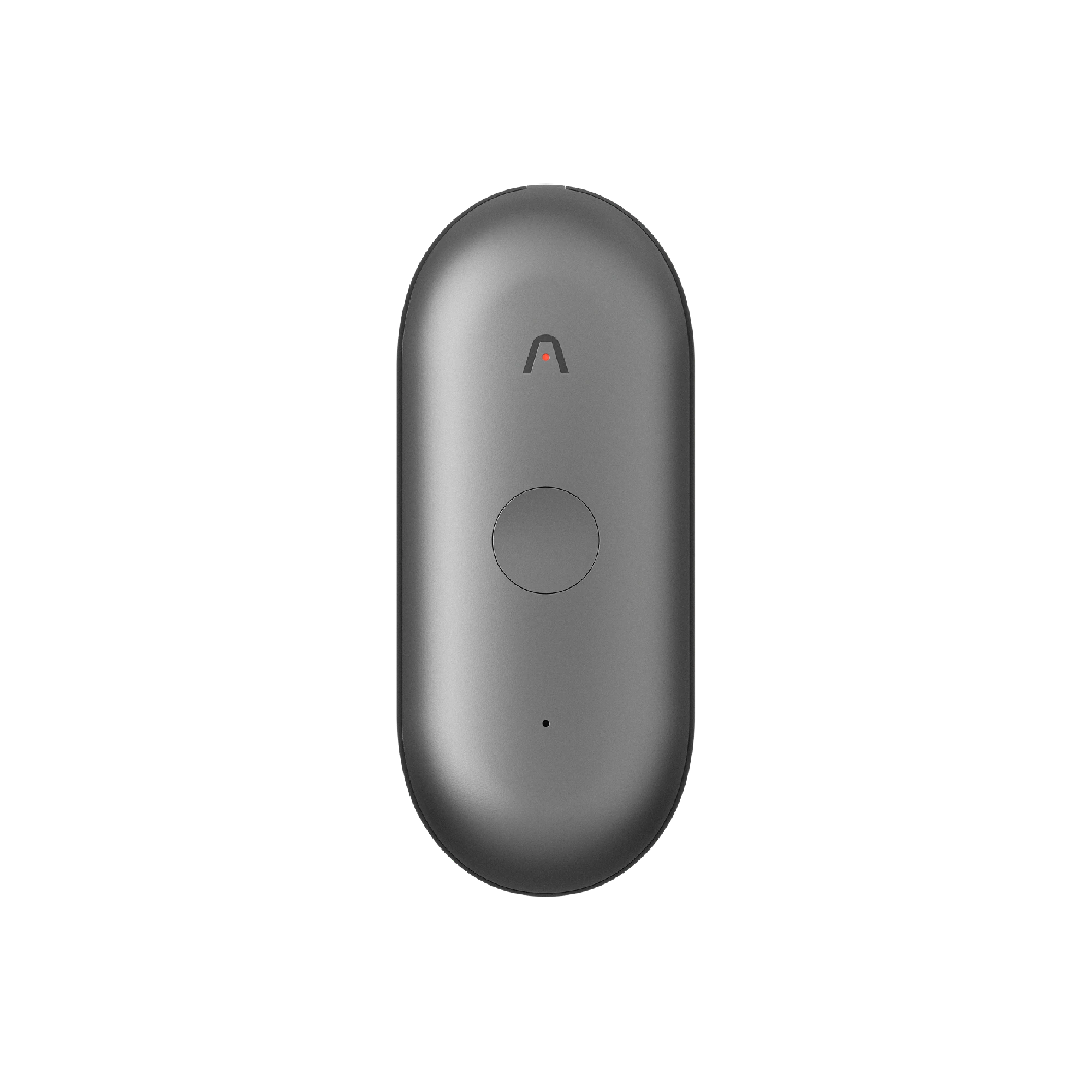
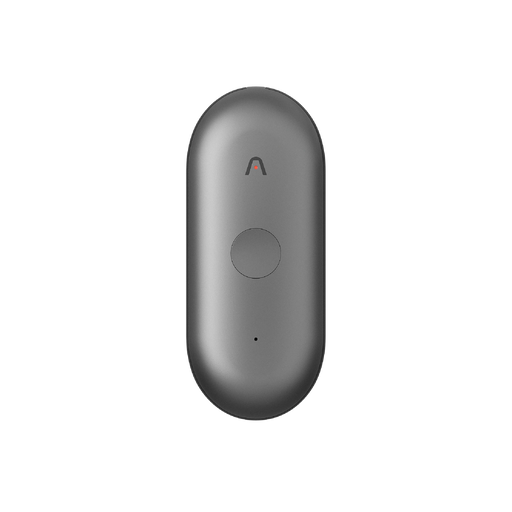
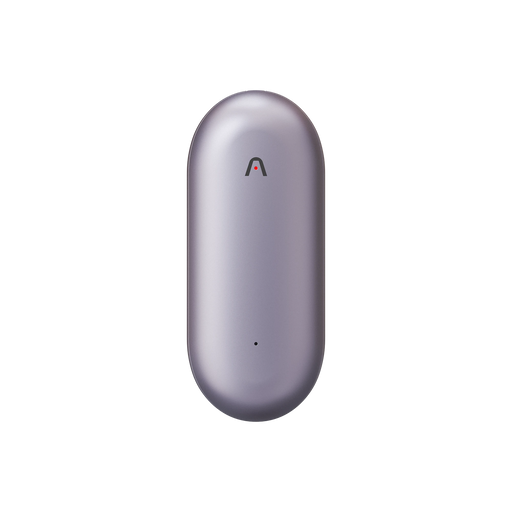
Plaud NotePin S is a wearable AI note taker built for the exact moment voice typing cannot keep up. It clips on, pins on, or wears as a lanyard or wristband, so a long press starts recording without you touching, waking, or even reaching for your phone. Whether the idea hits on a run, in the car, or elbow-deep in something else, it is already within reach. A short press highlights the moment that matters most while you are still mid-thought.
Once the recording ends, Plaud Intelligence turns it into a transcript in 112 languages, organized and searchable, so a passing thought from Tuesday is not lost in a pile of other notes by Friday. The highlight you marked carries through to the summary Plaud Intelligence generates afterward. From there, everything syncs across the Plaud App, Plaud Web, and Plaud Desktop, so an idea captured on a walk is ready to find and act on by the time you sit back down at your desk.
Beyond audio, NotePin S accepts typed notes and photos as extra context, so a name spelled out on a whiteboard or a number you type in quickly becomes part of the same record instead of a separate note you have to match up later. Once a transcript exists, Ask Plaud lets you ask a direct question about it, or search across every past recording, and get an answer grounded in what was said rather than a guess.
The same device also covers the other end of the spectrum. Speaker labels keep track of who said what, so meetings, interviews, and conversations with several people come out just as organized as a solo idea captured on the go.
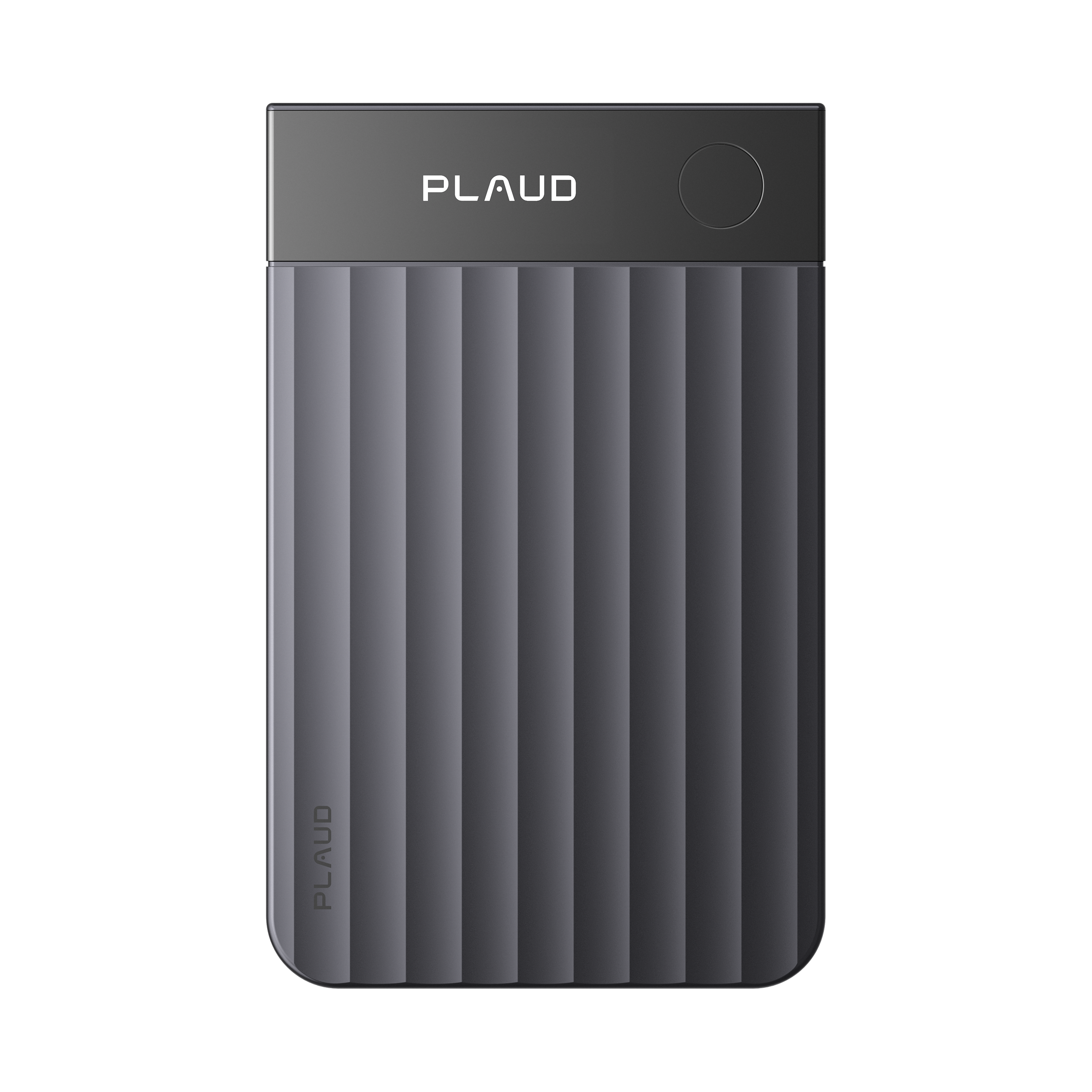
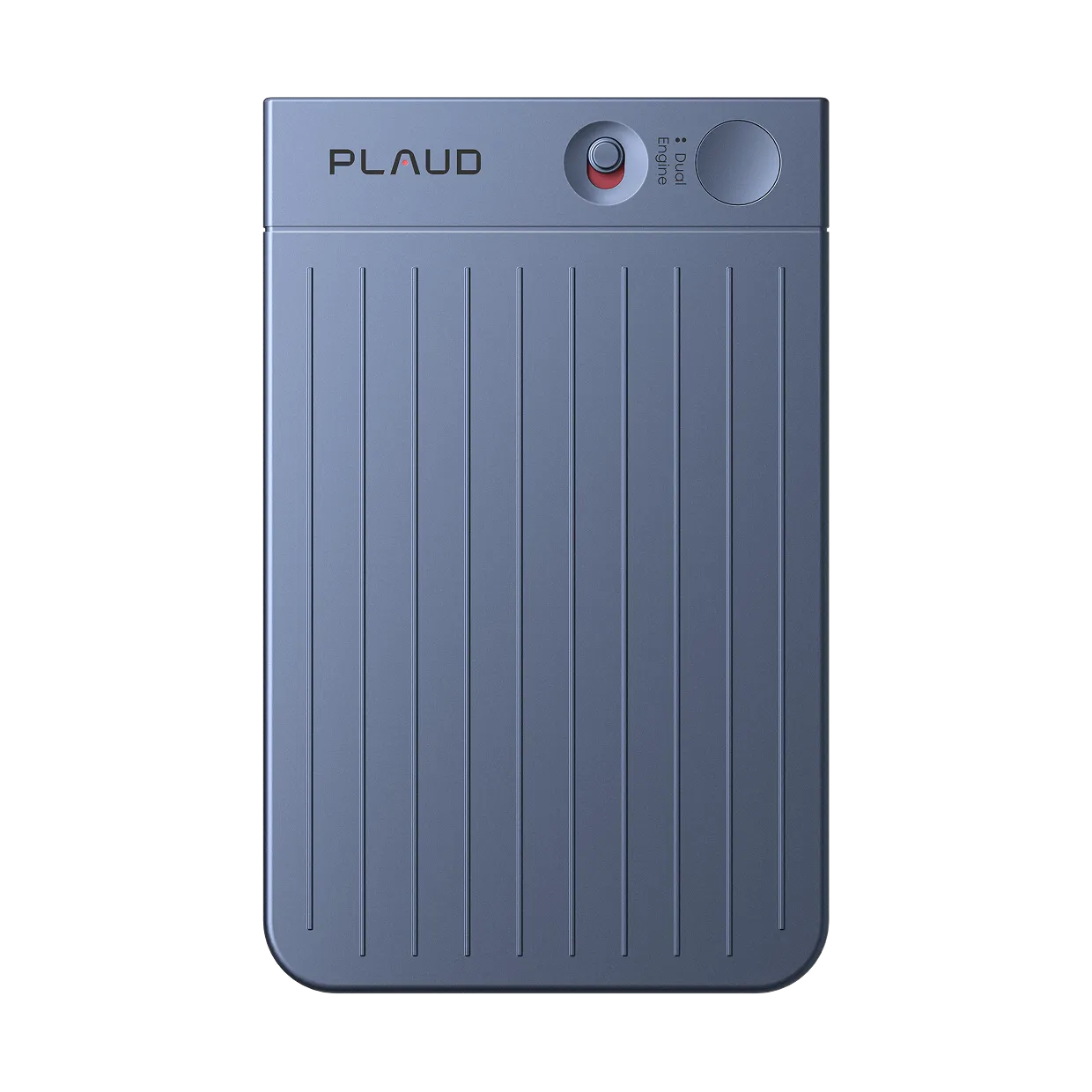
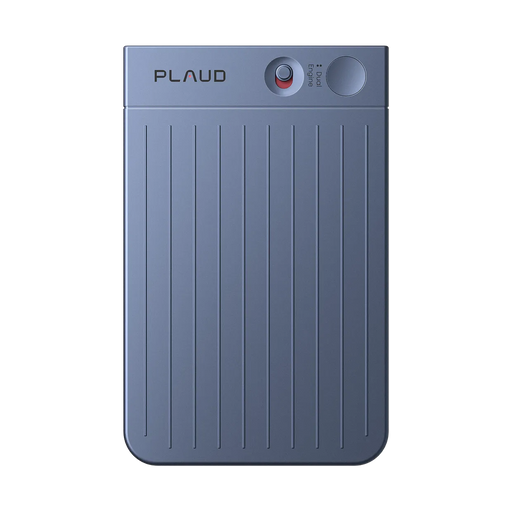
The device weighs 0.61 oz, records for up to 20 hours on a charge, and comes with all four wearing styles (lanyard, wristband, clip, and magnetic pin) plus a charging dock in the box. Data handling follows ISO 27001, ISO 27701, GDPR, SOC 2, HIPAA, and EN 18031 compliance, with the full detail on the Plaud trust and security page.
Match the tool to the moment
Built-in voice typing is the right call for texts, quick notes, and search queries typed straight into an app. It is already on your phone, it costs nothing, and it works the moment your screen is on and you tap the microphone.
The moment an idea cannot wait for you to find your phone, wake it, and open the right app, a hands-free wearable does the part built-in dictation was never designed for. Keep voice typing for quick text, and reach for a device like Plaud NotePin S for the thoughts, and the conversations, worth catching the moment they happen.