
Discord has no native call recording in 2026, and the third-party bots that fill the gap fail regularly. This article covers four methods that work — Craig Bot, Xbox Game Bar, OBS Studio, and hardware recording — with setup steps, failure modes, and legal requirements for each.
Does Discord have a built-in recording feature?
No. Discord has never added native call recording, and as of 2026 it still requires a third-party tool or device to capture a call.
The absence is not a technical limitation. Discord’s focus is real-time communication, not archiving. A community feature request on Discord’s support page, opened in 2019, has accumulated over 2,000 upvotes and remains open without resolution (Discord Support Community, 2019–2026). This gap is why Craig Bot, screen-capture tools, and hardware recorders exist as the de facto recording options.

Four ways to record a Discord call
There are four practical methods: Craig Bot, Xbox Game Bar, OBS Studio, and a hardware recorder.
| Method | Works without software install | Records in background | Audio quality | Requires Discord server (not DM) | Works on mobile | Works offline |
|---|---|---|---|---|---|---|
| Craig Bot | No | Yes | Variable | Yes | No | No |
| Xbox Game Bar | No | No | Good | No | No | Yes |
| OBS Studio | No | Yes | High | No | No | Yes |
| Hardware recorder | Yes | Yes | High | No | Yes | Yes |
Discord call recording methods compared
Mobile recording is the most searched variant of this topic. “How to record a Discord call on iPhone” and “how to record a Discord call on Android” consistently appear in related searches. The “Works on mobile” column addresses this directly. Craig Bot requires a Discord server and cannot record DMs or group calls on any platform. OBS and Xbox Game Bar are desktop-only. A hardware recorder is the only method that works regardless of what device you are calling from.
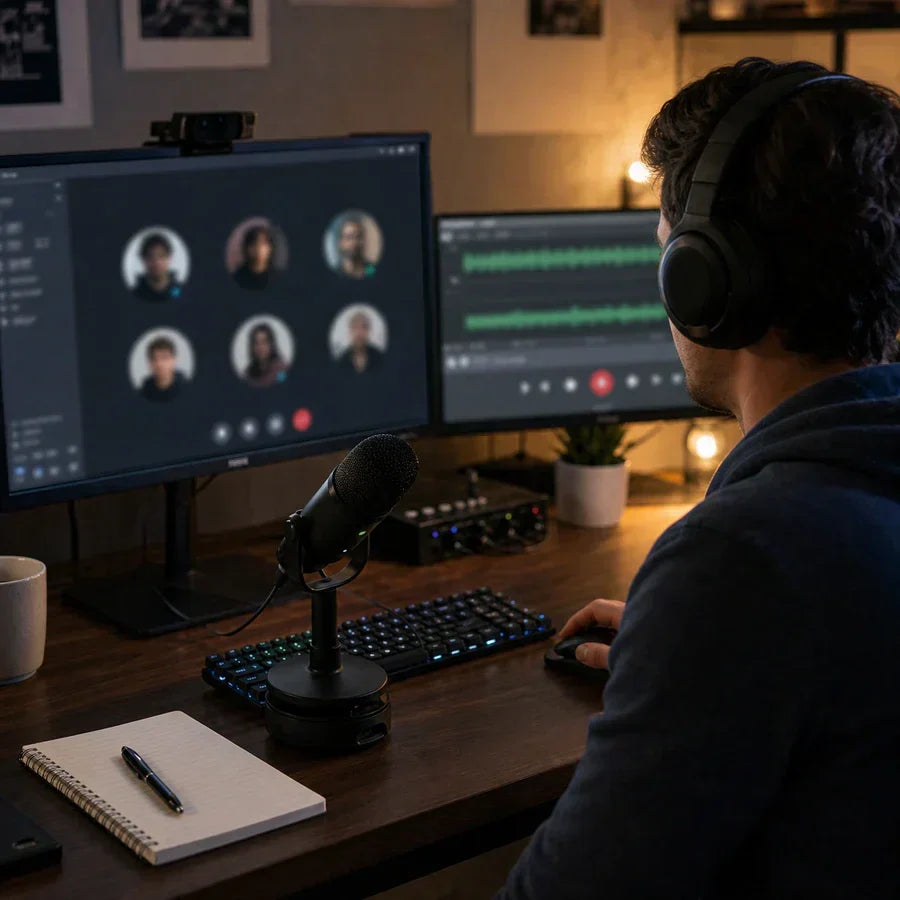
The same four methods apply to Discord video calls. Craig Bot and Xbox Game Bar capture audio only. OBS and hardware recording can capture the video component if configured to do so.
How to use Craig Bot to record a Discord server call
Craig Bot is the most widely used recording bot for Discord server voice channels. Here is the setup in four steps.
- Go to craig.chat and invite Craig to your Discord server.
- Join the voice channel you want to record.
- Type :join in any text channel on the server.
- Type :leave when the call ends. Craig sends download links for each speaker’s audio track as a separate file.
Craig only works in server voice channels. It cannot join or record DMs or group calls.
What to do when Craig Bot fails
When Craig Bot produces garbled audio, the two software alternatives are Xbox Game Bar on Windows and OBS Studio on any desktop platform.
Xbox Game Bar steps:
- Press Win+G to open the overlay.
- Confirm audio capture is enabled.
- Press Win+Alt+R to start and stop recording.
OBS Studio steps:
- Add an audio source in your OBS scene that targets Discord as the audio input device.
- Start recording from the OBS control panel.
- Export the audio file after the call ends.
OBS requires correct audio routing to work. If Discord is not added as a separate audio source in OBS, the recording captures your default system output, including notification sounds and other running applications. This is the most common failure point for OBS-based Discord recordings.
Recording a Discord call with Plaud devices or Plaud desktop
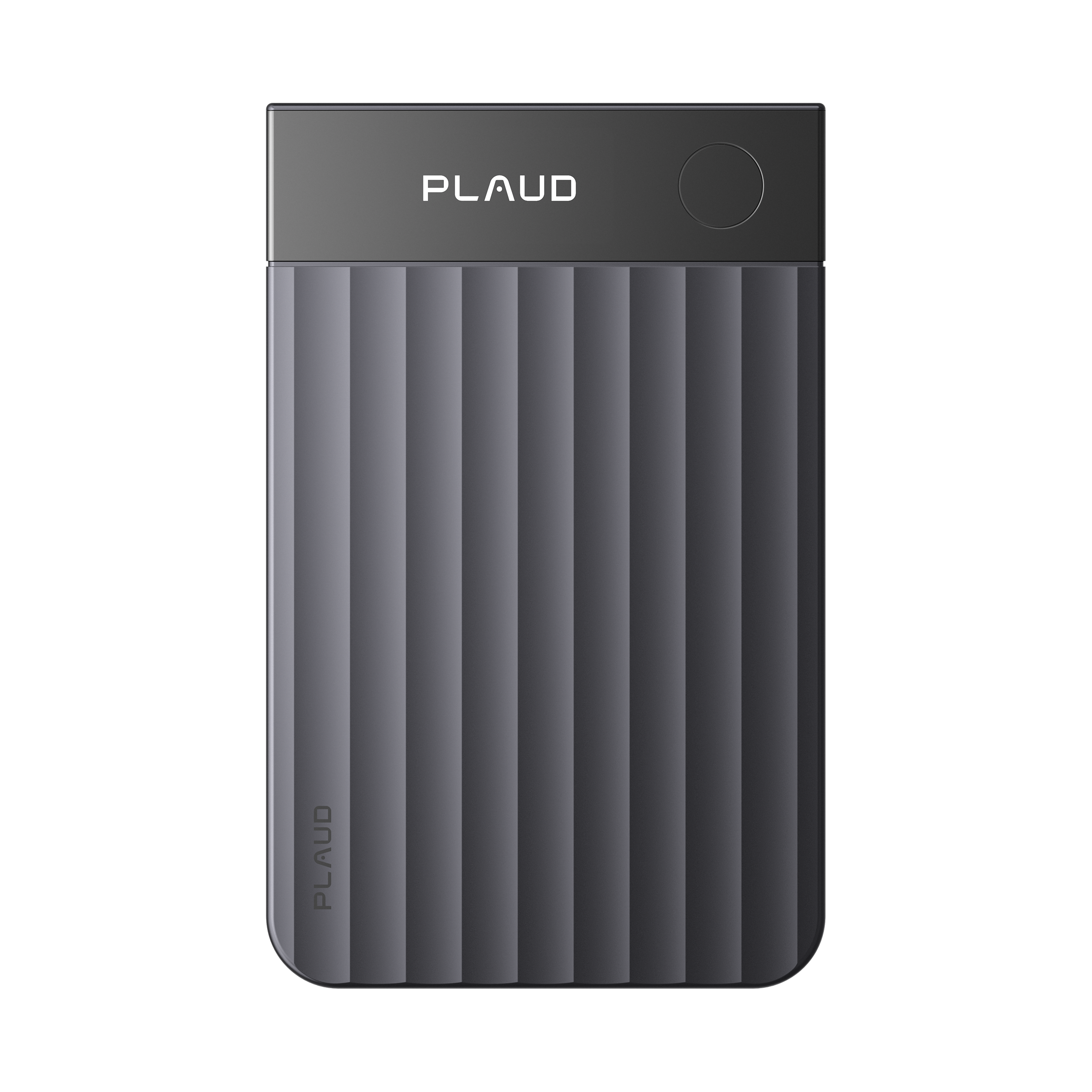
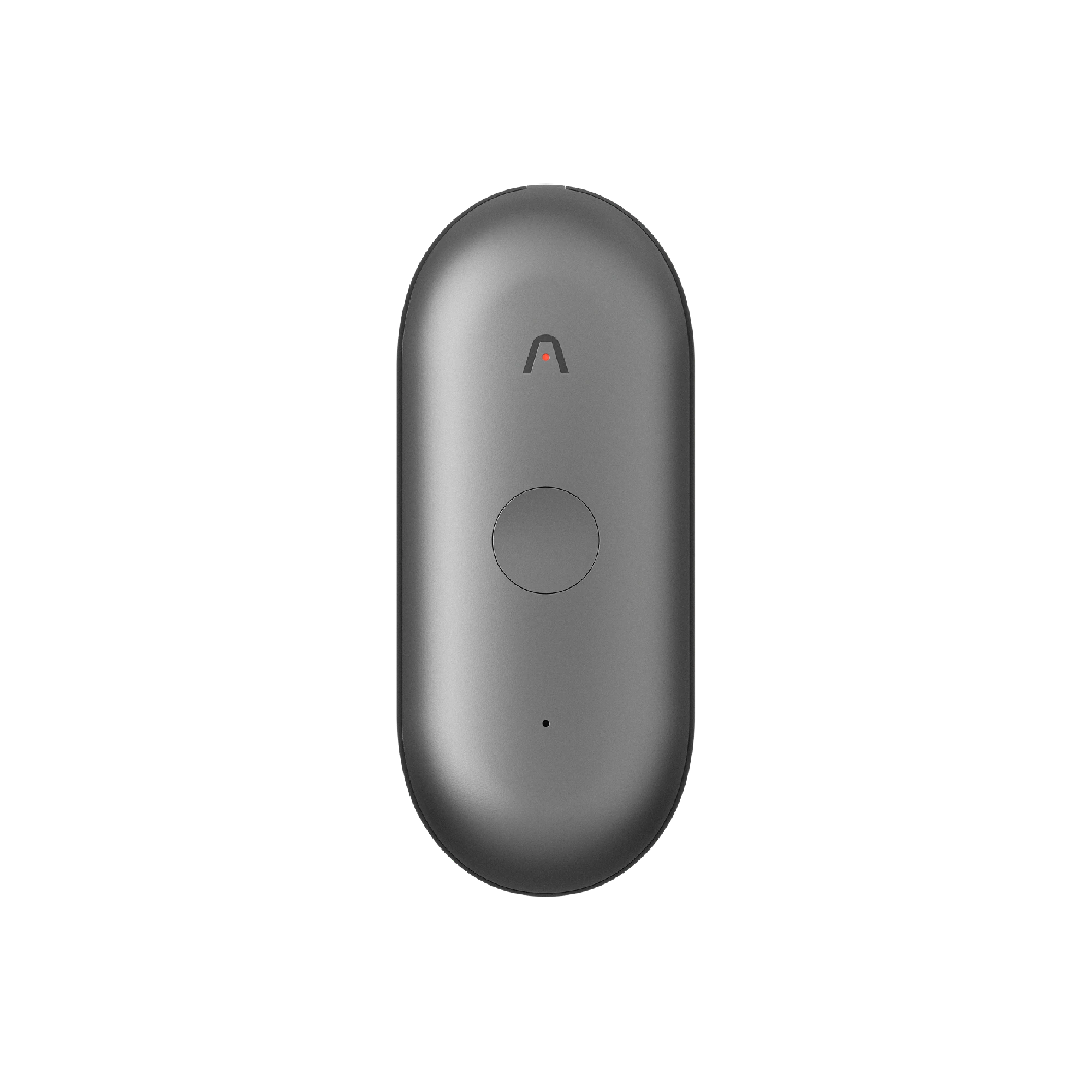
Both of Plaud’s recording options capture Discord call audio without a bot and without depending on Discord’s servers.
Plaud Note Pro
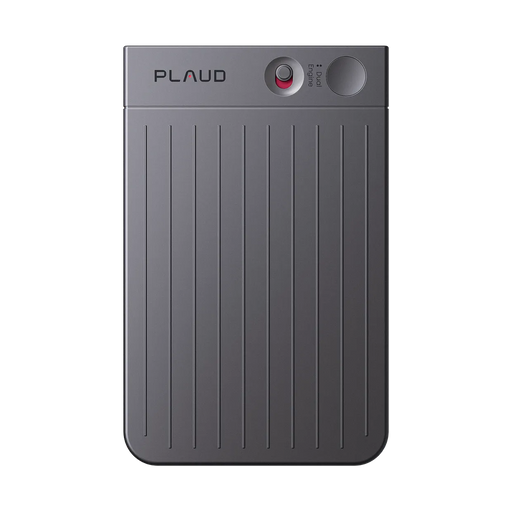
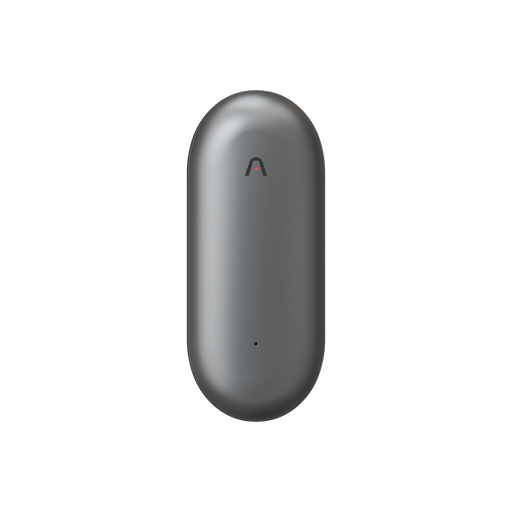
Plaud Note Pro is a physical AI note taker that records audio independently of any bot, software, or internet connection. Place it near your speakers or hold it against your phone’s earpiece before the call. Press the button to start. Open the Plaud App when the call ends. The transcript is ready, with each speaker labeled separately. Works in DMs, group calls, and server channels. No active internet connection required during the recording.
Plaud Desktop
If you already have a Plaud account, Plaud Desktop captures your system audio directly without a bot and without hardware. Start a recording in the Plaud Desktop app before the Discord call begins. It works with headphones connected. The transcript and speaker labels are ready in your Plaud account when the call ends.

For a full comparison of approaches, hardware vs software for meeting recording covers how the two methods compare for different call types.
If recorded conversations contain client or confidential information, both options are cleared for SOC 2, GDPR, and HIPAA.
 AI note taker Plaud Note Pro Shop Plaud Note Pro
Is it legal to record a Discord call?
Recording a Discord call is legal in most jurisdictions if you notify all participants, but requirements vary by location.
Two obligations apply, and they operate independently. Discord’s Terms of Service require you to notify all participants before recording. Violating this can result in account suspension, independent of what local law permits. Both the platform policy and local law must be satisfied.
In the United States, state recording consent laws divide into two categories (National Conference of State Legislatures, 2024):
All-party consent states (every participant must agree to be recorded):
- California, Florida, Illinois, Massachusetts, Maryland, Michigan, Montana, New Hampshire, Oregon, Pennsylvania, Washington
One-party consent states (only one participant needs to consent, which can be you):
- All remaining US states
For calls involving participants in EU countries, GDPR Article 6 requires a lawful basis for processing voice data. Explicit consent from all participants is the most defensible basis for call recordings.
For more detail on how recording laws apply across different call types, see how to record any conversation.
This is general information, not legal advice. Recording laws vary by jurisdiction. Verify local requirements before recording any call.