
ChatGPT can transcribe audio through three methods in 2026, each with different plan requirements, device limits, and failure points. DIY Whisper pipelines break regularly because the dependencies around them update independently. This article covers which method works for which use case, what the real limits are, and how to get a transcript without maintaining a pipeline.
Can ChatGPT transcribe audio? (The 2026 answer)
Yes. ChatGPT can transcribe audio in 2026, but which method is available depends on your plan and device.
Quick reference by plan:
- Free plan: live dictation only, no file upload
- Plus, Pro, Enterprise: file upload via ChatGPT Record (macOS only) and Whisper API access
- Mobile (any plan): live Voice mode only
Older articles saying “ChatGPT cannot transcribe audio files” reflect the state before 2025. Three methods now exist, each with different requirements and failure points.
Three ways ChatGPT transcribes audio today
The three methods are: live Voice dictation, file upload via ChatGPT Record, and transcription via the Whisper API. Each has different requirements and limits.
ChatGPT audio transcription methods compared (2026)
Sources: OpenAI ChatGPT Record Help Center; OpenAI Whisper API documentation; Radford et al., 2022 for Whisper language coverage.
Method 1: Live Voice dictation
- Open ChatGPT on any device with a microphone.
- Tap the microphone icon in the chat input.
- Speak. The transcript appears in the chat window as you go.
Method 2: ChatGPT Record (macOS, Plus/Pro/Enterprise)
- Open the ChatGPT macOS desktop app.
- Click the Record button in the interface.
- Speak or play audio near the microphone. ChatGPT saves a structured summary to a Canvas document when you stop.
Note: ChatGPT Record produces a summary, not a verbatim word-for-word transcript. For the current feature set and plan requirements, see the OpenAI ChatGPT Record Help Center.
Method 3: Whisper API
- Get an OpenAI API key from platform.openai.com.
- Upload your audio file to the Whisper endpoint via the API or a supported tool.
- Receive a JSON transcript in return.
For a broader look at tools that use Whisper and similar models, AI tools to transcribe audio to text compares the options across accuracy, price, and ease of use.
The actual limits you will hit
ChatGPT Record is macOS-only, requires a paid plan, and produces a summary rather than a verbatim transcript of a full meeting.
Real limits by method (all sourced from official documentation):
Live Voice dictation:
- Stops when you stop speaking and cannot process a pre-recorded audio file
- No multi-speaker identification
- No stored file input. Suitable for real-time dictation, not post-meeting transcription.
ChatGPT Record:
- macOS desktop app only, does not work on Windows or iOS
- Requires Plus, Pro, or Enterprise plan
- Output is a Canvas summary, not a verbatim transcript. Not suitable for exact quotes or speaker attribution.
Whisper API:
- 25MB maximum file size per request (OpenAI Platform Docs)
- No speaker diarization in the base model. All speech appears as one continuous transcript (Radford et al., 2022).
The 25MB file size limit is frequently underestimated. A 60-minute meeting recorded at 128 kbps MP3 produces approximately 57.6MB (128 kbps x 3,600 seconds / 8 bits per byte / 1,000,000 \= 57.6MB). That exceeds the limit by more than double. Splitting files before upload adds a step that most consultants and project managers do not want to maintain.
None of the three methods produce multi-speaker transcripts with speaker labels out of the box. A 90-minute client meeting with four people is the most common use case, and all three methods require extra steps or extra tools to attribute speech to individual speakers.
For a guide on getting clean, searchable output from audio, how to convert audio to text with clean notes covers the process in detail.

Why DIY Whisper setups keep breaking
The most popular workaround, a local Whisper installation or custom Python script, breaks regularly because it depends on a stack of components that update independently.
Common failure points:
- Python version conflicts when the OS or a package updates
- OpenAI library deprecations (the openai Python package has had multiple breaking API changes)
- ffmpeg installation and path issues on macOS and Windows
- API key expiry or rate limit changes from OpenAI
- Whisper model version changes that alter output format
The model itself is not the issue. Radford et al. (2022) documented Whisper achieving a 5.0% word error rate on LibriSpeech test-clean, which is human-competitive accuracy on clear English speech. The problem is the infrastructure around it: a DIY pipeline strings together half a dozen dependencies, and when any one of them changes, the whole thing stops working.
“My Whisper setup broke constantly and I spent more time fixing it than using it.” — r/ChatGPTPro user
There are two types of people who run DIY Whisper pipelines: engineers who enjoy the project, and professionals who wanted meeting notes and ended up with a weekend maintenance job. These are different use cases that need different tools.

A transcription workflow that does not need debugging
For professionals who record in-person meetings and want a transcript without configuring a pipeline, a dedicated hardware recorder handles capture and transcription in one device and connects directly to ChatGPT.
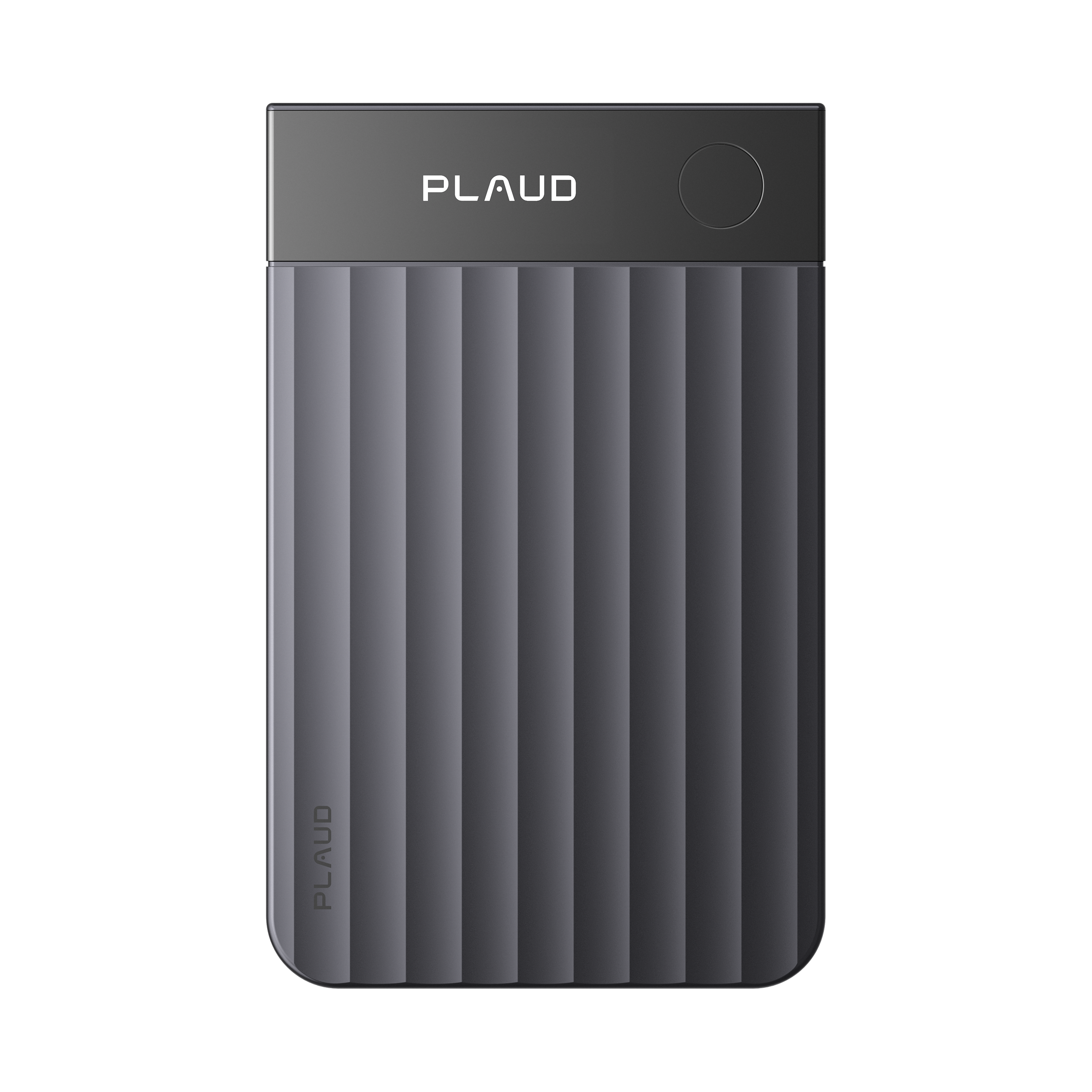
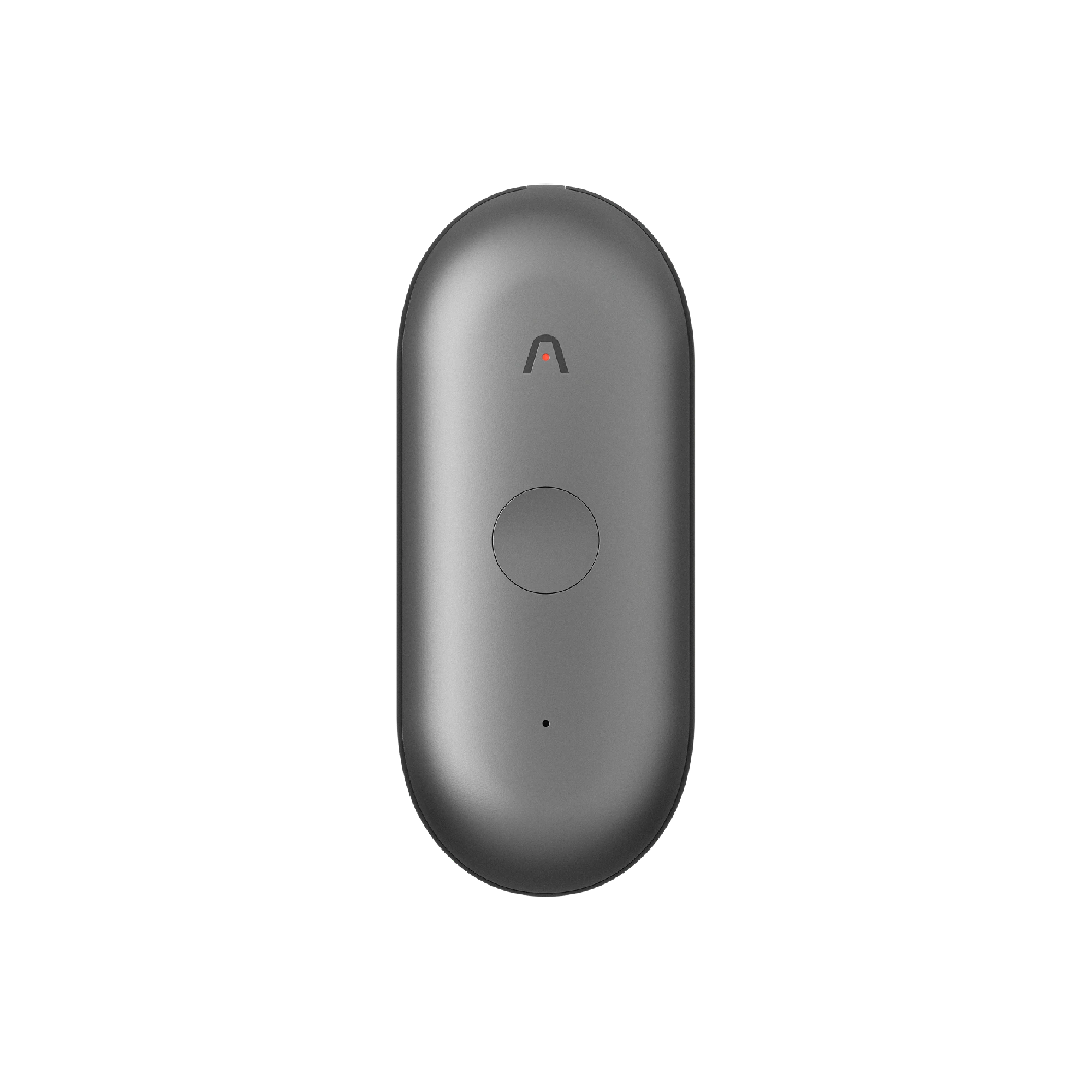
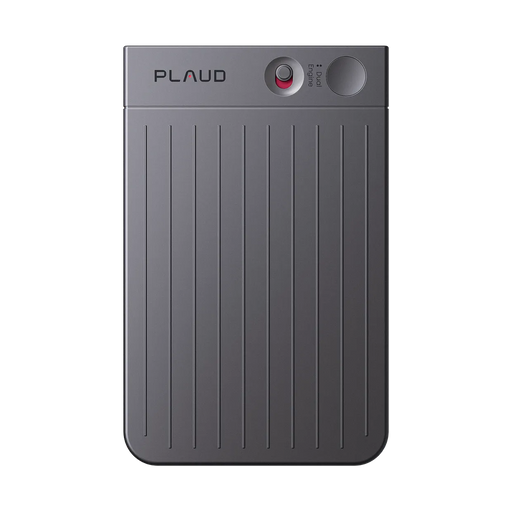
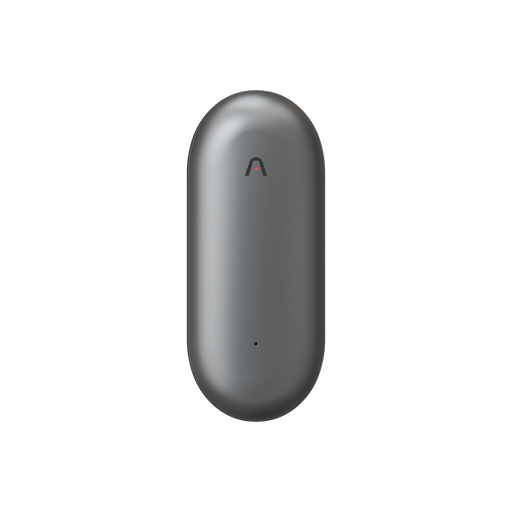
Plaud Note Pro is a physical AI note taker that records in-person meetings, generates a multi-speaker labeled transcript in the Plaud App, and connects directly to ChatGPT via the Plaud MCP.
Step 1: capture
Record the meeting with Plaud Note Pro. Leave it on the table. It picks up everyone in the room. Open the Plaud App after the meeting. The transcript is ready, with each speaker’s turns labeled separately.

Step 2: analyze in ChatGPT
Open chatgpt.com, go to Apps in the left sidebar, search “Plaud,” and connect with your Plaud credentials. ChatGPT can now list your recordings, pull full transcripts with timestamps and speaker labels, and retrieve AI summaries with action items, all directly inside ChatGPT.
Ask ChatGPT “summarize my meeting from Tuesday” or “what action items came out of last week’s client call.” It retrieves the transcript and answers. The Plaud MCP server is hosted in the US. Transcript data passes through but is not retained after the request completes.

What Plaud replaces in the DIY pipeline:
- Voice Memos recording replaced by Plaud Note Pro capture
- Whisper API + Python transcription replaced by Plaud’s built-in ASR with speaker labels
- Manual file export and paste into ChatGPT replaced by the Plaud MCP connection
ChatGPT remains the analysis tool and becomes more useful because it now has the actual meeting transcript retrieved automatically.
The Plaud MCP also works with Claude Desktop, Claude Code, Cursor, and VS Code. ChatGPT Web and desktop clients are supported. The ChatGPT mobile app is not.
For meetings with participants’ data, verify that your recording workflow complies with applicable recording consent laws in your jurisdiction.
For more on the end-to-end workflow, how to record and transcribe in-person meetings covers the full process.