
As a project manager, I’ve learned that tools aren’t just for keeping order. They decide whether the work holds together or falls apart.
My days often start with status updates, followed by chasing team members, patching miscommunications, and redoing slides because some exec wants a different format. By noon, most of my time has gone into fixing small gaps instead of leading the project. That’s the real cost of not having the right support system.
In this piece, I’ll share the main problems project managers face, what good tools should fix, and how choosing software can ease the unseen weight of project work.
What are productivity tools for project managers
The term covers a lot of ground. Every project manager uses some kind of tool, but the goal isn’t just to track tasks. It’s to make sure people, deadlines, and updates all stay visible without constant reminders.
When we talk about productivity tools for project management, we mean anything that takes routine coordination off your plate. That could be software that sends reminders, updates dashboards automatically, or keeps notes from meetings where everyone can find them.
Some of these tools help with broad workflows, while others solve smaller but painful gaps, like keeping version history straight or showing who’s waiting on whom. The right mix depends on how your team works and what tends to fall through the cracks.
In short, a productivity tool for a project manager should help you spend less time explaining where things stand and more time moving them forward.
How to select tools that fit your project management workflow
Too many tools sell you the dream of being all-in-one. That has burned me.
ClickUp looked great until I had to build three custom dashboards to get basic reporting, and realized it didn’t support nested folders the way my WBS required. Notion lets me do everything, but I spent more time setting up databases than managing the team.
Before picking a tool, I now ask myself a few simple questions.
- Where am I wasting time?
- What do I keep doing manually?
- Where do problems hide until it’s too late?
Once I know those answers, I map my workflow to the tool. I don’t start with features. I start with what hurts most.
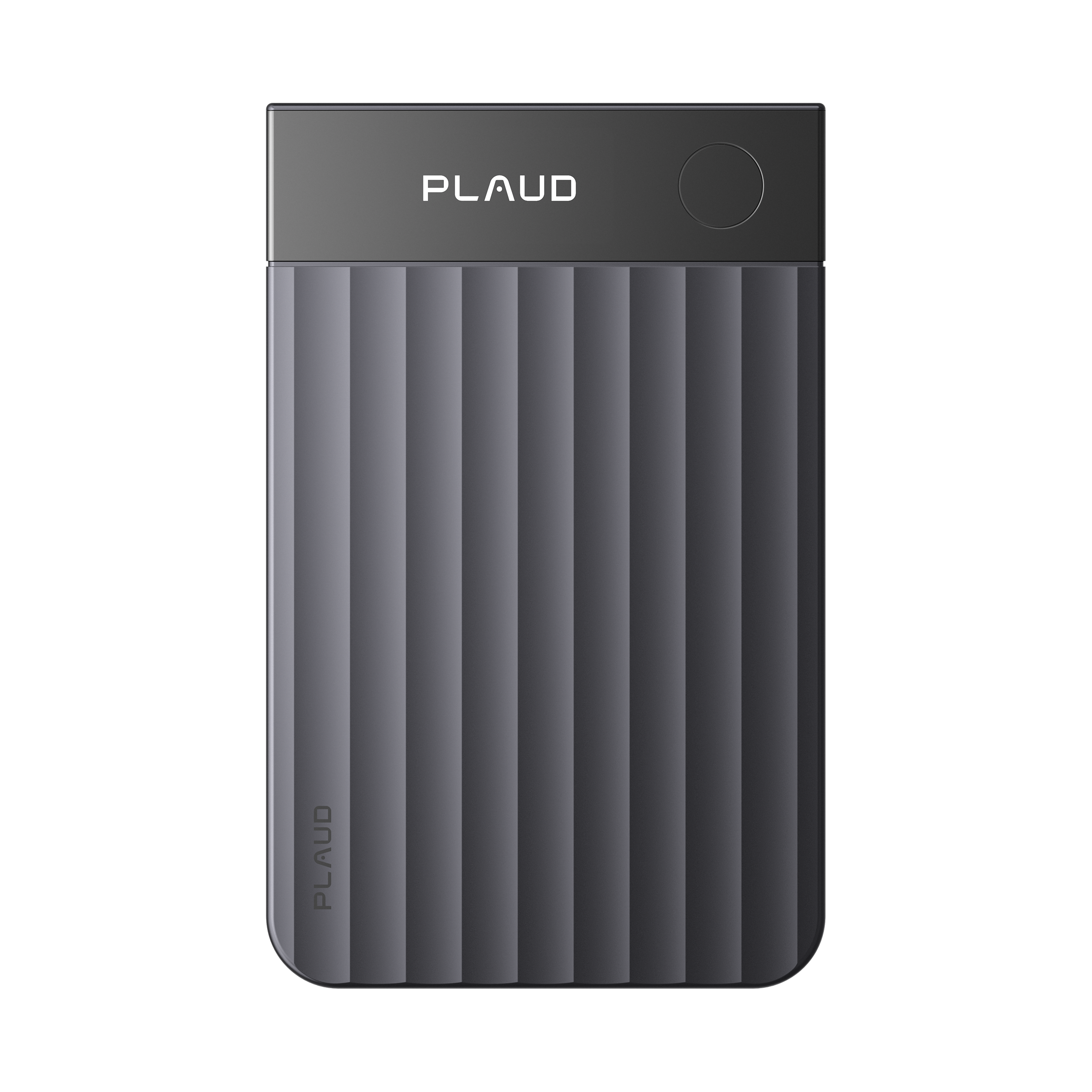
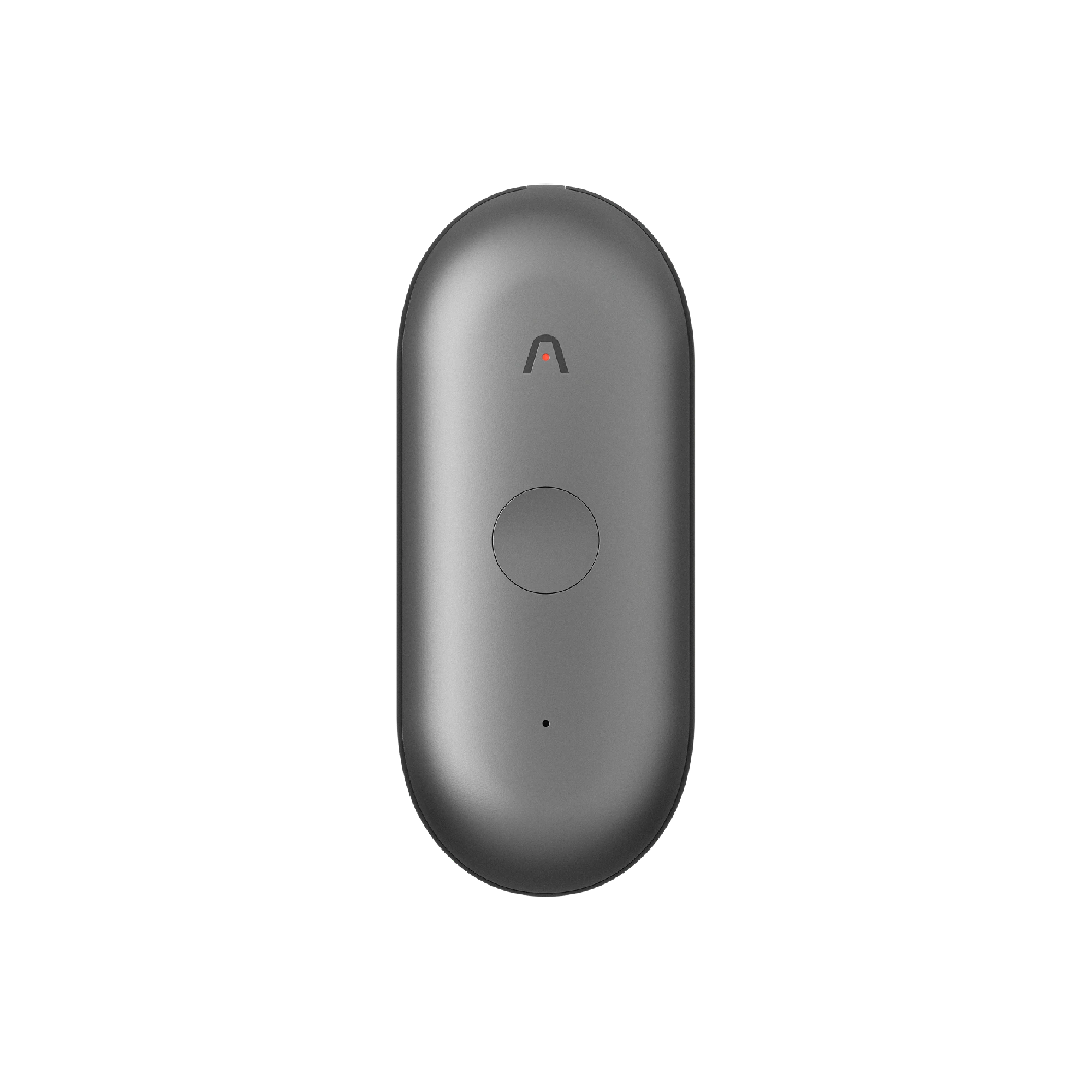
For example, if meetings are where my projects go off track, I’ll focus on tools that help capture and follow up on what’s said. That’s where Plaud Note helps. I take this AI note taker, press once to record, and get a shareable summary sent to my inbox. It’s discreet and lets me focus on the discussion instead of scrambling to take notes.
The best productivity tools for project managers
Below are six categories I’ve worked with directly. These are the tools that either helped or slowed me down, and why.
1. Tools to capture ideas, initial thoughts & meeting transcriptions
Most projects don’t fall apart in execution. They fall apart in the first ten minutes of a meeting when a critical detail is missed or misremembered. I’ve been there. That’s why capturing conversations clearly, especially early on, is non-negotiable.
Plaud

Plaud Note is my go-to AI note taker when meetings start to blur together. One tap records the call and later gives me a clean, timestamped transcript with labeled speakers. It keeps things clear without turning follow-ups into blame sessions.
Key features:
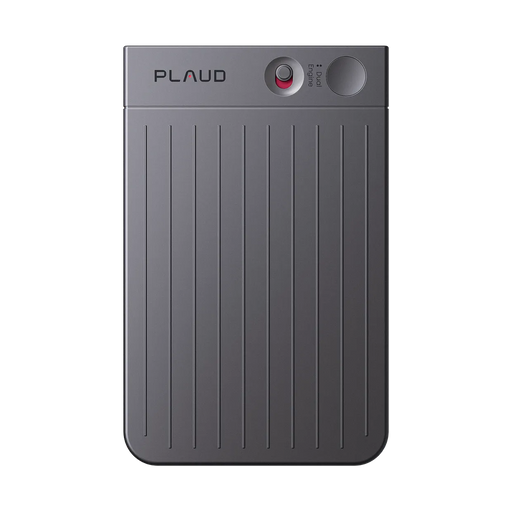
Dual-mode capture handles both phone and in-person meetings. Recordings are processed into summaries and transcripts by Plaud Intelligence. Storage capacity reaches 64GB with 30 hours of recording time.
Pros:
Recording starts instantly. The AI generates a sharp summary, and the playback interface is easy to scan. I don’t lose ideas while taking notes.
Cons:
You need the subscription to unlock transcription and summaries. The device pairs with only one phone at a time, which makes group handoffs clunky.
Pricing:
Device-only starts at $159. The Pro bundle, including one year of AI services, is $258.99. The Unlimited plan, which removes usage caps, is $398.99 per year.
2. Task & project management tools
You can’t manage what you can’t see. That’s why I care less about how a platform looks and more about whether it shows me what’s slipping.
Notion

Notion has worked well for me when structure and knowledge sharing are priorities. I’ve used it to build dashboards, assign tasks, and keep wikis tied to execution. But I’ve also spent hours debugging table filters.
Key features:
Supports relational databases, documents, and custom workflows in a single workspace. AI features are locked behind the Business plan and include writing help and smart summaries.
Pros:
Works as both a task manager and a knowledge base. Permissions and private team spaces are solid. It scales well once set up.
Cons:
Setup takes time. Reporting tools are limited unless you build them manually. AI access is limited unless you pay for the Business tier.
Pricing:
Business plan costs $20 per user per month, billed annually. This is the only tier with full AI access and enterprise security features, such as SSO.
Clickup

ClickUp has helped me with faster-moving projects, especially when I need to collaborate with external partners or clients. It doesn’t look as sleek, but it gets out of the way and lets the work flow.
Key features:
Includes unlimited dashboards, custom fields, time tracking, and whiteboards. The business tier includes Google SSO and 10 guest seats per paid user.
Pros:
Extremely cost-efficient. Guest access makes it ideal for agencies or distributed teams. Automations are more intuitive than Notion’s.
Cons:
Interface can feel dense. Some features are hidden in menus. AI is not fully integrated at all levels.
Pricing:
The business plan is $12 per user per month, billed annually. You get solid value, especially if you work with contractors or external teams.
3. Collaboration & communication tools
Every missed message costs time. I’ve lost hours chasing someone for a quick update that was lost in an email chain. Communication tools don’t just need to be fast. They need to be structured enough to keep important info findable.
Slack

Slack is the tool I rely on when I need tight loops between teams. It’s not cheap, but the integrations with project tools and calendars help me centralize updates without adding meetings.
Key features:
Channel-based chat with file sharing, AI-powered search, and deep integrations with platforms like Salesforce. Higher tiers include enterprise-grade governance.
Pros:
Fast messaging, responsive interface, and great search. Threaded replies keep conversations manageable. Works across desktop and mobile without issue.
Cons:
Noisy if overused. Takes discipline to avoid channel sprawl. Premium features require higher-tier plans.
Pricing:
The Pro plan is $7.25 per user per month when billed annually. Enterprise tiers cost more but unlock additional AI and compliance features.
Discord

Discord works well for informal teams or creative groups. I’ve used it in side projects where voice clarity and quick collaboration matter more than formal structure.
Key features:
Voice-first channels with video streaming, screen sharing, and custom user roles. Nitro upgrades improve upload limits and streaming quality.
Pros:
Excellent voice quality. Great for brainstorming or creative reviews. Free tier is generous.
Cons:
Not built for business workflows. Missing enterprise controls like audit trails or SSO. Hard to link actions back to tasks.
Pricing:
Free by default. Nitro plan is $9.99 per month or $99.99 per year for one user. Most teams will only upgrade for file size or streaming features.
4. Scheduling & time management tools
Managing time is more than just blocking off hours. It’s about knowing when things will happen, spotting conflicts early, and adjusting without wrecking the whole plan. I've used dozens of calendars and to-do tools, and most of them break when applied to real projects.
Todoist

Todoist works well when I need to track individual tasks or quickly list priorities. But I’ve hit limits when trying to manage dependencies or team workloads. It works better as a personal planning tool than as a full project management layer.
Key features:
Supports due dates, recurring tasks, labels, and priority levels. Integrates with Gmail, Slack, and other major tools.
Pros:
Fast, lightweight, and easy to adopt. Good for personal task hygiene and habit building.
Cons:
Lacks task duration tracking, cost estimates, and advanced reporting. No support for Gantt charts, critical path tracking, or team resource planning.
Pricing:
The Pro plan is $4 per month, billed annually. Business plan is $6 per user per month and includes admin tools.
Google calendar

Google Calendar is usually where time gets visualized, but its task layer feels like an afterthought. I’ve had issues marking task durations or sharing assignments across teams. It’s decent for scheduling but not built for full-scale tracking.
Key features:
Offers visual scheduling, time blocking, and reminders. Integrates with other Google Workspace tools.
Pros:
Everyone has access. Easy to share calendars across teams and organizations.
Cons:
Google Tasks lacks category colors. You can’t mark tasks complete directly on the calendar view. No support for durations or cross-account task sharing.
Pricing:
Included with Google Workspace. Business plans start at $6 per user per month.
5. Research & information processing
Sometimes the hardest part of a new project is figuring out where to start. When I’m dropped into unfamiliar territory, I need tools that go beyond basic search.
Perplexity

Perplexity has become my preferred tool when I need sourced information quickly. I’ve used it to scan industry data, technical standards, and vendor backgrounds without clicking through 10 tabs.
Key features:
Uses a search-plus-AI model that pulls verified sources into summarized answers. Offers citations inline.
Pros:
Fast, accurate, and focused. Reduces time spent verifying facts. Helpful for risk research and early scoping.
Cons:
Still requires critical thinking. Not great for nuanced stakeholder analysis or opinion-heavy topics.
Pricing:
Free tier available. Pro starts at $20 per month with priority access to new features.
Chatgpt

ChatGPT is still my go-to for internal synthesis and brainstorming. It helps me draft reports, rewrite updates for different audiences, and even prep stakeholder comms.
Key features:
Conversational assistant powered by a large language model. Integrates with plugins and custom tools.
Pros:
Flexible and fast. Works well for writing, summarizing, and converting meeting notes into formal updates.
Cons:
Can produce hallucinated answers if not prompted carefully. Struggles with specific technical accuracy or sourcing.
Pricing:
ChatGPT Pro is $20 per month. GPT-4 with tools (e.g., browsing, file uploads) is included.
6. Design & creative tools
Project managers aren’t designers, but we still need to present work clearly, whether it’s a stakeholder update, a risk summary, or a roadmap. Good visuals can make or break how your message lands.
Canva

Canva helps me when I need something that looks polished without starting from scratch. I’ve used it to build decks, social assets, and internal updates that looked like I spent hours when I didn’t.
Key features:
Template-based design platform with drag-and-drop editing, real-time collaboration, and presentation mode.
Pros:
Easy for non-designers. Speeds up internal updates and pitch decks. Mobile access is solid.
Cons:
Some clients see it as too lightweight or unprofessional. Limited version control. Not ideal for high-stakes enterprise visuals.
Pricing:
Free for individuals. Pro plan is $14.99 per month with access to premium templates and brand kits.
Midjourney

Midjourney is something I use sparingly but strategically. For creative teams or early-stage concept work, it helps translate ideas into visuals before committing to design.
Key features:
AI image generation based on text prompts. Hosted via Discord. Offers upscaling and variation options.
Pros:
Delivers fast, compelling concept art and creative visuals. Great for mood boards and ideation.
Cons:
Requires prompt crafting skill. Not useful for structured formats like presentations or reports.
Pricing:
The basic plan is $10 per month. Pro plans go up to 60, depending on rendering needs.
Conclusion
Project management is mostly the work no one sees. If a productivity tool doesn’t take some of that weight off, it’s not doing its job. I’ve stopped chasing all-in-one promises.
Instead, I use what’s proven. Tools that help me catch details early, track real progress, and make sure decisions don’t get lost. If it doesn’t make the day easier, I cut it.
FAQ
How do productivity tools help businesses?
In my experience, good tools take repetitive work off people’s plates. They reduce back-and-forth, keep priorities visible, and help teams avoid silent delays. That saves time and protects project margins.
Are there free productivity tools available?
Yes, but most come with limits. I’ve used free tiers of Notion, ClickUp, and Slack. They work well solo or with small teams, but once real coordination kicks in, most of them hit a wall.
How do I choose the right productivity tool for me?
I always start by asking where the friction is. If meetings are messy, I use something like Plaud to capture them. If tasks fall through the cracks, I look at ClickUp or Notion. The tool should fix your actual problem, not create a new one.