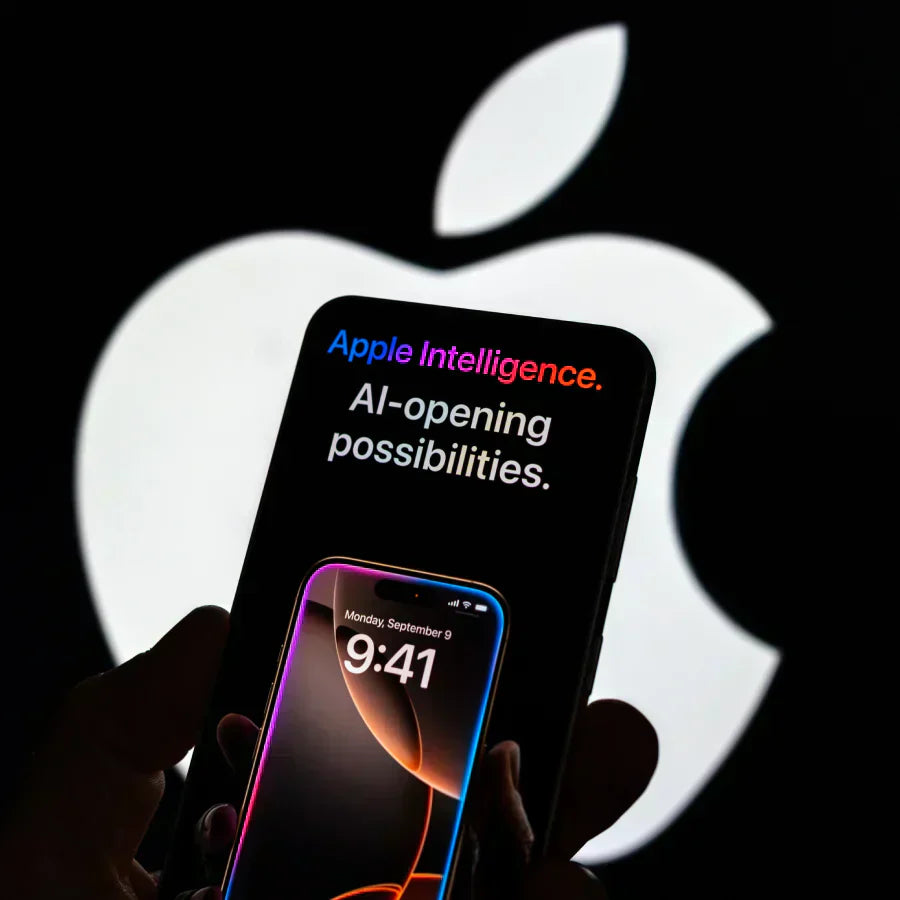

Apple has shipped many updates in the last year. The visual changes in iOS 26 get most of the attention, but Apple Intelligence is the part that can quietly change your daily workflow.
Most of this runs on your device or on Apple’s servers built on Apple silicon, with strong privacy protections in place. So I treat Apple Intelligence as a quiet helper for reading, writing, and organising, not a flashy new app to learn.
You finally get something close to “a built-in ChatGPT” that lives in your iPhone, iPad, and Mac instead of a separate app.
In this guide, you will learn:
- What Apple Intelligence actually does inside your apps
- How to check if your device supports it
- The core features worth using every day
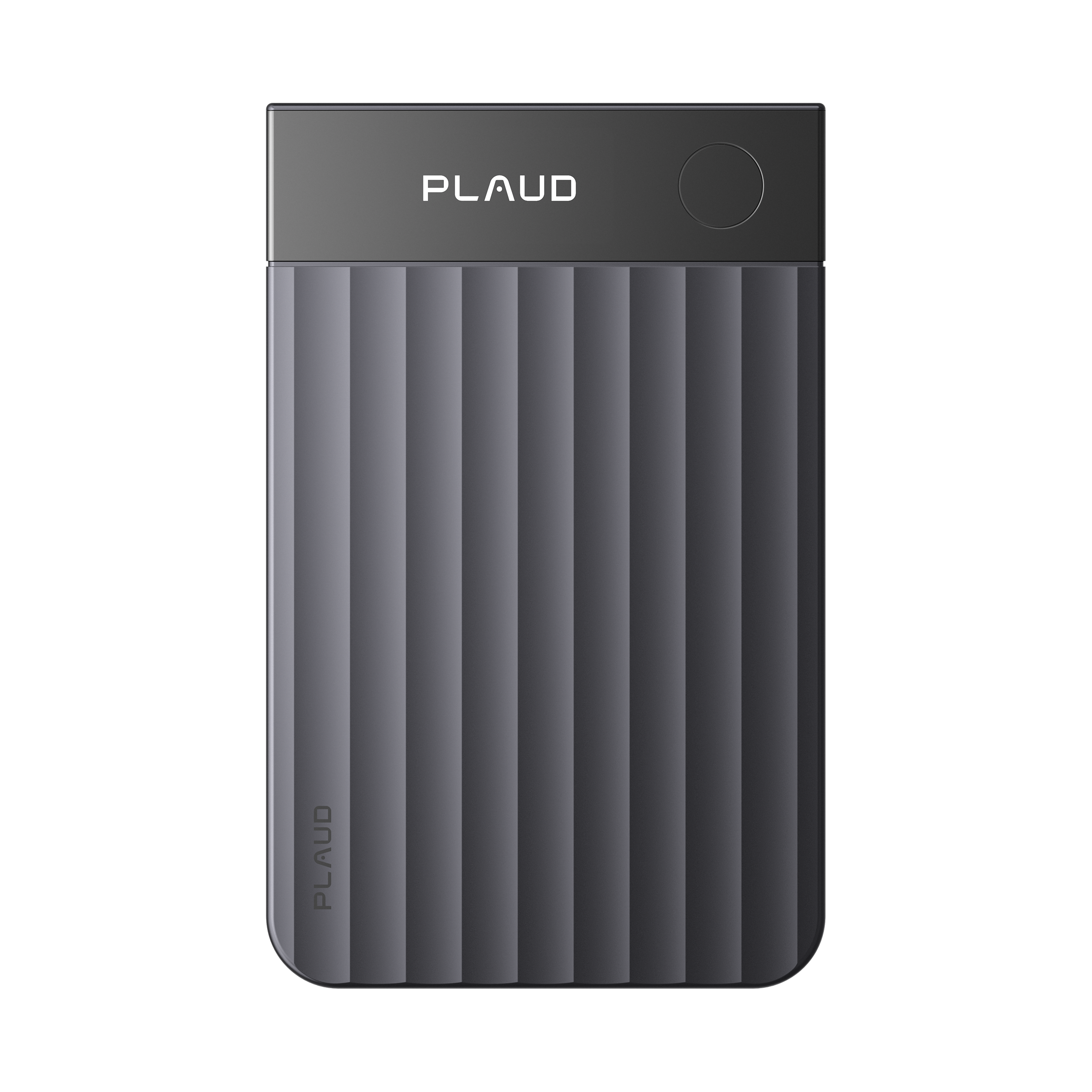
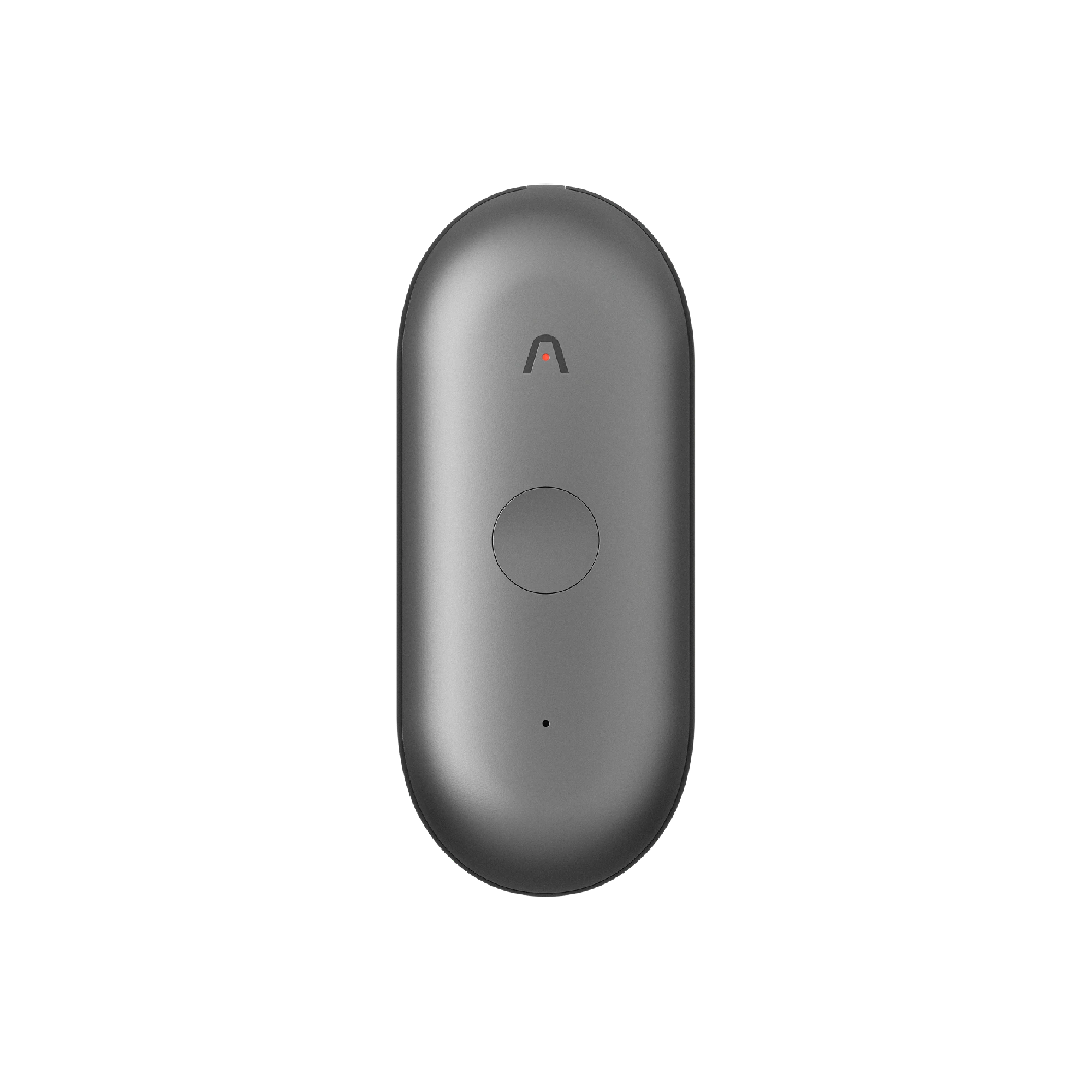
- How it works together with a dedicated note taker like Plaud Note Pro
- What is Apple Intelligence
What you need before using Apple Intelligence?
Before you hunt for new buttons, check that your device supports Apple Intelligence.
You need:
- An iPhone 15 Pro model, an iPhone 16 model or later, or an iPad / Mac with Apple silicon (M1 or newer, or A17 Pro on iPad mini)
- The latest software version after: iOS 18.1, iPadOS 18.1, or macOS Sequoia 15.1
- A supported language such as U.S. English
If Apple Intelligence menus never appear, most of the time the issue is one of those three.
To skip guesswork, go straight to Apple Support and search for “How to get Apple Intelligence”. Apple keeps an up-to-date list of supported devices, OS versions, regions, and a short setup checklist. That is faster than tapping through every Settings screen, hoping the feature appears.
How to use Apple Intelligence? Features you need to know
Apple showed a lot of cool demos, but in day-to-day use, only a few features really stick. For most people, these are the ones that deserve space in your routine.
1. Mail and Safari summaries bring clarity to your inbox
In Mail, long newsletters and project updates get a short AI preview at the top, and you can tap Summarize inside the message if you want a bit more detail. In Safari, I turn on Reader, hit Summarize, and decide in ten seconds whether an article deserves a real read or a close tab. Notes even add summaries above audio recordings, so you don’t have to replay a whole call to remember the outcome.

Where this still breaks down is anything that never reaches the screen. Many of my important conversations happen in in-person meetings or quick 1:1s, where I don’t want to fiddle with the Notes UI.
In those cases, I use Plaud Note Pro as my AI note taker and let it record in the background. Later, I will use Ask Plaud to ask, for example, “What did we agree on for the Q4 launch timeline?” instead of scrolling through chats and threads.

2. Writing Tools streamline your text across apps
The Writing Tools menu shows up in places like Mail and Notes and quietly takes the edge off writing.
I use Compose when I only have a one-line idea, Rewrite when I need a friendlier or more formal tone, and Proofread when I’m tired and don’t trust my own eyes.
My rule is simple: paste in rough bullets or a messy draft, let Writing Tools shape it, then do one last human pass before sending.

3. Visual Intelligence and Photos solve real-world image tasks
In Photos, Clean Up takes care of small annoyances like cups on tables or strangers in the background, so you don’t need a separate editing app for simple fixes.
Smarter search lets you type things like “whiteboard from last workshop” or “golf swing” instead of digging through albums by date.

On newer iPhones, it can also recognise products, food, or signs for quick lookups and translation. It is handy when you are travelling, collecting reference material, or trying to remember which product you saw in a meeting room last week.
4. Siri + ChatGPT integration responds to complex queries
With Apple Intelligence enabled, Siri is better at device help and less vague in its answers. I use voice or type to Siri for things like “show me how to change my default browser” or “open the file we worked on yesterday”.
I let ChatGPT handle bigger questions when I’m stuck on trip planning or need a few angles for a presentation. I treat those answers as draft ideas, not something to copy straight into a doc.
5. Smarter notifications and reminders reduce distraction
Notifications are now grouped and summarised more intelligently, so a busy chat thread looks like a short digest rather than a wall of banners. When I need to focus, Reduce Interruptions lets only important alerts through and parks the rest, which reduces the “I picked up my phone and disappeared for ten minutes” problem.
6. Apple Intelligence converts text into organised tasks in Reminders
In Reminders, Apple Intelligence can pull tasks out of emails, web pages, or notes you share into a list. Then it will auto-categorise them into sections like Work or Personal, so it is not one giant slab of text.

This part makes me especially happy as a Plaud Note Pro user.
The AutoFlow feature always sends meeting action items to my inbox automatically. But now, Apple Intelligence detects the tasks inside emails and sorts them. Finally, I get a clean, structured list instead of copying everything by hand.

Conclusion
Apple has quietly turned a bunch of everyday actions into something less painful. You don’t “use Apple Intelligence” as a big feature. You start seeing summaries where there used to be walls of text, writing tools where there used to be empty boxes, and calmer notifications where there used to be chaos.
If you stick to a few core features and build small habits around them, Apple Intelligence feels less like a tech demo and more like a background upgrade to how you read, write, and keep up with work.
FAQ
What can you actually do with Apple Intelligence?
You can let it skim long emails and articles so you only read what matters. You can turn rough notes into clear replies or summaries without starting from a blank screen. You can tidy and find old photos by describing what is in them. In short, it helps you get through your inbox, reading, writing, and basic organisation faster, so you have more energy left for the actual work.
Is Apple Intelligence free to use?
Yes. There’s no extra Apple subscription for it. You need a supported iPhone, iPad, or Mac with the right software version. If you connect services like ChatGPT, those may have their own paid plans.
Does Apple Intelligence drain the battery?
Intensive AI features can hit the battery a bit, especially right after an update when the system is doing background work. If you notice a big drop, trim it back to the features that clearly save you time and turn the rest off in Settings.