
Ready to get the most out of your new Plaud Note Pro? You are in the right place.
This guide will show you exactly how to set up your device, capture meetings, and use AI to transform your messy conversations into organized, actionable notes.
Let's get to it.
What is Plaud Note Pro
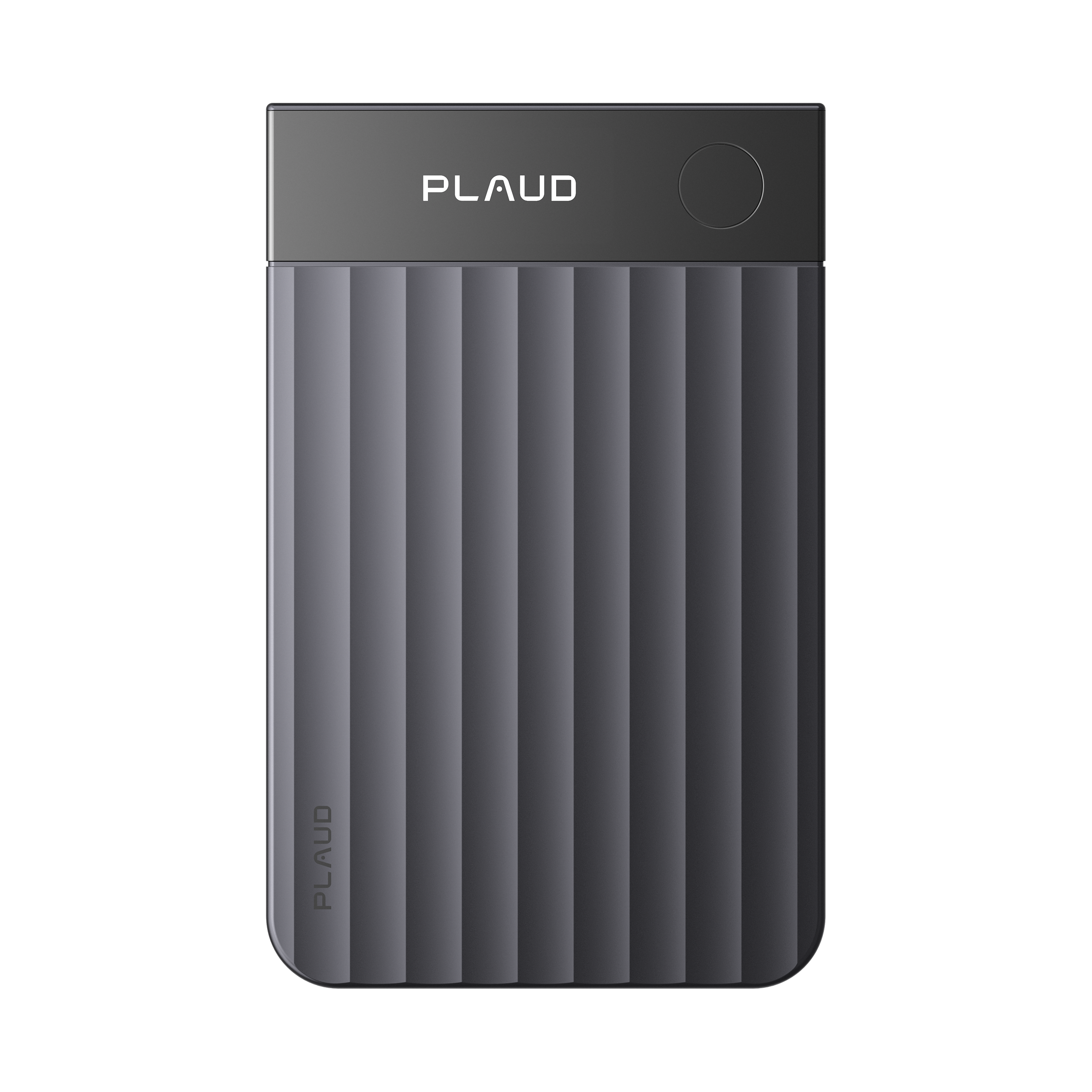
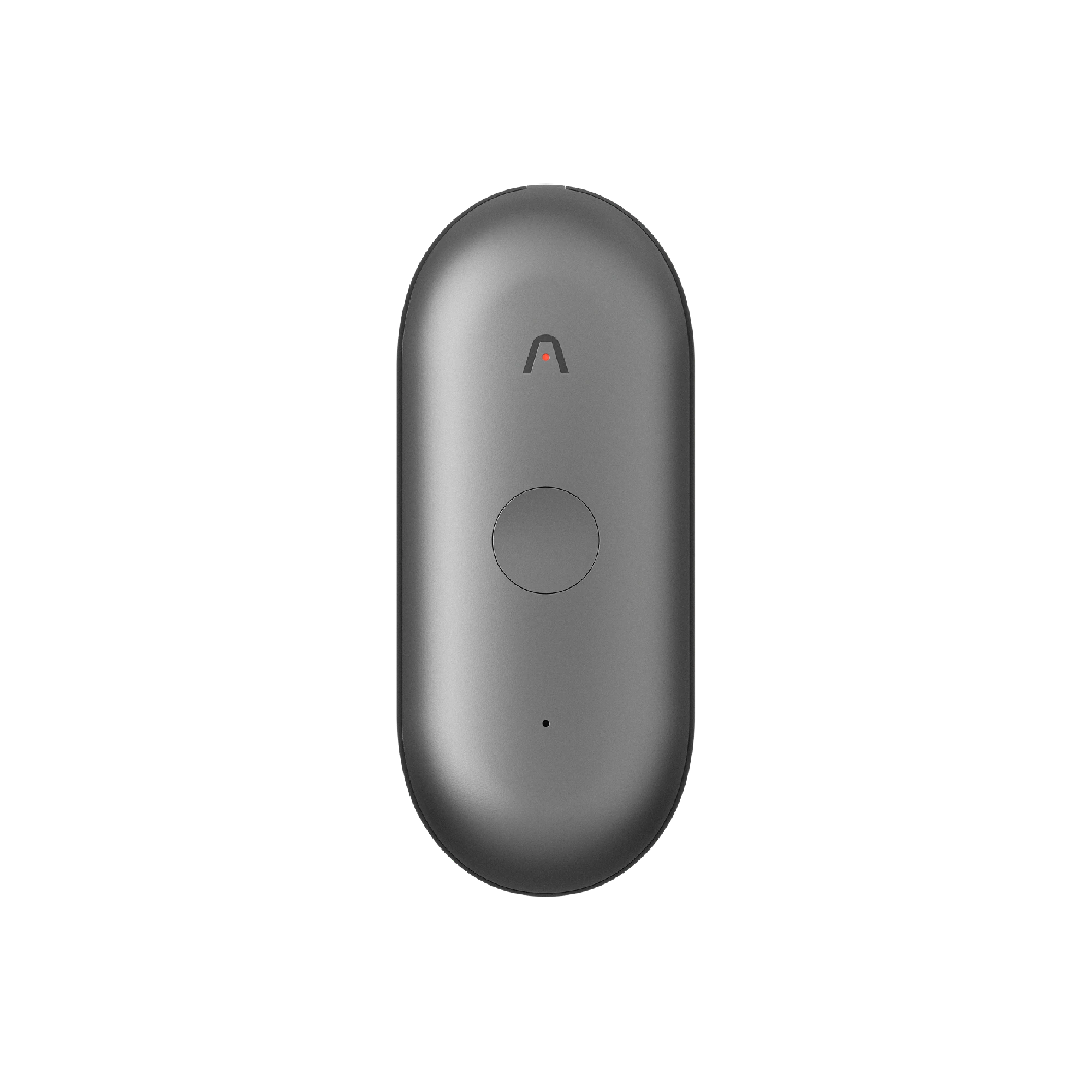
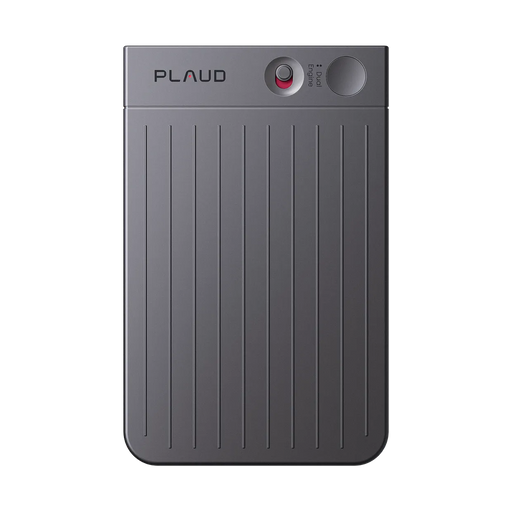
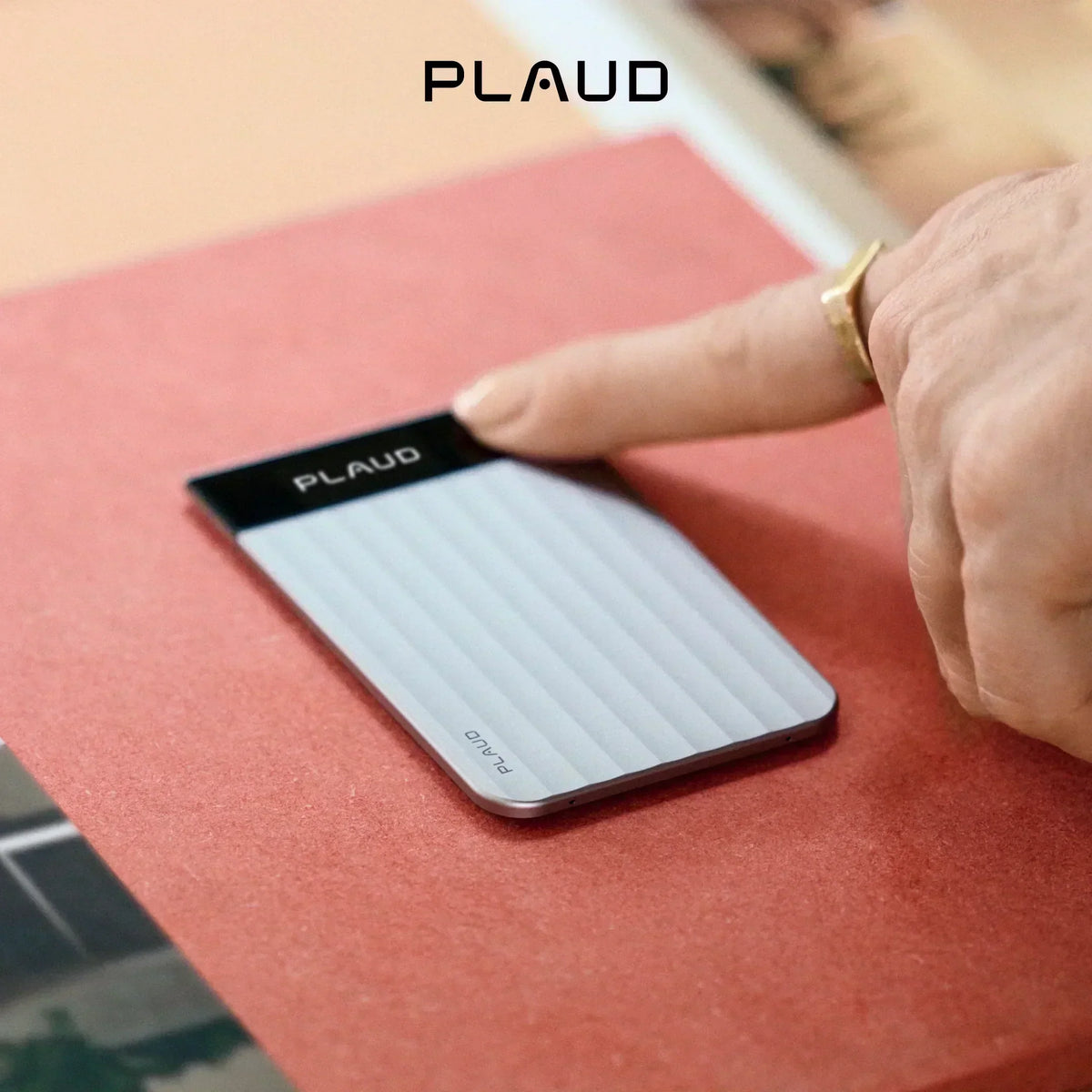
Plaud Note Pro is an advanced credit-card-sized AI note-taker. We designed it specifically for professionals who need to capture, organize, and actually utilize their meeting insights.
It’s built for business leaders, consultants, salespeople, and professionals who are tired of manual note-taking.
Instead of scrambling to write down every word, you just let the device do the heavy lifting. It captures the audio and automatically transcribes it with up to 98% accuracy. Then, it uses advanced AI to generate structured summaries and action items.
How to set up Plaud Note Pro
Setting up your Plaud Note Pro is incredibly fast. You can get it done in just a few minutes.
If you prefer watching over reading, check out this complete quick-start video right here:
Still with us?
If you're a skimmer or need a quick text refresher, here is the exact breakdown of what you need to know to get started.
What's in the box?
Inside your package, you will find the essentials:
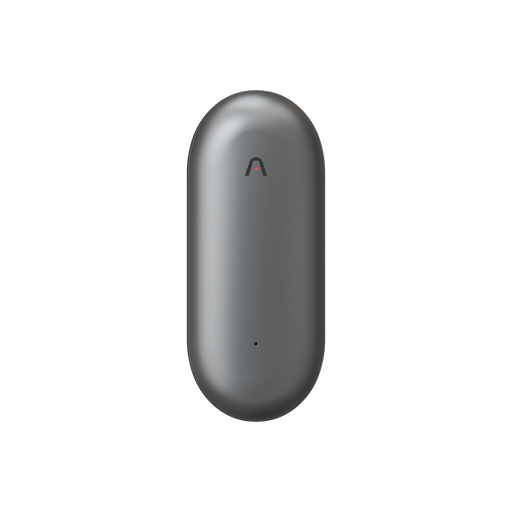
- The Plaud Note Pro device: Your new pocket-sized meeting assistant.
- A magnetic MagSafe case: For snapping the device right to the back of your phone.
- A MagSafe ring: Just in case you're an Android user or don't have a MagSafe phone (we won't leave you out).
- A USB-C charging cable: To keep your device powered up for back-to-back meetings.
How do you charge and attach it?
You charge the device using the included USB-C cable.
To attach it, snap the MagSafe Case directly to the magnetic back of your iPhone. If you don't have a MagSafe phone, don't sweat it. Just stick the included MagSafe Ring to the back of your phone to enable the magnetic feature.
Bind your device
Next, download the Plaud app on your smartphone and follow the on-screen instructions to bind your device via Bluetooth 5.4.
Before you record your first meeting, be sure to update your firmware right away. If you skip this step, you'll miss out on the latest AI capabilities that make this tool so powerful.
How to use Plaud Note Pro at work: turning conversations into actionable insights
Now that you've got your device set up, it's time to put it to work. Here is how you seamlessly fit it into your daily workflow without causing distractions.
Step 1: Capture professional conversations intentionally
There is more than one way to capture audio with Plaud. But our top recommendation is using your new AI note-taking hardware.
The device also features a smart dual-mode to adapt to your environment.
When you need to record a phone call, attach the Note Pro to your phone in the MagSafe case. If your phone does not have a magnet back, stick the included MagSafe ring to your phone. The built-in sensor automatically switches to call recording mode to capture both sides of the conversation.
Don't just record passively.
You can use a short press on the record button to drop a highlight during critical moments. This marks the exact timestamp and signals the AI to focus on what matters most in your final summary.
- Strategic decisions.
- Important project deadlines.
- Crucial action items.
For online meetings like Zoom or Teams, we recommend using the Plaud Desktop app. It captures your system audio directly, meaning you don't need to invite a transcription bot into your virtual meeting room.
Check this video to get more about the Plaud Desktop.
Step 2: Extract highly accurate and contextual insights
The next step is turning your raw audio into organized thoughts.
Once your conversation is over, open the Plaud app or Web. Your audio files will seamlessly transfer from the device to your phone via Bluetooth 5.4 or Wi-Fi.
If you are in a crowded boardroom, the AI has you covered. It uses automatic speaker labels to clearly document who said what, making it easy to review complex negotiations later.
You can also add visual context to your transcripts.
If someone draws on a whiteboard or references a slide deck, snap a photo in the app. Plaud’s multimodal AI will analyze the image and include that visual data directly in your final text summary.
Step 3: Put insights into action across your workflow
The final step is turning your raw meeting recording into actual work. Plaud Note Pro helps you act on the details you capture instead of just storing them.
Summary and template

You can move beyond a generic transcript by generating multidimensional summaries.
Apply different professional templates to the exact same recording. You can generate a high-level executive summary for your boss and a detailed action list for your sales team at the exact same time. The original text is never overwritten.
Furthermore, Plaud provides more functions and usage tips for templates. You can check out this template guide for details.
Ask Plaud
When you need to find a specific detail or extract a niche insight, engage with Ask Plaud.
You can query a single recording or use the global search to find patterns across all your past files. The AI gives you reference-based answers with clickable timestamps that take you right back to the original audio. If you find yourself pasting the same long prompt into the chat every week, you can save your query as a Skill inside Ask Plaud.

AutoFlow
Finally, you can activate AutoFlow to eliminate manual data entry.
AutoFlow runs entirely in the background. You go into the app and set a trigger keyword, like "meeting." When you say that word in a recording, it automatically activates the workflow. The system will transcribe the audio, summarize it using your chosen template, and send the final notes straight to your email inbox.
Pro tips
Capturing online meetings using Plaud Desktop
You can use Plaud Desktop to record your Zoom, Microsoft Teams, and Google Meet sessions. It captures system audio privately right from your computer. That means you don't need to invite an intrusive AI bot into the online meeting room.
Improving accuracy with custom vocabulary
Add custom vocabulary inside the app settings so the AI perfectly captures your industry-specific jargon. Adding product acronyms and colleague names is the quickest way to make your transcripts instantly "work-ready."
Building custom summary templates for your workflow
Write your own prompts to create custom summary templates perfectly tailored to your job. Whether you need medical SOAP notes or sales BANT tracking, you can customize the output.
You can also browse the Template Community to discover and save formats shared by global professionals.
Effortlessly recording iPhone calls
Apple recently updated the iPhone to support native call recording.
But relying on the built-in iOS feature still introduces several frustrating limitations and interruptions. You can check out our guide on recording iPhone calls or the iOS update) to know more about this.
The Plaud Note Pro gives you a much cleaner alternative. It allows you to capture conversations while remaining completely professional and free from software distractions. Because the device records through hardware vibrations, it works across every communication app on your phone, like WhatsApp.
Privacy and compliance
The answer to the question "Can you record someone without their permission?" is quite complex.
Recording laws vary heavily depending on where you are and what you are recording. But as a general rule, we recommend always getting consent when recording another person, especially in business meetings (even if you are in a one-party consent state).
Before you record, take a moment to let others know and get their okay.
Beyond basic consent, professional environments often demand strict data security.
If you are using an AI note-taker for patient interviews or confidential legal discussions, your device needs to meet regulatory standards. Plaud Note Pro is independently audited and fully compliant with ISO 27001, ISO 27701, GDPR, SOC 2, and HIPAA.
Your transcripts and notes are encrypted, meaning your data stays safe and work-ready.
If you want to be extra careful during business travel, you don't have to sync your files immediately. The device has 64GB of local storage, so you can keep everything entirely offline until you are ready.
Conclusion
That's it! You are now fully equipped to let Plaud Note Pro handle your meeting notes.
Now that you've got your setup dialed in, want to level up your workflow even more? Check out our blogs, like the photo to template guide, to get more tips.
And hey, we are building this tool for you. We'd honestly love to hear how you're using it in the real world. If you come up with a brilliant AutoFlow setup, or if there's a new feature you're dying to see next, come hang out and share your thoughts on our community board. See you there!