You've probably typed something like "a dog in a park" into an AI image tool and got results that missed the mark completely.
The good news? The AI works fine; you need to be more specific. This guide will teach you the eight key parts of a prompt that get you exactly what you want, with examples and templates you can copy right away.
These methods work with Gemini, Midjourney, and any other AI image tool.
What makes a good AI image prompt?
There are a few principles we should follow to prepare accurate prompts for AI images.
When you write a prompt, think of it like explaining something to a friend who can't see what's in your head. The more details you give about your subject, such as where it is, what colors you want, how you want it lit, and what style you want, the closer you'll get to what you really want.
Check out the difference: "a clown" is a general term. "A middle-aged clown with very curly blonde hair dressed in blue with a surprised look on his face" gives you something specific that you can use.
However, keep in mind that not every detail is important in the same way for every picture, though.
There are times when you really need the right colors. The angle of the camera can make or break your picture at other times. When you know what matters most about your project, your prompts get a lot better.
How to write AI prompts for images
Step 1: Write down the draft idea about your image
Start simple. Answer these two questions in one sentence:
- Who or what is in your picture?
- What's happening?
Examples: "A young woman reading a book in a coffee shop" or "A golden retriever playing in autumn leaves." This sentence is your starting point for everything else.
Step 2: Figure out what matters most
Every image is different. Before you write your full prompt, ask yourself what's most important:
Do you need exact colors? (Maybe you're creating something for your brand)
Does the camera angle matter? (Like if you're photographing a building or product)
Are you trying to create a certain feeling? (For storytelling or emotional content)
How realistic does it need to be? (Photo-real vs. cartoon vs. artistic)
When you know what's most important, you can focus on getting those details right instead of wasting time on stuff that doesn't matter.
Step 3: Capture your ideas before you forget them
You know how you get these great visual ideas and then forget the details later? You thought of the perfect color combination, or a specific lighting style, or an exact facial expression. Those little details are what separate okay images from images that are exactly what you wanted.
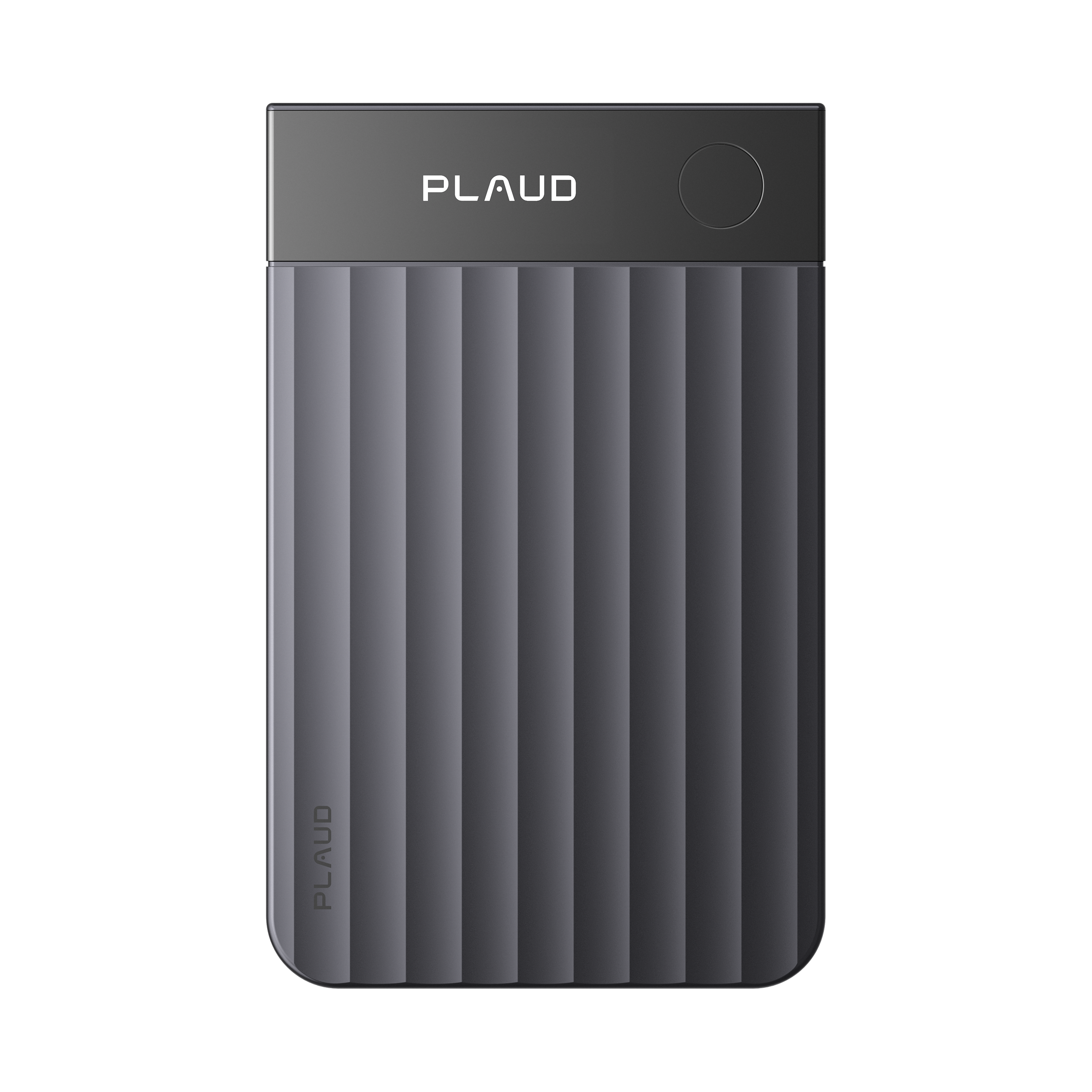
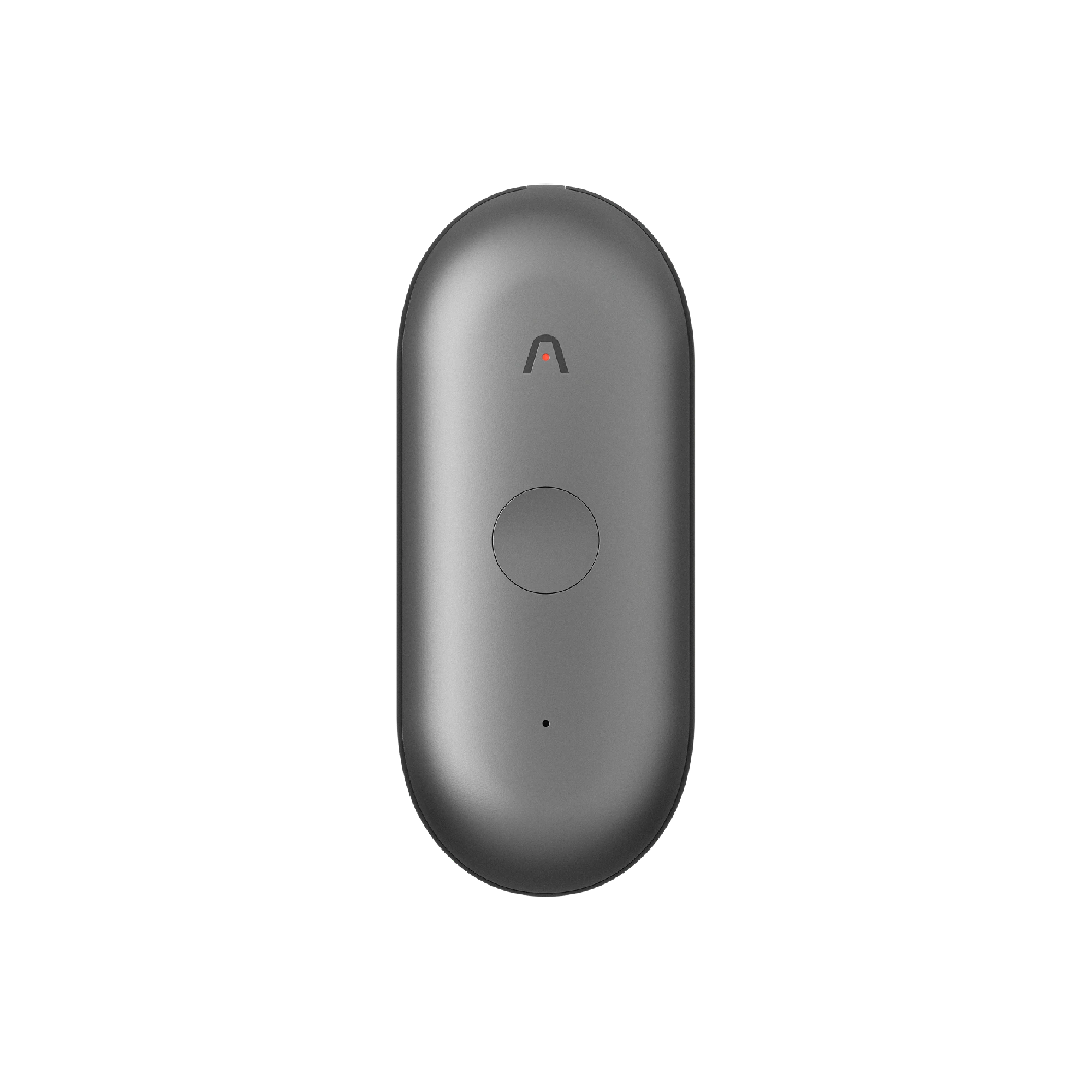
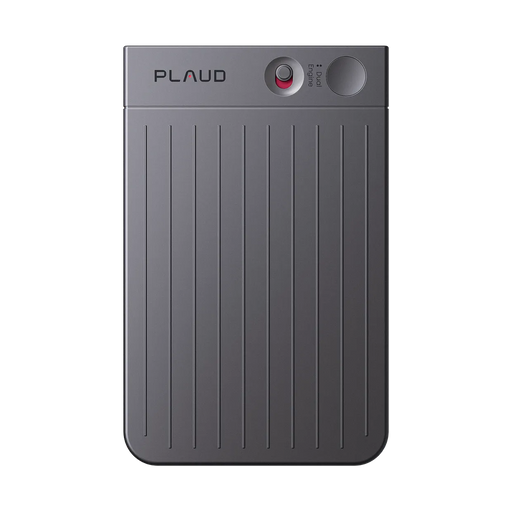
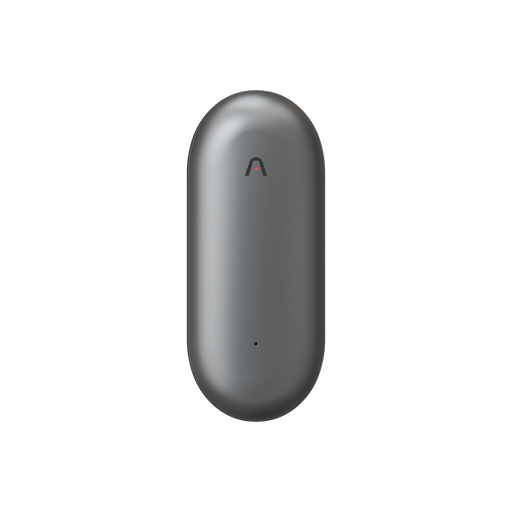
If ideas hit you when you're away from your computer or in the middle of conversations, grab a wearable AI note taker like Plaud NotePin. You can record your thoughts hands-free (it works as a necklace, wristband, or clip), and it'll transcribe everything into organized notes in 112 languages. That way, when you sit down to write your prompt, you've got all those specific details ready to use instead of trying to remember what you were thinking.

The 8 parts of a great AI image prompt
Following the three steps, we have prepared the key factors that you should consider. Here's what you need to know about each part, how to write it, and templates you can copy right now.
1. Subject – Tell the AI exactly what's in your image
Your subject is the main thing in your image. This is the most important part because everything else builds around it.
What you need to do:
Use at least 3-5 descriptions to make your subject clear. Please include things like age, what they look like, what they're wearing, their expression, or what shape and color something is.
Template you can copy:
"a [age] [gender] with [hair] [clothes] [expression]."
See the difference:
- Vague: "a clown."
- Clear: "a middle-aged clown with very curly blonde hair dressed in blue with a surprised expression."

The second one tells the AI exactly what you want. You're not leaving it to guess about age, hair, clothing, or expression—you've spelled it all out.
2. Context – Show where your subject is and what's around them
Context means the location and background. This tells the AI where your subject is and what else is in the scene.
What you need to do:
Add where your subject is located and include any background stuff that matters.
- Template you can copy: "inside/on/in front of [location] with [background details]."
- Example: "a horse inside a Victorian library with old-looking books and people at desks reading."

This gives you a specific, interesting scene instead of the AI just putting your horse outside in a random field. You're telling it the time period, the setting, and what else should be there.
3. Composition – Pick your camera angle
The angle you shoot from changes everything about how your image looks and feels. The same subject from above versus from ground level tells completely different stories.
What you need to do:
Tell the AI what angle you want to see your subject from.
Template you can copy: "seen from [camera angle]."
Angles you can use:
- Bird's-eye view (straight down from above)
- Centered portrait (subject in the middle, facing you)
- Wide shot (pulling back to show the whole scene)
- Symmetrical layout (everything balanced)
- Overhead (from above at an angle)
- Low angle (looking up from the ground)
Example: "a bird's-eye view of a medieval market"

This creates a totally different image than just "a medieval market." From above, you see how the market is laid out, where the crowds are, and how the stalls are arranged.
4. Style – Choose what kind of art you want
Style is whether you want a photo, a painting, a cartoon, or something else. This is where you tell the AI what artistic look you're going for.
What you need to do:
Say clearly what medium or art style you want, and put it near the beginning of your prompt.
Template you can copy: "in [style] style" or "a [photo/oil painting/illustration] of…"
Styles you can choose:
- Hyper-realistic photograph
- Oil painting
- Watercolor illustration
- Digital art
- Cartoon or anime
- Sketch or pencil drawing
- Vintage photograph
Example: "a hyper-realistic photograph of a Dalmatian"

This tells the AI you want something that looks like a real photo with detailed fur texture and realistic lighting, not a drawing or cartoon version.
5. Color palette – Control what colors show up
Your color choices affect the whole mood and look of your image. You can tell the AI what color scheme you want, specific colors for objects, or even exact color codes.
What you need to do:
Describe the overall colors you want or name specific colors for important objects.
Template you can copy: "using [color theme]" or "with [specific colors]."
Color options you can pick:
- Neon and bright
- Pastel and soft
- Muted and earthy
- Black and white
- Warm colors (reds, oranges, yellows)
- Cool colors (blues, greens, purples)
Example: Instead of "fishbowl on table," try "blue fishbowl on yellow table with muted background colors."

When you name the colors you want, especially for the main objects, you're way more likely to get them right. Without this, the AI might give you a red fishbowl or a green table just because it's guessing.
6. Lighting – Set how light hits your scene
Lighting completely changes the mood of your image. The same scene in bright afternoon sun versus soft evening light feels totally different.
What you need to do:
Tell the AI where the light is coming from, what time of day it is, or what quality of light you want.
Template you can copy: "with [lighting style]."
Lighting choices:
- Soft, diffused light
- Harsh shadows
- Golden hour (warm late afternoon)
- Backlit (light from behind)
- Moonlight or nighttime
- Studio lighting
- Natural window light
Compare these: "astronaut on alien planet with moonlight" versus "astronaut on alien planet, backlit by their ship's lights."

You get completely different images. Moonlight gives you something softer and more mysterious. Backlighting creates drama with the astronaut in shadow against bright lights.
7. Mood/atmosphere – Set the feeling you want
Mood tells the AI what emotion your image should have. This matters a lot when you're telling a story or trying to make people feel something specific.
What you need to do:
Add a word or phrase that describes the feeling of your scene.
Template you can copy: "with a [mood] atmosphere."
Moods you can create:
- Eerie and mysterious
- Romantic and intimate
- Dreamlike and surreal
- Peaceful and calm
- Energetic and chaotic
- Melancholic and lonely
- Joyful and bright
Example: "lonely cabin in the woods during snowfall, eerie and dreamlike atmosphere"

This pushes the AI toward making something unsettling and strange, not cozy and inviting. That one mood word changes how the AI handles colors, lighting, and the whole feeling of the image.
8. Technical details – Add these when you need specific formats
Technical details let you control the final size and professional camera effects. You don't always need these, but they're really helpful for certain projects.
What you need to do:
Add technical specs at the end of your prompt when you need them.
Template you can copy: "[aspect ratio], [resolution], shot with [lens type]."
Technical options you might use:
- Aspect ratio: 16:9 (widescreen), 1:1 (square), 9:16 (vertical for phones), 4:3 (standard)
- Resolution: 4K, HD, high resolution
- Lens type: wide-angle lens, 50mm portrait lens, telephoto lens, fisheye lens
- Camera effects: shallow depth of field, deep focus, blurred background
Example: "street musician performing at sunset, 16:9 aspect ratio, shot with 50mm lens, shallow depth of field"

This tells the AI you want a widescreen format with a blurred background, giving you that professional photography look.
Copy this template for your own prompts
Here's the full formula that puts all eight parts together. You don't have to use every single part every time—pick what matters for your image:
"[Subject with 3-5 details] [where they are and what's around them], seen from [camera angle], [art style], using [colors], with [lighting], with a [mood] atmosphere, [technical specs if needed]."
Full example:
"A young Black woman with long braided hair wearing a yellow raincoat holding a red umbrella, standing on a busy city street with blurred pedestrians in the background, seen from a low angle, in a cinematic photography style, using vibrant warm tones with pops of red and yellow, with soft overcast lighting, with an energetic and hopeful atmosphere, 16:9 aspect ratio, shot with a 35mm lens"

Mix and match based on what you need. If you're creating a product photo, focus on subject, lighting, and technical details. Skip the mood stuff. If you're making a fantasy scene, go heavy on context, style, and atmosphere.
Start getting better results now
Writing good AI image prompts gets easier the more you do it. Start with that one-sentence description of what you want, figure out what matters most for that specific image, and then build it out using the templates here.
When you already have templates
If you've saved successful prompts before, retrieving and reusing them is simple:
- Use Plaud Note Pro's global search to find your saved prompts instantly—speak your query
- Pull up the exact template you need across all your files
- Edit and refine it on the spot for your new project
- Generate your image with a proven formula that already works
When you don't have templates yet
Building your first templates is easy when you capture ideas as they happen:
- Record your visual ideas hands-free with Plaud NotePin—describe the subject, colors, lighting, mood, and any details you're picturing
- Snap photos of inspiration and add text notes for extra context

- Let Plaud transcribe and organize everything into searchable notes in 112 languages.
- When you're ready to create, all your specific details are waiting for you, instead of trying to remember what you were thinking.

The goal is to give the AI enough information to understand your vision without going overboard. As you practice, save the prompts that give you great results in Plaud—they're always accessible, and you can reuse and tweak them for future projects.
Questions you probably have
Do I need to include all eight components in every prompt?
No. Begin with the subject and context, then add anything else that is important to your image. A simple portrait only needs the subject, the style, and the lighting. All eight might help a complicated scene. You choose based on what you're making.
Why are my generated images inconsistent or random?
This usually means that your prompt is not clear enough. The AI is filling in the gaps at random, which is why you get something different every time. Be more specific about your subject, make the setting clearer, and say what kind of lighting and style you want. The more you spell out, the more your results stay the same.
How do I make the AI follow the exact colors I want?
For the most important things, name your colors directly. Instead of just saying "a room," say "a room with beige furniture and navy blue walls." You can even use color codes like "with walls in #2C3E50" if you need to match colors perfectly for brand work. When you tell the AI what colors to use, it gets them right much more often. Note that while some advanced AI tools recognize hex codes, many popular generators respond better to descriptive color names.
What if I can’t get the right perspective or camera angle?
This happens when you don't say what angle you want. Use simple words like "bird's-eye view," "low-angle looking up," or "centered portrait view." If that doesn't work, try using phrases like "viewed from directly above" or "photographed from ground level" to be even clearer. You might have to say it twice for the AI to understand.
Should I include technical details like aspect ratio or lens type?
Only if you need them, when you make images for Instagram, YouTube thumbnails, or other sites that need certain sizes, be sure to include technical information. They also help you get that professional camera look with blurry backgrounds. You can leave them out for everything else; they won't matter much for casual projects.