
There's nothing worse than wasting valuable time trying to fix technical issues on Zoom. And even though many of us are familiar with remote work by now, camera and microphone issues are all too common.
The solution? Running a Zoom test meeting. Zoom even has a dedicated page on its website that allows you to do just that. In a couple of minutes, you'll know exactly what's working and what needs your attention before the meeting begins.
This is your ultimate guide to the Zoom test meeting process.
Why a Zoom test meeting is essential
A technical issue during a Zoom meeting can waste time and make you look unprofessional. If, for example, your audio cuts right out, someone might miss something important. If your camera doesn't work, you might spend valuable minutes trying to fix it during the meeting instead of following the agenda. You might not be able to cover all the talking points. Worse yet, if you are presenting to clients, you risk damaging your reputation.
The good news is you can run a Zoom test meeting. It's quick and will give you total peace of mind that everything will run as expected when it comes time to log on.
What exactly can you test
A Zoom test meeting is like a quick systems check before takeoff. It's an opportunity to see whether or not every individual part of your setup is working as it should be. Do this, and you won't be left trying to troubleshoot live while others are waiting around.
During a test meeting, you can check the following:
- Your internet connectivity and stability. This makes sure that your connection doesn't lag or drop off. If your video freezes or your voice cuts out, usually the network itself is to blame.
- Your audio input and output. Check that your microphone picks up your voice so that others can hear you. See whether your speakers or headphones play sounds clearly, so you can hear what's going on.
- Your video feed and lighting quality. This confirms whether your camera is active and high-quality. You can also see if your face is well-lit or hidden in shadow. You should adjust the lamp or the overhead light to fix this.
- Zoom's features. This includes things like the live chat and screen sharing. You can also check if the virtual background is working, if that's something you prefer to use.
How can I do a test meeting on Zoom? (The official way)
Zoom has a dedicated test room you can join at any time of day or night. It's the most reliable and official way to check your setup components. There won't be anyone else connected to the meeting, either — just you.
Here's how to perform a test meeting on Zoom, step-by-step.
Step 1: Visit the test page

Open your browser and visit zoom.us/test. You'll see a blue "Join" button in the center of the page. Click it to get started.
Step 2: Launch the meeting

Your browser will ask you how you want to open Zoom. If the Zoom app is installed on your device, you'll see a pop-up. Click "Open zoom.us" to open up the app.
If you don't have the Zoom app installed, you won't get a pop-up. Instead, click the "Join from Zoom Workplace app" button.
Step 3: Add your name

On the next page, you might be asked to let Zoom access your camera and microphone. After that, you can add your name. You'll also see a preview of yourself if your camera is working.
Click "Join."
Step 4: Test your camera

On the bottom left-hand side of the screen, you'll see a pop-up from Zoom. This will guide you through the test step-by-step.
It starts with your camera. If you can see yourself, click "Yes."
Step 5: Test your speakers

Next, Zoom will play a noise. The tone repeats until you answer the question.
If you can hear the tone, click "Yes." If you can't hear it, you should select a different output from the dropdown menu. This allows you to switch the audio output from your computer speakers to headphones or even desk speakers.
Step 6: Test your microphone

Speak into your microphone. If it's working, Zoom will record what you say and play it back to you.
If you can hear the playback, click "Yes." If you can't, you may need to select an input device from the dropdown menu.
Step 7: Familiarize yourself with Zoom's features

If you selected "Yes" to all questions, you can feel confident going into your next Zoom meeting. Everything is working as it should be.
But, before you click "End Test," check out some of the platform's other features. This is a must if you haven't used Zoom before. Click the icons at the bottom of the screen to play with:
- The chat feature
- The screen-sharing feature
- The participants feature
Step 8: End the test

When you feel good about the test meeting, you can click the "End Test" button.
How to set up a Zoom test meeting? Another way to manually test your settings
If you'd rather test your setup directly in the Zoom app, you can do that through the settings. It can be useful if you're making last-minute adjustments or using new hardware, like new headphones.
Testing your video and lighting
- Open the Zoom desktop app.
- Click on the icon for your profile.
- Choose "Settings," and then select "Video" from the sidebar menu.
- A preview from your camera will show up. If you have more than one camera connected, use the dropdown menu to choose the right one.
Testing your speaker and microphone
- In the same Settings window, click "Audio" in the sidebar.
- Under Speaker, click "Test Speaker." You'll hear a tone. If you don't, use the dropdown to try another output device.
- Under Microphone, click "Test Mic." Speak for a few seconds, then listen to the playback.
How to fix your microphone, speaker, and camera
If your Zoom test didn't go as planned, don't run out and buy a new microphone or webcam right away. The fix could be easier than you expect. Let's troubleshoot.
How to fix your microphone
Here's what to do if your mic isn't working:
- Check your physical connection.
- Unmute yourself. In Zoom, check for the red crossed-out mic icon. Click it to unmute.
- Look for a hardware mute switch. Some headsets and microphones have a physical mute button. Make sure it's off.
- Go to Settings, Audio, Microphone, and use the dropdown to select a different input device and see if that works.
- Adjust your input volume in Settings, Audio. Then, use the Input Volume slider to raise your microphone level if it sounds too low.
If Zoom still doesn't detect your mic:
- Restart the app and try again.
- Reconnect the device or re-pair it via Bluetooth.
- Check to see whether Zoom has permission to use your microphone. Find this option in your system's settings.
How to fix your speaker
If your speaker isn't working, here's what to try:
- Test different output devices.
- Adjust your output volume by using the slider under Speaker to raise or lower the sound.
- Check your computer's volume. Make sure the volume isn't muted at the system level.
- If you're using a wired device, unplug it and plug it back in.
How to fix your camera
Finally, if it's your camera that's playing up, these steps might help.
- If you're using an external webcam, make sure the cable is firmly in place. Restart the app after plugging it in.
- Select the right camera. Go to Settings, then Video, and use the dropdown menu to switch between connected cameras.
- Make sure your operating system allows Zoom to access your camera. On macOS or Windows, go to your system privacy settings and grant camera access to Zoom.
More tips on Zoom meeting test
A few extra steps can make your Zoom meeting run even smoother.
Strategy 1: Check for Zoom application updates
At least 30 minutes before your meeting is scheduled to begin, open the Zoom desktop app and check for any software updates. Click your profile icon, then select "Check for Updates."
Install them now.
Strategy 2: Familiarize yourself with host vs. attendee controls
If you're hosting the meeting, make sure you know how to:
- Mute and unmute participants
- Lock the meeting
- Enable screen sharing
- Start a local or cloud recording
If you're an attendee, your controls will be more limited.
Strategy 3: Close unnecessary applications
Before you join a call, close programs that use a whole lot of bandwidth or processing power. Zoom usually runs better when your system has the space to handle it.
Can I record and transcribe in Zoom natively?
Yes, Zoom includes built-in recording and transcription, but it only works under some conditions. For example, local recordings are available to all users, but cloud recording and transcription require a paid plan.
What about AI summaries and transcription?
Zoom transcripts are basic, with limited formatting and no structure. Zoom also doesn't give you detailed AI-generated summaries or structured insights.
You'll need to review everything manually to extract tasks and next steps.
How to make the most of your Zoom meeting with Plaud
Zoom can record and transcribe, but it stops short of organizing what was discussed and decided.
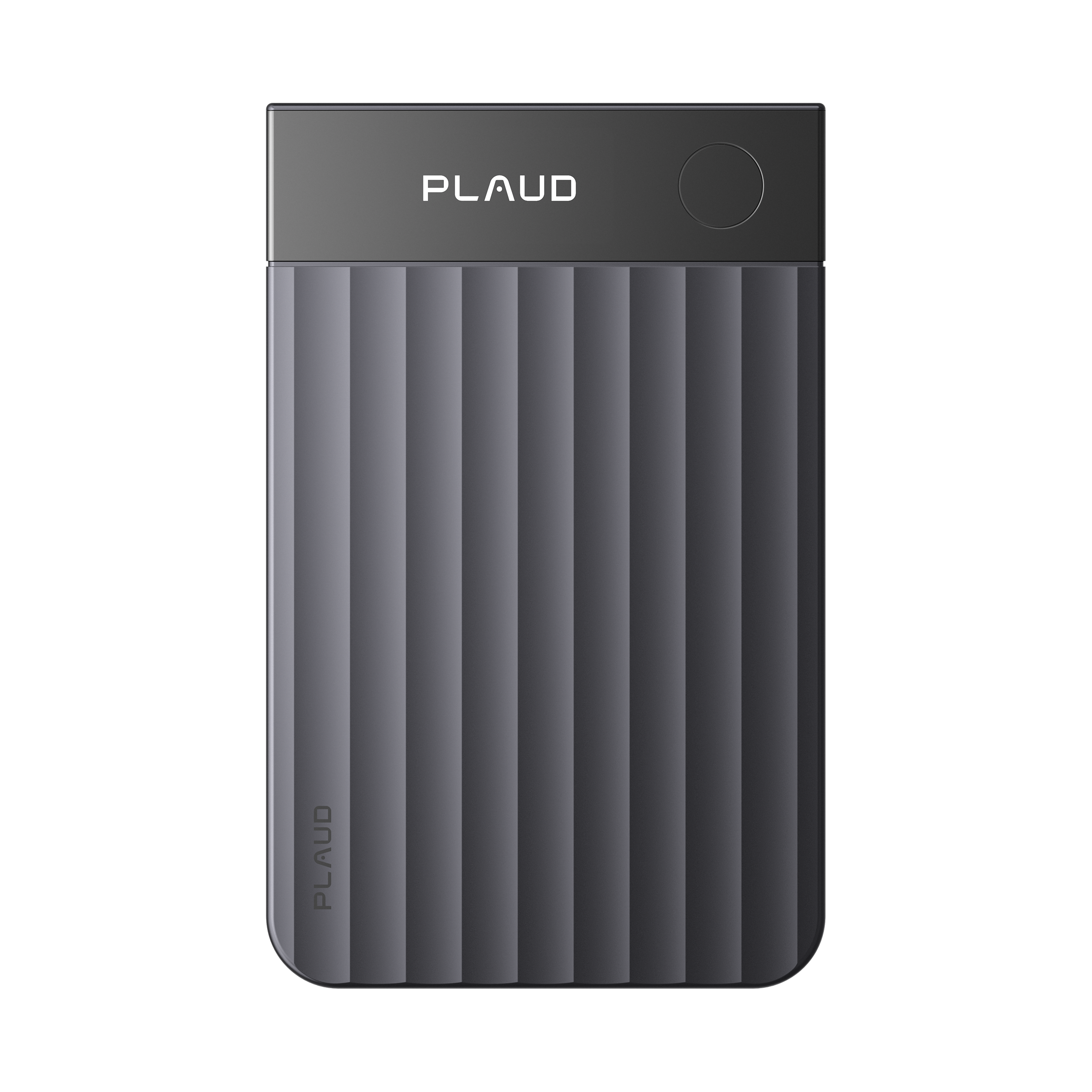
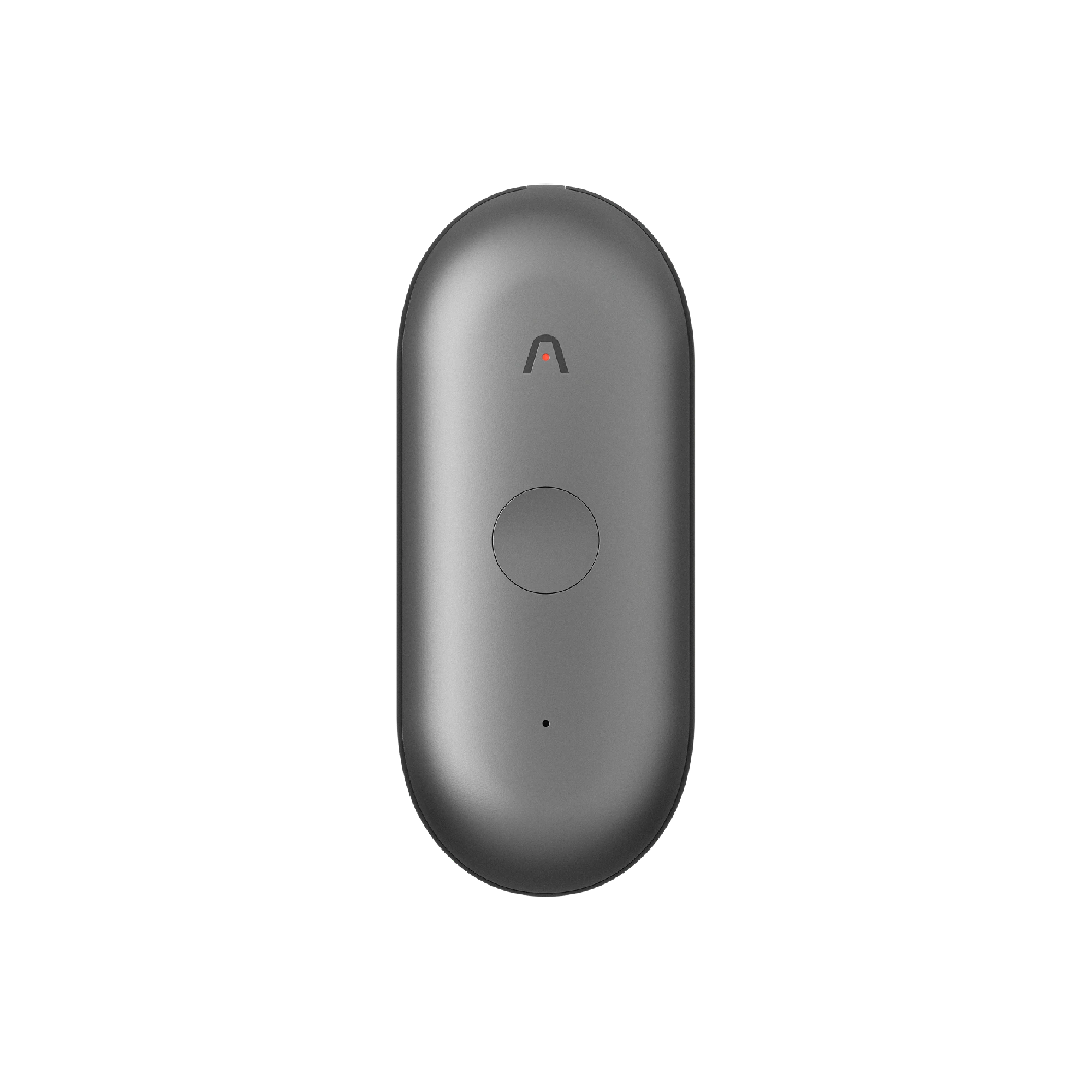
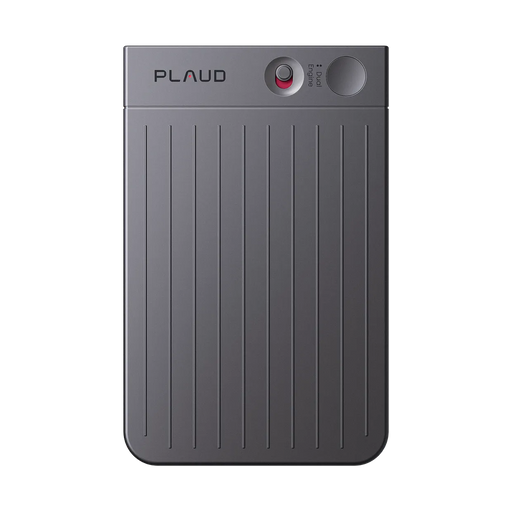
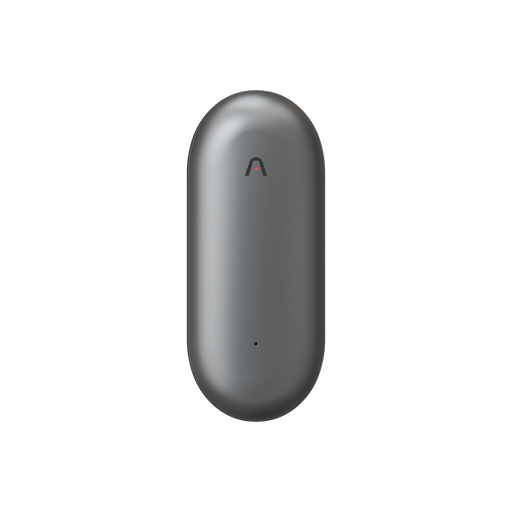
Plaud Note turns every conversation into structured, searchable insight. Instead of flipping through long recordings or messy transcripts, you get structured notes complete with key takeaways and action items.

How does Plaud Note boost meeting effectiveness and productivity?
Plaud Note keeps you organized without distracting you from the meeting at hand.
Let's say you're testing your Zoom audio before a client call. You've found a technical issue. With Plaud Note, you can quickly flag what the problem is by speaking aloud, and then continue checking your setup. At the end of the test meeting, you have a summary of what needs to be fixed.
In a Zoom meeting, even when there's background noise or cross-talk, Plaud Note captures the conversation. Say you're working through a legal review, and the discussion is packed with jargon. Plaud Note understands these terms and, after the meeting wraps, sorts your notes and captures action items and decisions made.

Everything is searchable, too, so if you need to revisit what your manager said about Q1 budgets or find a teammate’s comment during a test run, it’s all there.
Run a Zoom test meeting
A Zoom test meeting takes five minutes, but it saves you from issues that can disrupt your call and derail your message.
But Zoom's built-in tools stop at transcription. Plaud takes it further with the future of note-taking. It records, summarizes, organizes, and stores every conversation, so nothing at all gets lost.
FAQ
Do you need a Zoom account to join a test meeting?
No, you don't need an account. You can visit zoom.us/test, click "Join," and enter the test room.
What happens after 40 minutes on free Zoom?
On a free plan, group meetings end automatically after 40 minutes. You can start a new meeting right away.
Can you turn off your camera during a Zoom meeting?
Yes. Click "Stop Video" at the bottom of the Zoom window.