As a junior product manager, I spend most of my day in other people's meetings. Requirements reviews, standups, 1:1s with my mentor, weekly syncs, and the occasional "can we hop on a quick call" that turns into 40 minutes.
My problem isn't keeping up during the meeting. It's afterward. I'd sit down to write up notes and realize I couldn't remember whether the designer said the deadline was "end of next week" or "end of the month." I'd guess, send the notes out, and then get a Slack message: "That's not what I said." After two rounds of that, my manager started questioning whether I was paying attention.
If you're someone who mostly works async (Slack messages, Notion docs, written updates), you probably don't need a dedicated meeting tool. This guide is for PMs who are still figuring out how to keep up with five or six meetings a day without dropping details.
How we chose the best AI note takers for beginners
What beginners actually need (And don't need)
When I first started looking for a meeting note tool, I fell into a common trap: I compared feature lists. One tool had "conversation intelligence." Another had "revenue analytics." A third promised "AI coaching insights."
None of that matters when you're a year into the job and just trying to get accurate notes out the door.
Here's what I actually needed: something that records what was said, turns it into readable text, and lets me grab the action items without replaying the whole meeting. That's it. Everything else (CRM sync, sentiment analysis, talk-time ratios) is for people managing sales teams, not for a PM trying to keep track of sprint decisions.
So I focused on three things when testing tools: does it work in the meetings I actually have, does it produce notes I can share without heavy editing, and can I afford it on a junior PM salary.
How I narrowed it down
The first question is simple: where do your meetings happen?
If you're mostly on Zoom, Google Meet, or Teams, a software tool that auto-joins your calls is the easiest path. You set it up once and forget about it.
If you're in conference rooms, huddle spaces, or walking into someone's office for a quick chat, software tools can't help. They need a video call to join. For those situations, you need something that records audio from the room.
Most junior PMs I know are somewhere in between. Maybe 60% video calls, 40% in-person or hybrid. That split matters because no single tool covers both perfectly.
The second question: how much post-meeting cleanup can you tolerate? Some tools give you a raw transcript that takes 10 to 15 minutes to clean up. Others give you structured notes with action items already pulled out. When you're running from meeting to meeting, that difference is the gap between sending notes in five minutes and sending them never.
Free vs. Paid: what's the real difference?
I spent my first three months using only free plans. Here's what I learned.
Free tiers are good enough for testing. You'll figure out whether the transcription quality works for your meetings, whether the interface makes sense, and whether you actually use the notes afterward. That's valuable.
Where free tiers fall short: minute limits. Otter's free plan gives you 300 minutes a month with a 30-minute cap per conversation. That sounds like a lot until you realize a single hour-long weekly planning meeting eats 25% of your monthly budget. By mid-month, I was rationing which meetings to record, and that defeats the purpose.
The paid tiers usually unlock two things that matter: more minutes and better AI summaries. Whether that's worth $8 to $20 a month depends on how many meetings you're in. For me, once I was attending more than two meetings a day, the free tier stopped being viable.
My advice: start free, run it for a full week, and see how fast you burn through the limits. If you hit the cap by Wednesday, it's time to consider paying.
5 best AI note takers for meetings (Beginner picks)
Plaud Note
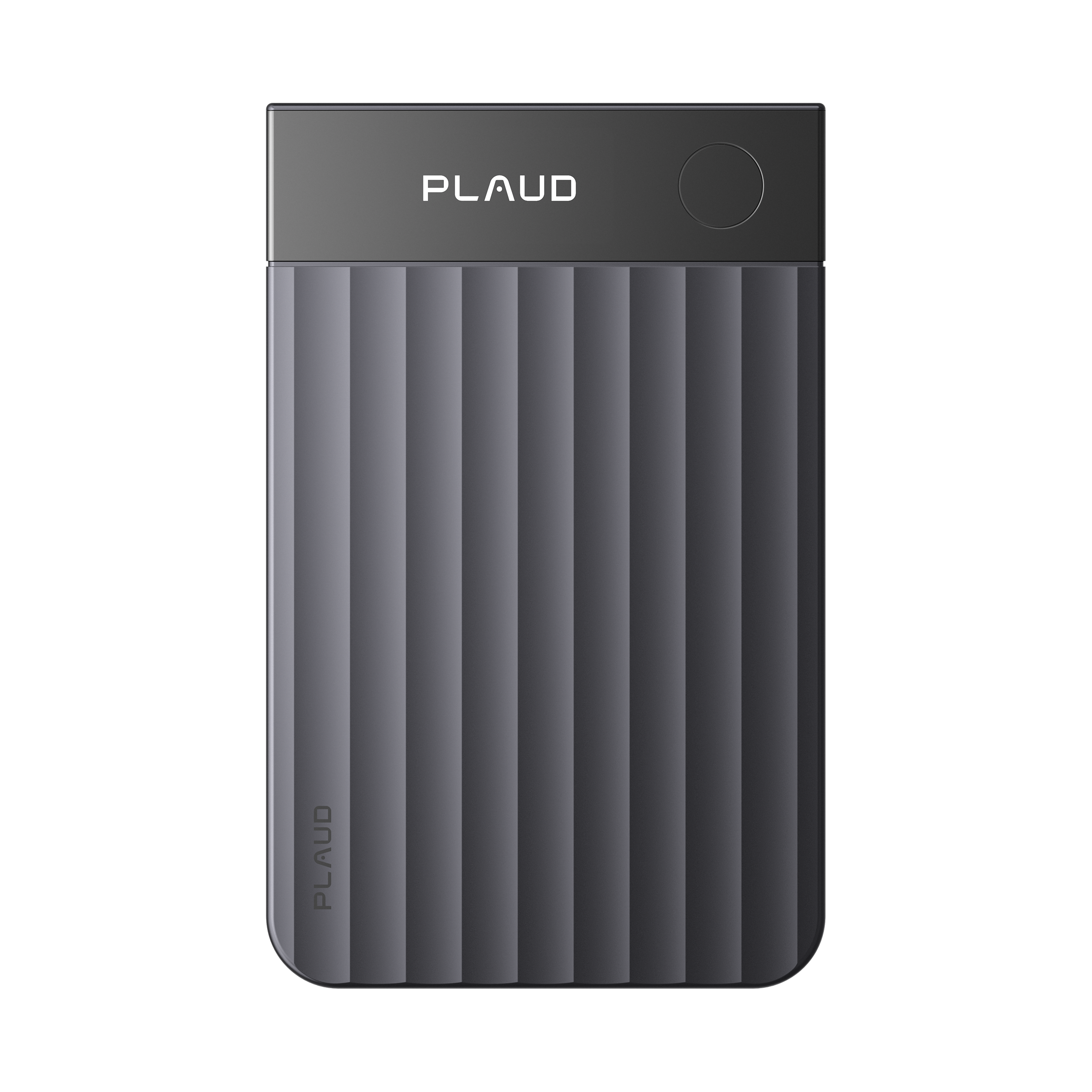
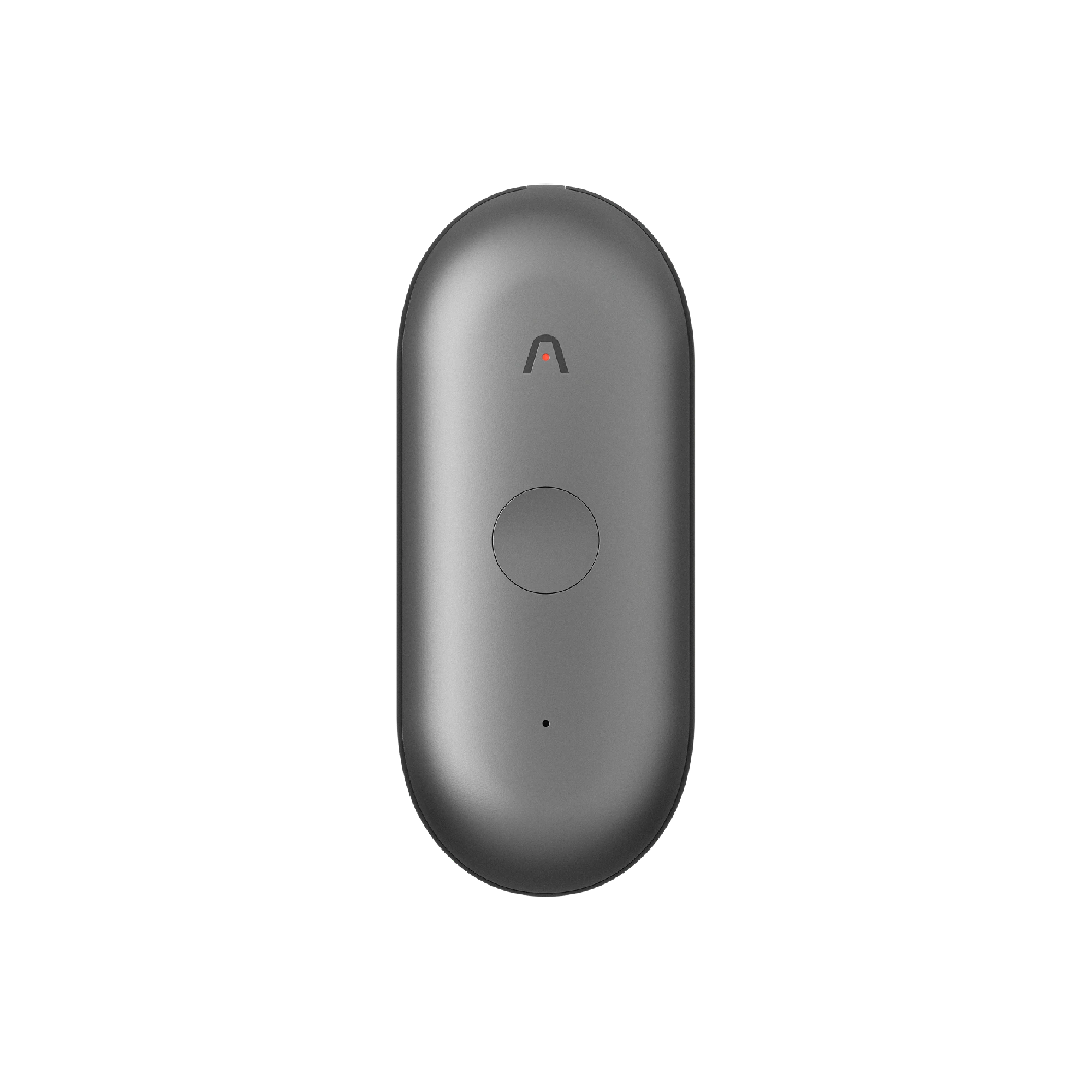
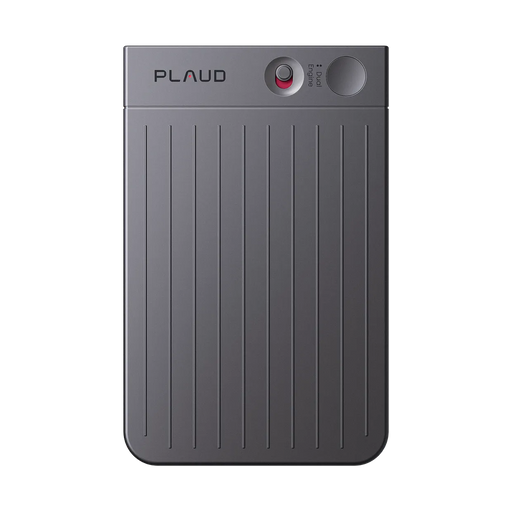
Plaud Note is a credit-card-sized recorder that you put on the table and press one button to start.

Why it works for beginners
The setup takes about two minutes. Pair it with your phone, press the button, and it records. There's no app to configure during the meeting, no bot joining a call, no "wait, is it recording?" anxiety. The physical button gives you a clear signal: pressed means on.
What I liked most is how little I had to think about it. I'd walk into a requirements review, put the device on the table, press record, and then just focus on the conversation. After the meeting, I'd sync it to the Plaud app and get a transcript plus a summary within a few minutes. The summary wasn't perfect every time, but it was good enough that I only needed to tweak a few lines before sending it out.
Battery life isn't something I worry about. I charge it once every week or two, and it's always ready. The 64GB storage means I've never come close to running out of space, even recording three or four meetings a day.
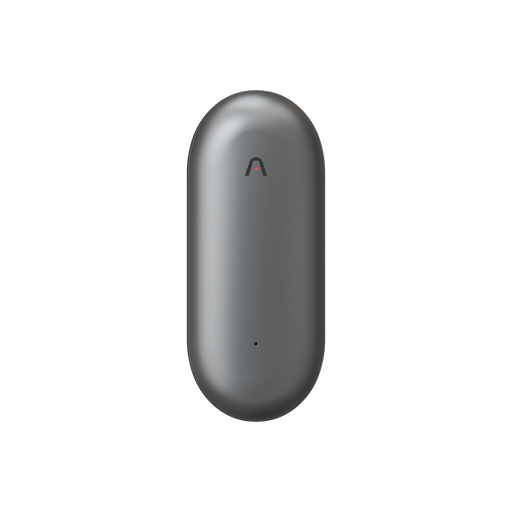
It also handles phone call recording with a built-in vibration sensor, which came in handy for those last-minute calls with stakeholders when I'm away from my desk.
One feature that surprised me: Plaud Intelligence has thousands of summary templates. I use one that's specifically for product meetings, and it automatically organizes notes into decisions, action items, and open questions. That structure saves me the most time, because I don't have to manually sort through a wall of text.
Where It's not the best choice
If nearly all your meetings are on Zoom or Google Meet, a software tool that auto-joins calls is more convenient. With Plaud Note, I have to remember to bring the device and press record. I've forgotten it at my desk twice and had to scramble. A software tool like Otter just shows up automatically.
The other thing: when the device is sitting on a big conference table, people on the far end of the room can get picked up faintly. In a room with four or five people it's fine, but in a 12-person all-hands in a large room, the people furthest away came through less clearly.
And the transcription isn't real-time. You record first, then sync and wait a few minutes for the AI to process it. If you need notes during the meeting (like for a live Slack update), this won't work for that.
Pricing: The device costs $159. The free Starter plan includes 300 minutes/month of transcription. Pro is $8.34/month billed annually (1,200 min/month). Unlimited is $239.99/year. For most junior PMs, the free tier or Pro plan is plenty.
Otter.ai (Free tier)
If your meetings are mostly on video calls and you want to try something before spending any money, Otter's free plan is probably where you'll start.
Why it works for beginners
You sign up, connect your Google or Outlook calendar, and Otter starts joining your Zoom, Google Meet, and Teams calls automatically. There's almost no setup friction. The first time it worked, I was genuinely surprised. I didn't have to do anything, and five minutes after my standup ended, I had a transcript in my inbox.
The real-time transcription is useful if you're someone who processes information better by reading. During a meeting, I can glance at the live transcript to double-check something someone said without interrupting to ask "can you repeat that?"
Speaker identification works reasonably well on video calls. Otter matches voices to names in your contacts, so the transcript shows "Sarah: we should push the launch to Q2" instead of "Speaker 3: we should push the launch to Q2." That makes the notes way easier to skim.
Where it falls short
The free plan caps you at 300 minutes a month and 30 minutes per conversation. That 30-minute cap is the real killer. My weekly planning meeting runs 45 to 60 minutes, and Otter just stops recording at the 30-minute mark. I missed the last 20 minutes of a critical prioritization discussion because of this, and I didn't realize it until after the meeting.
Non-English accuracy drops noticeably. A few of my teammates speak with heavy accents, and Otter sometimes produces gibberish for their portions of the transcript.
And it only works for video calls. In-person meetings, hallway conversations, phone calls: none of those are covered. If your mentor pulls you into their office for a quick 1:1, Otter can't help.
One more thing that bothered me: the Otter bot joins as a visible participant in the meeting. My manager asked me about it the first time it showed up. It's not a big deal, but it feels a little awkward when you're junior and there's a bot in the room with your name on it.
Pricing: Free for 300 min/month (30 min per conversation). Pro is $8.33/user/month billed annually (1,200 min/month, 90 min per conversation). Business is $20/user/month billed annually.
Fireflies.ai (Free plan)
Fireflies works similarly to Otter for video calls, but its free tier is set up a bit differently, and the search features give it a slight edge for people who go back to reference old meetings.
Why it works for beginners
Like Otter, Fireflies auto-joins your scheduled video calls. The transcription is solid, and the AI summaries break things down into keywords, an overview, action items, and meeting notes. That structure is actually quite helpful when you're scanning notes quickly.
The feature I use most is the search. After a few weeks of using Fireflies, I had a searchable archive of every meeting I'd recorded. When my manager asked me "what did the designer say about the timeline in last Tuesday's review?", I could look it up in about 30 seconds. That kind of retrieval is hard to do with handwritten notes or scattered Google Docs.
Fireflies also tags "questions" and "action items" automatically, which saves me from having to re-read the entire transcript to find the parts that matter.
Where it falls short
The free plan gives you 800 minutes of storage, and that fills up faster than you'd think. After about a month and a half of regular use, I got a notification that I was almost full. At that point, you either delete old meetings or upgrade.
Advanced AI features (like asking the AI assistant questions about your meetings) run on credits. The free tier gives you very few, and they're gone quickly. If you lean on the AI features, you'll feel pushed toward a paid plan pretty fast.
Same limitation as Otter: software only, no in-person meetings. And the bot shows up as a participant in your calls.
Pricing: Free with 800 min storage and limited AI credits. Pro at $10/user/month annually (unlimited transcription, 8,000 min storage). Business at $19/user/month annually.
Notta (Free plan)
Notta is the tool I'd look at if your team switches between English and another language during meetings, especially Chinese, Japanese, or Spanish.
Why It works for beginners
Notta supports 58 languages for transcription, and the multilingual handling is noticeably better than Otter or Fireflies. I've sat in meetings where the conversation shifted between English and Mandarin, and Notta kept up with both. That's rare. Most tools either produce garbled text when the language switches or just ignore the non-English portions entirely.
The interface is clean and simple. You can record live meetings, upload audio files, or have the bot join your video calls. Transcripts are organized in a dashboard, and exporting to text, PDF, or Word is straightforward.
Notta also generates summaries with decisions and action items highlighted, similar to the other tools on this list.
Where It falls short
The free plan is genuinely limited: 120 minutes a month, and you can only view the first 3 minutes of any transcript unless you pay. That 3-minute preview is frustrating. You can hear the full recording but can't read the full transcript without upgrading. It feels like a tease.
You also can't export transcripts on the free plan, which means your notes are locked inside the Notta app until you pay. That's a dealbreaker if you need to share notes with your team via Slack or Notion.
I want to flag something: Notta's billing practices have received a lot of complaints online. Multiple users report being charged after canceling free trials, and the refund process seems difficult. If you decide to try the paid plan, I'd recommend using a virtual card or setting a calendar reminder to cancel before the trial ends.
Pricing: Free for 120 min/month (3-min transcript preview). Pro at $8.17/user/month billed annually (1,800 min/month). Business at $14.17/user/month billed annually.
Google meet transcription + Google docs
If your budget is literally zero and your company uses Google Workspace, this combination already exists and you might not even know about it.
Why It works for beginners
Google Meet has a built-in transcription feature. During a meeting, the host (or anyone with permission) can click "Transcribe the meeting" under Meeting Tools. The transcript saves automatically to the organizer's Google Drive as a Google Doc. No extra app, no bot, no subscription.
The setup is zero. If you're already in Google Meet, it's just a click. The transcript includes timestamps and speaker labels (based on Google account names), and you can search, edit, and share the Doc like any other document.
For a junior PM who already lives in Google Workspace (Calendar, Docs, Drive), this fits naturally into the workflow you already have. Notes go straight to Drive, where you can organize them in folders, add comments, and share with your team. No new tool to learn.
Google also now offers "Take notes with Gemini" in Meet, which generates AI summaries alongside the transcript. If your Workspace admin has enabled it, you get free AI meeting notes without installing anything.
Where It falls short
The transcription quality is decent but not great. In my experience, it misses words more often than Otter or Fireflies, especially when people talk over each other or speak quickly. You'll need to do more cleanup.
There's no automatic action item extraction. You get a wall of text with timestamps, and it's on you to pull out the decisions and tasks. That manual step takes time, and when you're in five meetings a day, it adds up.
This only works for Google Meet calls. If your company uses Zoom or Teams, this isn't an option. And it doesn't cover in-person meetings at all.
The AI note-taking with Gemini is only available on certain Workspace plans (Business Standard and above, or Education Plus). If you're on a free Google account or a basic Workspace plan, you won't have access.
Pricing: Free with Google Workspace (Business Starter and above for transcription). Gemini note-taking requires Business Standard or higher. No additional cost beyond your existing Workspace subscription.

So which one should you pick?
After trying all five, here's how I'd think about it.
If your budget is tight and most of your meetings are in-person or mixed format, start with Plaud Note. The device costs $159 upfront, but the free 300 minutes/month of transcription means you won't pay anything beyond that for a while. It covers the in-person meetings that no software tool can reach, and with Plaud Desktop, you can record Zoom calls too.
If 90% of your meetings are on Zoom, Meet, or Teams, try Otter.ai or Fireflies.ai's free plans first. Otter if you want real-time collaboration and live transcription. Fireflies if you want better search and historical meeting access.
If your team regularly switches between English and another language during meetings, Notta handles multilingual transcription better than the others. Just be cautious with the billing.
If your budget is completely zero and your company uses Google Workspace, turn on Meet transcription and use Google Docs. It's not fancy, but it's free, it's already there, and it works.
If you're not sure, do what I did: pick one free option and use it for a full week. By Friday, you'll know whether the transcription quality is good enough, whether the minute limits work for your schedule, and whether you actually look at the notes after. That week of data is worth more than any comparison article (including this one).
Conclusion
The best tool for a junior PM isn't the one with the most features. It's the one you'll actually use after week two.
I've watched colleagues sign up for expensive plans, use them for three days, and then go back to scribbling in a notebook because the tool was too complicated or too slow. Don't do that. Start with the simplest option that covers your most common meeting type, and see if it sticks.
My current setup: Plaud Note for in-person meetings and hallway 1:1s, Otter free for Zoom calls. Between the two, I get about 90% of my meetings covered, and I spend maybe five minutes total on post-meeting notes instead of the 20 to 30 I used to.
One last thing. Try the free option for a full week before deciding anything. Track which meetings you recorded, how much time you saved, and whether you actually shared the notes with anyone. If the answer to that last question is yes, you've found your tool.