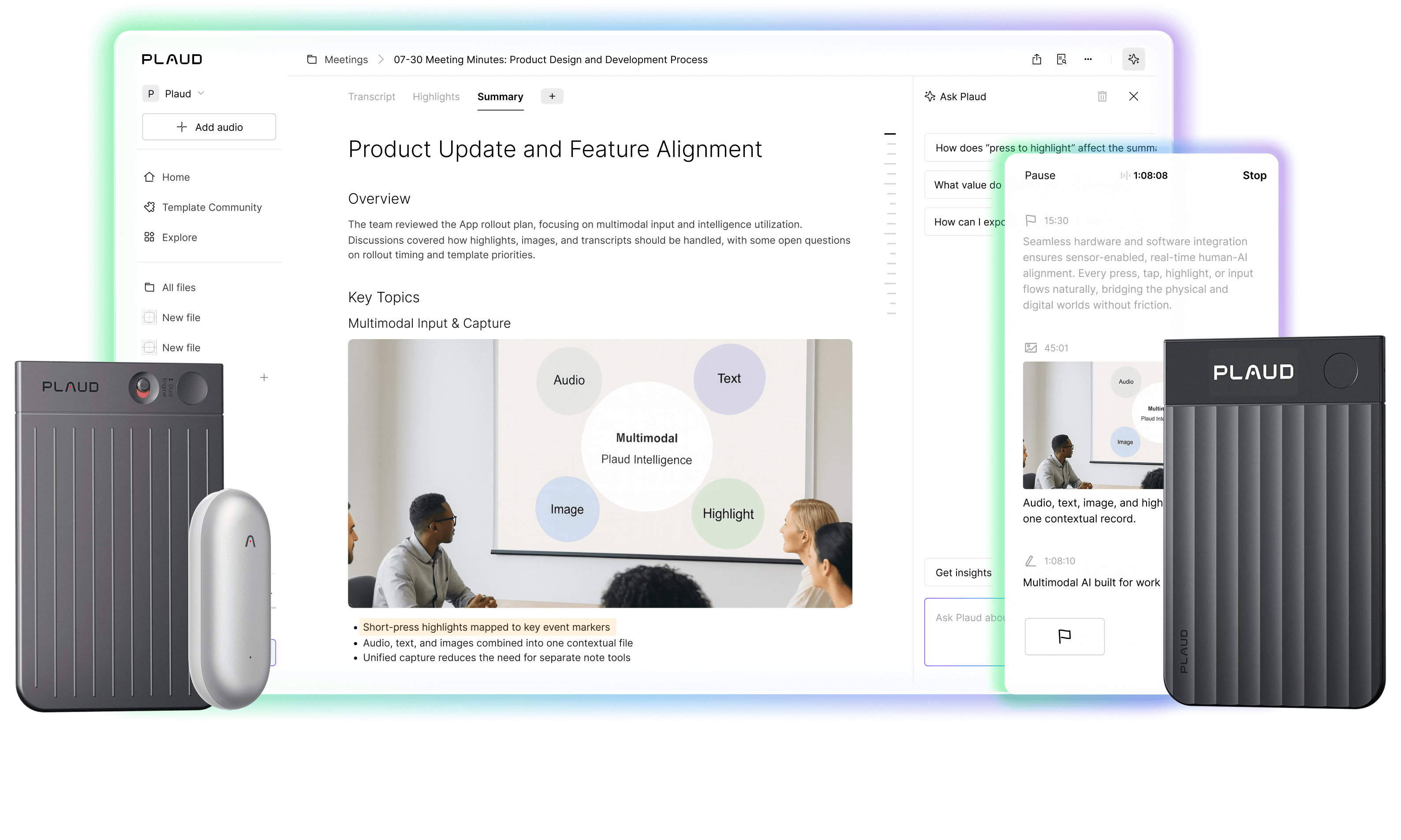
Plaud at CES - Come Say Hello
The world's No.1 AI note-taking brand.
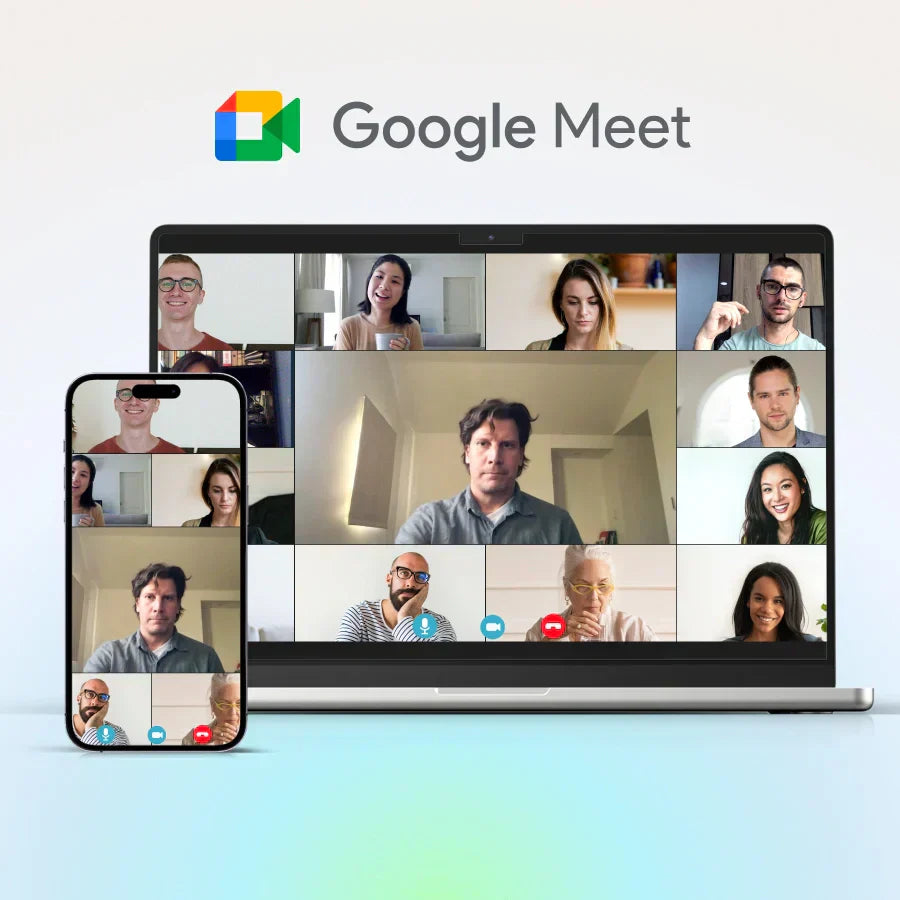
Record a Google Meet Meeting with four participants displayed on a screen, and a red "REC" indicator in the top left corner.

How to record a Google Meet meeting - 4 methods

Looking for ways to record Google Meet? Discover 4 effective methods: Google Workspace's built-in feature, device screen recording for any account, and the Plaud Note AI voice recorder for superior automatic summaries and transcripts. Find the best solution for your needs.

Missing key details from important meetings or struggling to keep up with note-taking while staying engaged in the conversation? Recording your Google Meet sessions solves both problems at once. You can focus completely on the discussion knowing that everything is being captured for later review. We'll walk you through four different recording methods - from Google's built-in feature to device recording and specialized AI tools - so you can pick what works best for your needs.


Method #1 - Recording Directly in Google MeetA screenshot of Google Meet's homepage. This article is about recording Google Meet meetings using AI tools

This first method will teach you how to record a meeting in Google Meet. The best way to record a Google Meet session is by using Google’s built-in recording tool. You need to be the meeting host, and it’s not free (sorry!).

Check if you have access first

Not everyone can record in Google Meet. You need a paid Google Workspace account, and free Gmail accounts don't have the feature (if you’re wondering how to record on Google Meet with a free account, see Method 3 for a workaround). You also need to be the meeting organizer or have recording permissions from your admin.

To check, open a meeting, click the three-dot menu, and see if "Record meeting" appears. If it's there, you're good to go. If not, you'll need another method.

How to start recording?

Click the three-dot menu at the bottom of the screen and select "Record meeting." Google will ask you to confirm. Once you start, a red icon appears, and everyone gets a notice that recording is in progress (this helps with privacy compliance).

Three-dot menu highlighted on a screen.

How to stop recording?

Click the same menu and choose "Stop Recording" when you're done. Or, just leave the meeting. Google will stop recording when the last participant exits. The video is saved automatically to the organizer's Google Drive under a folder named "Meet Recordings."

Pros

  • Simple to use
  • High-quality video and audio
  • Automatic captions and searchable transcripts
  • The file is auto-saved and named by date/time
  • Automatically shared with meeting invitees

Cons

  • Only available to paid Google Workspace users
  • Not all participants have permission to record
  • Sharing is automatic(you can't choose who sees it by default)

When Does it Work Best?

This method is perfect for recording team meetings, client calls, and training sessions, especially when you're already using Google Workspace. The automatic transcript and easy access make it ideal for documentation, compliance, or quick reviews.

Note: Google Calendar will automatically display that a past event was recorded by attaching a recording link directly to the event. Attendees will automatically gain access to the Google Meet video meeting recording.

Method 2 - Record Google Meet using your own devices

Can you record Google Meet sessions if you don’t have a Google Workspace account? Yes! One way is to use a recording feature or app on the device you’re using to attend the meeting (such as your phone or computer). Let’s explore a few ways to record Google Meet calls with your devices.

On your computer (Windows or Mac)

Your computer comes with screen capture and screen recording tools you can use to automatically record online meetings. If you need more features (such as storage space, transcription, etc.), third-party apps may be the better choice.

Use built-in tools

Both Windows and Mac have built-in screen recorders.

  • On Windows 10/11, press Windows + G to open the Game Bar and hit record.
  • On Mac, press Command + Shift + 5 to choose full screen or a specific window.

These tools also capture audio, but they record everything on screen, including notifications, background apps, and more. So, make sure to close noisy apps (such as Facebook Messenger) and turn off notifications before opening the Google Meet App.

Try third-party software for more control

A screenshot of the homepage of Camtasia, a screen recording tool that's great for recording meetings

A few third-party tools you can use to record Google Meet calls on your laptop are:

  • OBS Studio (free): This open-sourced software enables recording on Mac, Windows, and Linux.
  • Camtasia (paid): This recording app is easy to use and includes editing tools.
  • Movavi (free trial): Movavi has advanced recording and editing tools, but you will have to pay eventually.

Quality tips

  • A stable internet and good device performance matter.
  • Record "system audio" if you want everyone's voices, not just your mic.

On your phone or tablet

You can record virtual meetings on your phone or tablet just as easily as you can on your computer. You can use built-in recording features or third-party apps to record Google Meet calls.

Here are a few options:

Built-in mobile recording

Most phones have screen recording tools. The built-in recorders on iPhone and Android are as follows:

  • iPhone: Add screen record to Control Center, then tap to record.
  • Android: Check your quick settings (swipe down). Audio support varies by device.

Note: Some Android phones only capture microphone audio, so you may need to tweak your settings or use a third-party app.

Be aware that audio recordings can take up a lot of storage (1–2 GB per hour). You'll likely need to upload to cloud storage like Google Drive or Dropbox, especially if you want to share.

Use mobile recording apps for better results

There are many mobile apps created specifically to help you record audio on your mobile devices. These apps typically offer more settings and better audio options than your device’s built-in tools.

Apps like AZ Screen Recorder (Android) and Record it! (iOS) are just a few examples.

Most apps have free versions. However, they may add watermarks, and longer recordings heat up your phone and eat the battery.

Paying for third-party apps unlocks helpful features like cloud storage options, editing tools, transcription, meeting notes, and more.

Is Device-Based Recording a Good Option?

A screenshot of a meeting summary generated by Plaud AI, the best AI recorder for Google Meet meetings

Device-based recording options are a great option for recording meetings because they're fast and easy.

For example, if you’re about to have a meeting and need to know how to record Google Meet on Mac, built-in options are your simplest solution. However, these options can be restrictive. Privacy restrictions, permissions, recording limitations, and other regulations may prevent you from recording when and what you want.

Why Using Your Device Works

  • You don't need Google Workspace: Works with any Google account.
  • Full control: You manage when to start/stop and who sees the file.
  • Versatile: Works for any platform. Not just Google Meet.

What to watch out for

  • Manual everything: You handle storage, sharing, and file naming.
  • Performance impact: Your computer or phone is doing a lot at once.
  • Restrictions: Some platforms prevent recording specific content, mute audio, or notify participants automatically.

When it's the Right Fit

Using your device to record online meetings is ideal for personal use, backups, or when you're not the meeting host. It’s also great if you're using a free Google account or want more control over your recordings.

Method 3 - Recording with Plaud Note

Google Meet screen with a grey Plaud AI voice recorder beside it.

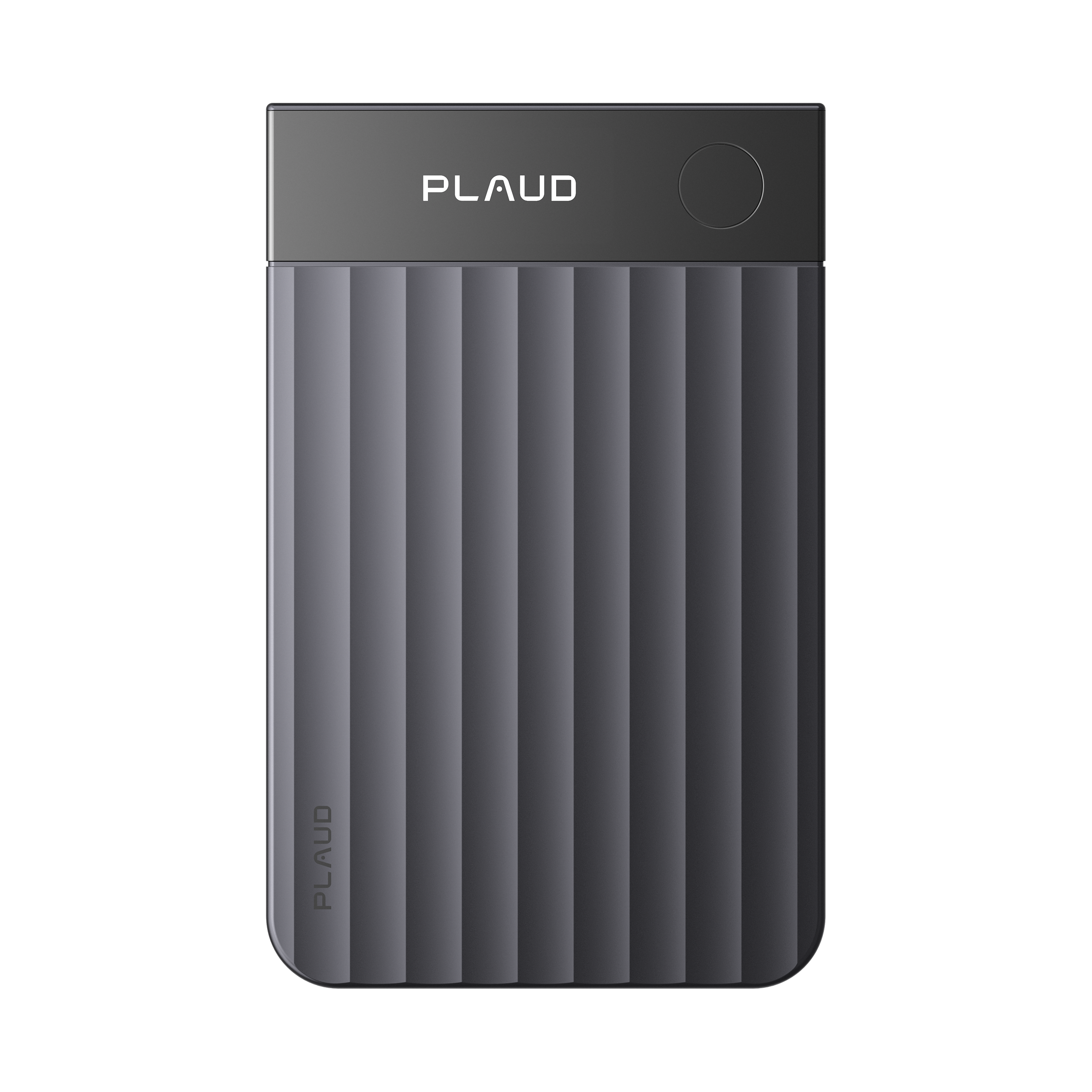
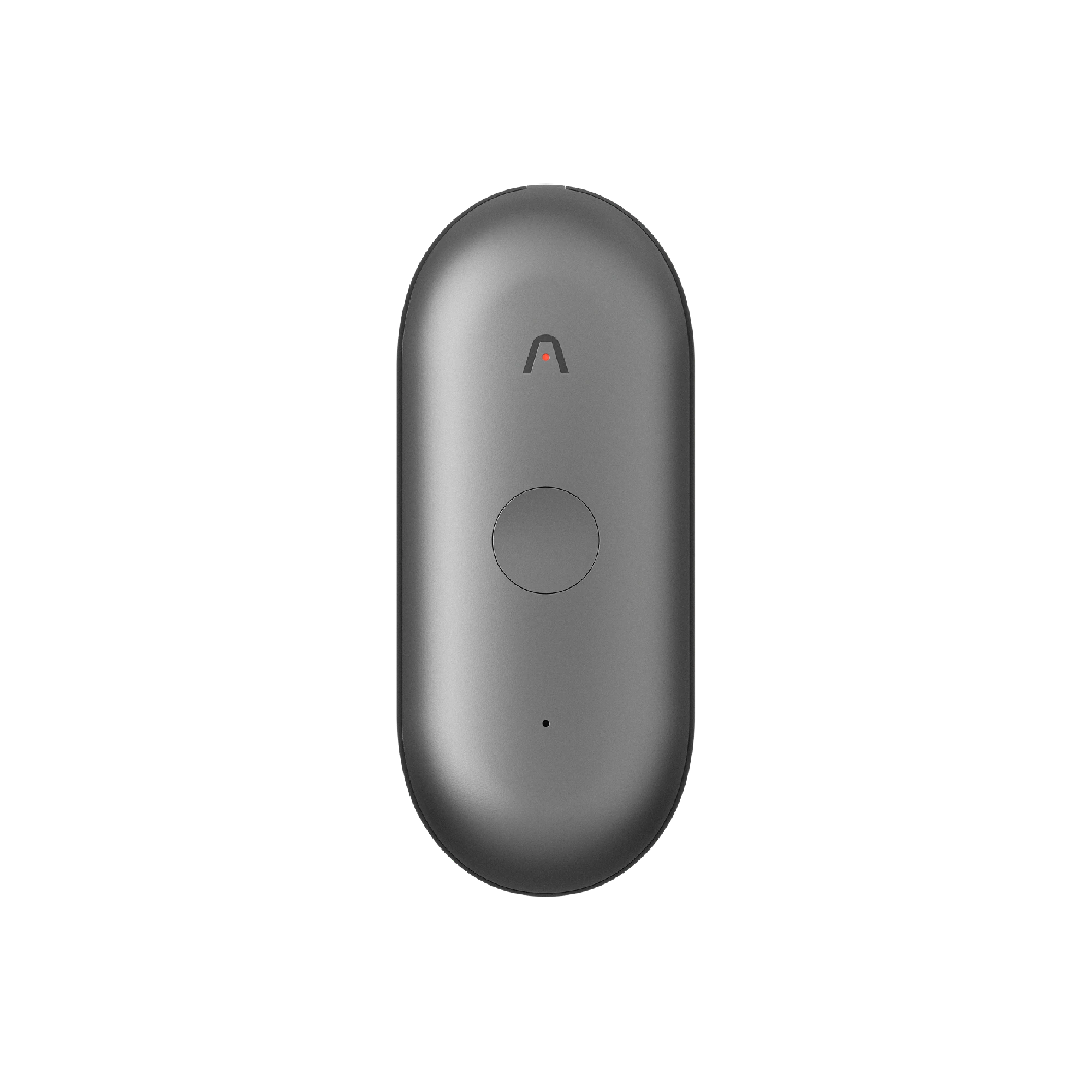
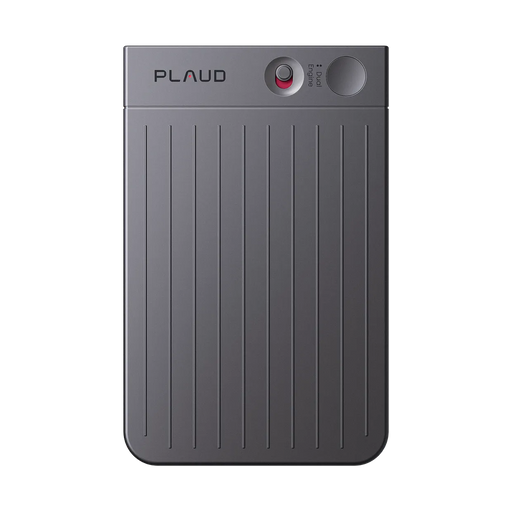
Plaud Note AI voice recorder is a physical voice recorder that works with both iPhone and Android. Powered by AI, Plaud makes it easy to record any audio in high quality, including Google Meet calls, phone calls, Zoom calls, in-person conversations, and more.

Simply push a button to start and stop recording. Plaud will automatically transcribe meetings, create meeting notes, highlight key ideas, and store your meetings for easy access.

Further Reading: If you're interested in the power of AI for meeting summaries, check out our guide on AI meeting summaries where we cover all of the key problems artificial intelligence solves for meeting notes.

We'll walk you through how to use it to record your next online work meeting. It only takes about 5-10 minutes to get everything ready to go.

Setting up your Plaud Device

First, download the Plaud App and pair the device by following the on-screen steps. You may need to charge your Plaud Note first.

Capturing Google Meet audio

Plaud records what it hears, so just place it near your laptop speaker or desktop audio source. If you're using headphones, you can switch to speaker mode or leave one ear slightly uncovered so the device picks up the sound clearly. Some users magnetically attach it near their laptop speaker for better results.

Recording and processing

To start, press the record button on the device. A small light shows when it's active. After recording, Plaud uploads the file to the cloud, where AI processes the audio into transcripts, summaries, action items, and even speaker labels (when quality allows).

How to record Google Meet using an ai voice recorder in 2026

What makes Plaud useful?

A few of the main advantages of our AI note-taker include:

  • Works with any meeting app—Google Meet, Zoom, Teams, and in-person conversations
  • You don't have to ask your Google Workspace administrator for app permissions or screen sharing permissions
  • Doesn't slow down your computer or drain your phone
  • AI creates organized, searchable notes with tags and highlights
  • Files are stored privately in the Plaud App and can be exported

What to keep in mind?

The main thing we want you to be aware of is that Plaud is a physical AI note-taker. That gives it some massive advantages over software, such as greater accuracy and enhanced security. But it also means you have to buy a physical Plaud Note device.

It's 100% worth the money, though, especially if you record business meetings regularly. It includes unlimited recording, 300 transcription minutes per month, and all of Plaud’s AI features.

To transcribe more than 300 minutes per month, you’ll need a paid subscription beyond the free Starter Plan.

Pro Tip: Plaud’s audio quality depends on placement. You may need to test different spots to reduce background noise. Since it records external audio, it's not as clean as direct digital capture, but it’s usually clear enough for transcripts.

When is Plaud a smart choice?

Plaud is ideal for people who attend frequent meetings and want to stay focused without taking notes. It's especially helpful if you switch between platforms or join both virtual and in-person meetings. If you need meeting summaries, action items, or searchable transcripts without relying on built-in recording tools, Plaud Note is a flexible, privacy-friendly solution.

Method #4 - Record with Loom

Loom is a great way to record google meet for free, but there's a time limit

Loom is a popular screen recording app for capturing video recordings and audio directly from your browser or desktop. If you’re wondering how to record Google Meet on a laptop as a participant, Loom is perfect for you.

With just a click, you can record your screen, camera, or both at the same time. The screen recorder also automatically saves your recordings to the cloud, where you can trim, annotate, and share them using a simple link.

Note: Loom has a 5-minute limit per recording on the free plan. You’ll need to upgrade to a paid plan to record meetings.

Setting up Loom

Start by downloading the Loom desktop app or installing the Loom Chrome extension. Log in with Google to connect your account. Once installed, you’ll see a Loom icon in your toolbar or a recorder panel on your device.

Recording Your Google Meet

Open your Google Meet session and click the Loom record button. Choose whether to record:

  • Screen only
  • Screen + camera
  • Camera only

Select “system audio” if you want to capture everyone’s voices, not just your microphone. Loom displays a countdown and then begins recording without interrupting the meeting.

Managing And Sharing Your Recordings

After the meeting ends, just click stop. The tool then uploads your recording to the cloud automatically and opens a link to preview it.

From there, you can rename the video, trim it, add captions, or share a URL with colleagues. You can also download the file if you need to store or edit it elsewhere.

Why Loom works

  • Cloud-based: No large files stored on your device
  • Instant sharing: Send a link instead of uploading video files
  • Editing tools included: Trim, blur backgrounds, add callouts, and captions
  • Device flexibility: Works with Mac, Windows, and browser-based recording

What to watch out for

  • Upload time: Large recordings take longer to process
  • Very limited free plan: Free accounts have recording time caps and storage limits
  • Internet required: Cloud uploads depend on a stable connection
  • Privacy restrictions: You may need consent before sharing or storing recordings

When Loom is a Smart Choice

Loom is a great fit if you want professional-quality recordings and easy sharing without having to worry about storage concerns or file transfers. If your goal is to share meeting recordings online quickly, Loom is fine.

But, if you’re someone who joins a mix of virtual and in-person meetings and wants automatic transcripts, summaries, and action items, Plaud Note is the better choice. Plaud is also much more affordable than Loom’s $24/month business plan.

How to manage your Google Meet recordings

Now that you’ve learned how to record Google Meetings, it’s time to learn how to manage them for maximum productivity. If you've used Google's built-in feature to record meetings directly, then the meeting recording will be in the meeting organizer's Google Drive. But your work doesn't end there.

Here are a few tips from our team:

Find where your recordings are saved

Google Meet saves recordings to the meeting host's Google Drive. You can find them in the Meet Recordings folder. Just remember that only hosts and co-hosts have recording privileges in Google Meet, but hosts can assign recording permission to others. If you're not the host, you may need to ask them to share the file with you.

If you record the meeting using your own computer or phone, the file usually goes to your Downloads folder. To keep things tidy, it's a good idea to create folders like Meetings > 2024 > January.

If you're using Plaud Note, your recordings are saved in the Plaud App. They're organized by date and come with smart labels. You can also rename the files and send them to your cloud storage.

Share recordings without problems

Google Meet recordings are shared with everyone who was invited to the meeting. If you want to change who can see it, right-click the file in Google Drive and adjust the sharing settings. Participants won't get a message if you remove their access.

If you use a device or Plaud Note to record, you're in full control. Just make sure you follow your company's rules about sharing recordings.

Tip: Before you share anything private, always check who has access to it. It's easier to be careful now than to fix problems later.

Save Space When Storing Recordings

Meeting videos take up a lot of space (one hour can be 500MB–1GB). And Google Drive gives 15 GB for free, but it fills quickly.

To save space:

  • Lower video quality for casual meetings.
  • Use audio-only recording if video isn't needed.
  • Delete recordings that you don't need anymore.

If you're a large business, we recommend upgrading to a paid Google Workspace Plan to ensure you have sufficient Google Drive storage. A Google Workspace Business Standard plan starts at around $14 per month paid annually.

Ask before you record a meeting

Recording meetings without permission can violate laws, depending on where you live. Some regions require the consent of every participant. Others only require the consent of one person on the call.

Always mention your intent to record before you start recording.

"Just a heads-up, I'm recording this meeting for notes."

For international or sensitive meetings, ask directly and check local laws. Google Meet shows a recording banner, but a verbal notice is still best practice. For more insights into structuring and capturing vital information from your discussions, explore the key principles of effective meeting minutes.

Protect privacy in your recordings

Meeting recordings may capture more than you expect, including screen notifications, private conversations, or background noise.

Decide in advance:

  • Who can access the recordings
  • How long you'll keep them
  • Where they'll be stored

For external clients or partners, make sure your sharing methods follow any agreed privacy terms.

Organize and label recordings clearly

We recommend using consistent naming practices, like 2024-01-15_TeamMeeting_ProjectUpdate. Include the date, type, and topic so you can find it later.

Set up folders by project, team, or month (or whatever works for you). For high-value content, consider saving both the full version and a summary.

Back up recordings you want to keep

Don't rely on just one storage platform. Save critical recordings in multiple places (e.g., your Google Drive, computer, and a second cloud storage service).

Review your archives regularly and clean out what you no longer need.

Use Plaud Note's AI to save time

Plaud Note records audio clearly and transcribes in 112 languages using leading AI models like GPT-5, Claude Sonnet 4, and Gemini 2.5 Pro. It offers advanced features, such as:

  • Smart summaries and action items
  • Editable transcripts
  • Topic tags and searchable content

You can also jump to specific keywords or export just the highlights, making it faster to find what matters and share it with others.

This image shows all of the features Plaud comes with for recording Google Meet sessions, including auto summary and formatting options

Key Benefits of Recording Google Meet Sessions

Recording your meetings offers some incredible benefits for your business. Including keeping you focused, creating valuable training material you can use for future reference, and protecting your team from liability or disputes.

Before you go, we just want to cover a few of these in a bit more depth:

Stay focused without losing details

It's hard to stay fully focused during a meeting and also take good notes. But when you record important discussions, you don't have to make a decision. You can be in the room and refer back to the actual transcript afterward.

Turn meetings into training material

When someone walks through a complex process or software demo, recording it turns that moment into a valuable resource you can use over and over again. New hires can learn at their own pace without needing repeated explanations. Over time, you'll build a helpful video library for onboarding and training.

Make communication clearer

Trust us, recordings prevent misunderstandings. And if there’s ever a dispute, you can go back and find the evidence.

The reason they’re so valuable is that everybody hears the same thing, and there is a clear point of reference if questions arise. Rather than loose prompts, you can post precise clips or timecodes to follow up, make decisions, or take the next steps.

Protect yourself and your team

There are some jobs where recording is required. Even when it is not required, recordings protect against misunderstandings or disagreements. Just be sure to get permission first and follow any privacy policies your company sets.

Further Reading: If you need AI to help you write meeting minutes, check out our guide on writing meeting minutes with templates and examples.

Take control of your meeting documentation today

Now, you've got multiple ways to capture your meetings on Google Meet. Google Meet’s built-in recorder, your device’s screen recorder, and third-party apps are convenient ways to record virtual meetings if you can manage the restrictions.

External recording devices like Plaud Note are the best option for versatile, reliable recordings in any situation. Plaud Note records meetings in person, on Google Meet, by phone, and on any device. Just hit record, and Plaud captures, transcribes, annotates, and stores your meetings automatically.

If you’re tired of sorting through settings, dealing with poor connections, or suffering from apps’ recording limits and paywalls, it’s time to get Plaud Note.

Once you've recorded a few sessions and seen how much easier it is to follow up and stay organized, you won't want to go back to messy notes and missed details.


About Plaud.ai

Plaud.ai is a pioneering AI-native hardware and software company that turns conversations into actionable insights with AI devices like Plaud Note and Plaud NotePin. By recording, transcribing, and summarizing real-life conversations, our solutions boost productivity and save time. Designed for precision and flexibility, whether in meetings or on the go, our products empower you to focus on creative, high-value work while AI handles the details.

FAQ

Why can't I record a Google Meet?

How do I record a Google Meet if I'm not the host?

Can Google Meet record automatically?

Is it legal to record a Google Meet?

Featured blog posts & updates

Plaud Unveils Plaud NotePin S and Plaud Desktop,  the Only Note-Taking Solution That Seamlessly Bridges In-Person and Online Conversations

Plaud Unveils Plaud NotePin S and Plaud Desktop, the Only Note-Taking Solution That Seamlessly Bridges In-Person and Online Conversations

Plaud Inc. today introduced its upgraded wearable Plaud NotePin S and Plaud Desktop to bring Plaud’s conversation intelligence to professionals wherever meetings happen — in person or online.

Read more
AWS Announces Plaud as Strategic Partner in AI-Powered Meeting Intelligence

AWS Announces Plaud as Strategic Partner in AI-Powered Meeting Intelligence

Read more
NYSE Spotlight: Plaud’s Wearable AI Notetaker with Founder CEO, Nathan Xu

NYSE Spotlight: Plaud’s Wearable AI Notetaker with Founder CEO, Nathan Xu

Read more
Skip to content