You can record audio on iPhone in seconds with the free, built-in Voice Memos app: open it, tap the red button, and tap again to stop. That is the everyday method, but it is not the only one. Your iPhone can also record audio inside Notes, capture a phone call, record the sound playing on screen, and pair with a dedicated recorder for larger rooms. Below are five methods, when to use each, and the consent rules worth knowing before you hit record.
Before you record, take a moment to let others know and get their okay. Thanks for being mindful of privacy and local laws.
Method 1: Record with Voice Memos
The fastest way to record audio on iPhone is the built-in Voice Memos app, which captures sound only and saves each file automatically. It works offline, has no time limit beyond your storage, and needs no download.
Step 1: Open Voice Memos. Look for the black icon with white sound waves. If you cannot find it, swipe down on the home screen and search “Voice Memos.”
Step 2: Start recording. Tap the large red button at the bottom. The timer and waveform confirm it is capturing. Keep the bottom edge of the iPhone, where the mic sits, pointed at whoever is speaking, around 6 to 12 inches away.
Step 3: Pause or mark moments. Tap the red button to pause and resume. On a long recording, tap the waveform to drop a marker so you can find key sections later.
Step 4: Stop, name, and save. Tap Stop, then rename the file something you will recognize, like “Client call, March 12.”

To record hands-free, ask Siri to “start a voice recording,” or add Voice Memos to Control Center for one-tap access from any screen. On iOS 18 and later, open a memo and tap the transcript icon to read what was said.
Method 2: Record audio inside the Notes app
The Notes app records audio straight into a note, so the sound sits next to your typed notes in one place. Use it when you are already writing and want the spoken version attached.
Open Notes, start a new note, tap the attachment or camera icon, and choose Record Audio. Tap the red button to start and stop. The clip saves inside the note, where you can play it back, type around it, and search the note later. It is the simplest way to keep audio and written context together without switching apps.
Method 3: Record a phone call
On iOS 18.1 and later, the Phone app can record calls without any extra app. Start a call, tap the record control in the top-left, and your iPhone plays an automated message so everyone hears that recording has begun. The audio, and a transcript, saves to the Notes app when the call ends.
Two things to keep in mind. The feature depends on your iOS version and region, so it may not appear on every iPhone or in every country. And the spoken announcement is built in by design, since many places require all parties to know a call is being recorded.
If your iPhone does not show the option, or you want cleaner audio and automatic summaries, our walkthrough on recording iPhone calls without an app covers the alternatives. Recording laws differ by state and country, so tell the other person and get consent before you record a call.
Method 4: Screen record to capture in-app audio
When the sound you want is playing on the iPhone itself, a video, a voice note, an app, the screen recorder captures it. This is the method for audio you cannot reach with the microphone.
Add Screen Recording to Control Center under Settings, then Control Center. Open Control Center and tap the record circle. To capture sound, press and hold the record circle first and turn the Microphone on or off depending on whether you also want room audio. The recording saves to Photos as a video, and you can extract the audio track afterward if you only need the sound.
Method 5: Use a dedicated recorder for rooms and meetings
The iPhone microphone is fine up close in a quiet space. It struggles once the room is larger, voices are several feet away, or people talk over each other. A dedicated recorder gives you cleaner audio across the table.
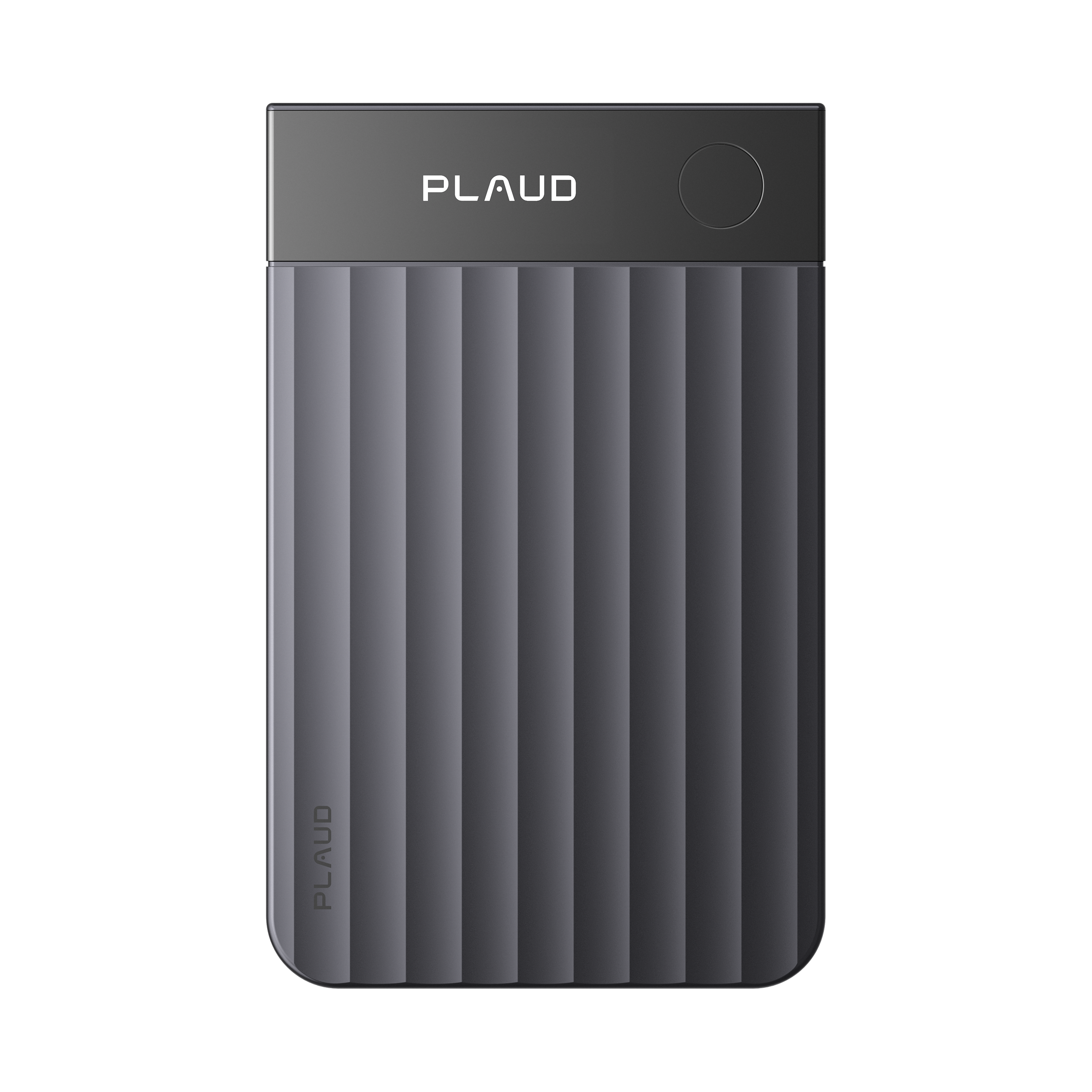
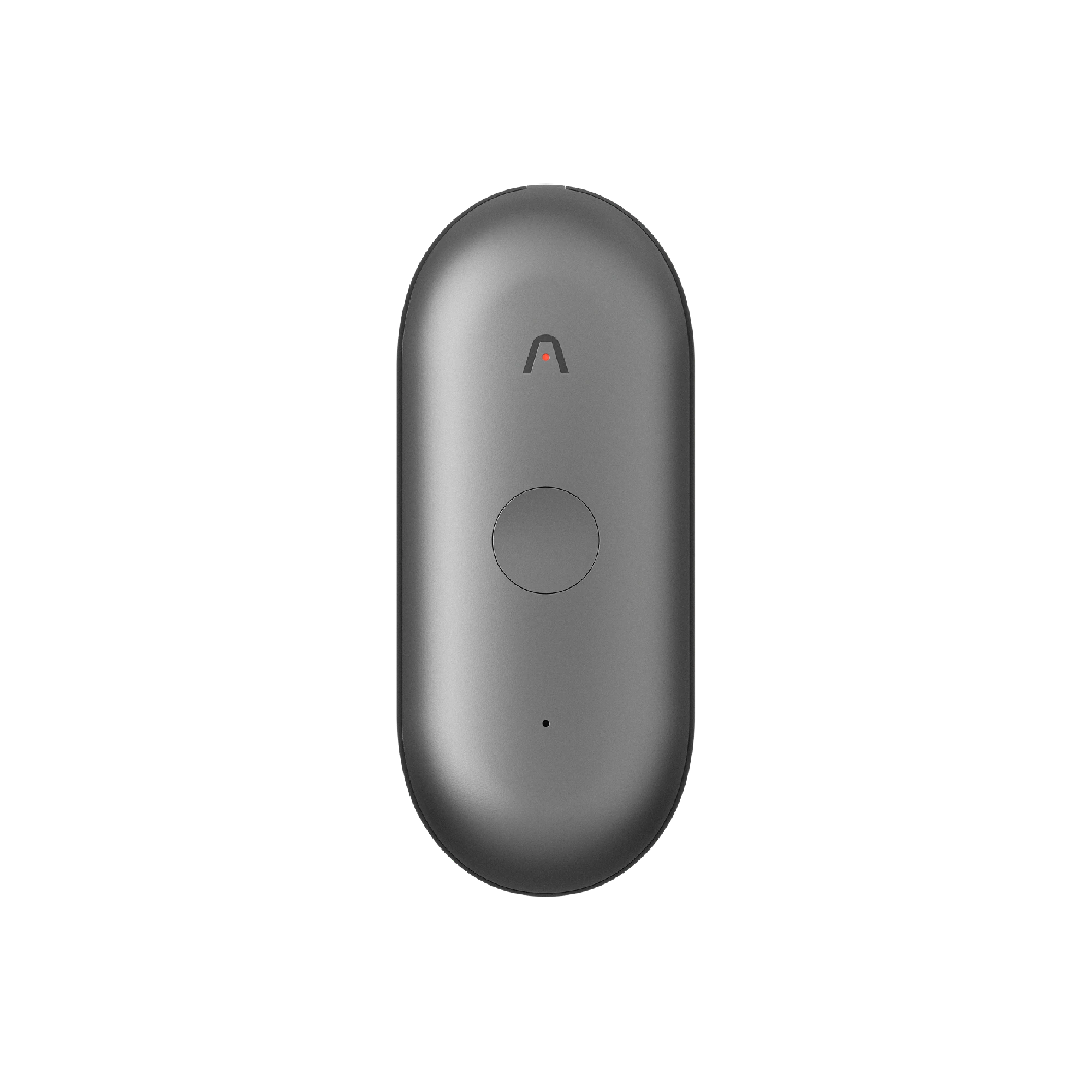
The Plaud Note Pro captures voices clearly up to 5 meters (16.4 feet) using 4 MEMS microphones with AI beamforming, so a far-side speaker comes through as well as the person next to you. Its smart dual-mode recording detects whether you are on a phone call or in an in-person conversation and switches automatically, and the InstantView display shows recording status at a glance. You set it on the table, stay in the discussion, and let it capture the room.

For online meetings on your computer, Plaud Desktop records the call without joining as a bot, then keeps the audio alongside your other recordings in the Plaud App and Plaud Web.
Which method should you use?
The right method depends on what you are recording.
-
A quick note or an interview: Voice Memos, with the phone on a stable surface between both speakers.
-
Audio tied to written notes: the Notes app recorder.
-
A phone call: the Phone app on iOS 18.1 or later, where supported, after telling the other person.
-
Sound playing on the iPhone: screen recording with the microphone toggle set to taste.
-
A meeting, conference room, or multi-speaker conversation: a dedicated recorder like Plaud Note Pro for clear room audio and speaker labels.
For conversations and interviews, tell the other person you are recording and get their agreement first, both because it builds trust and because many regions require it. Speaker labels also make a multi-person transcript far easier to follow afterward.
How to get clearer recordings on iPhone
Better input means a better recording and a more accurate transcript later. A minute of setup makes the difference.
-
Pick a quiet spot. Move away from air conditioners, hallways, and hard surfaces that echo. A carpeted room beats a glass-walled one.
-
Set the phone down. Resting the iPhone on a table avoids the rustle of hand movement. Keep it about an arm's length from the main speaker, and clear of papers or laptops people might tap.
-
Reduce interruptions. Turn on Do Not Disturb so calls and alerts do not cut into the audio. Check you have storage free, since recordings use roughly 30 MB per hour.
-
Do a 10-second test. Record a short sample, play it back, and adjust your distance before the real conversation starts.
How to transcribe and share iPhone recordings
To get text from an iPhone recording, open the memo in Voice Memos on iOS 18 or later and tap the transcript icon. To share any recording, tap it, then tap the share icon and choose Messages, Mail, AirDrop, or Save to Files for a cloud link.
For longer or multi-speaker recordings, a built-in transcript can lag on accuracy, and an AI workflow does better. With Plaud Intelligence, recordings from a Plaud device become transcripts in 112 languages with speaker labels, then structured summaries and action items you can search and export. Instead of replaying an hour of audio, you scan the summary and jump to the part you need. Our full guide on iPhone voice memo transcription compares the built-in, app, and device options.
When you share recordings of client or patient conversations, check your organization's data policy first and use approved storage rather than a personal email account.
Is it legal to record audio on iPhone?
Recording your own voice memos is fine. Recording other people depends on where you are. The United States splits into one-party consent states, where you may record a conversation you are part of, and all-party consent states, where everyone must agree first. Other countries set their own rules.
The safe habit is simple: tell people before you record and get their okay. If required by law, obtain consent from all participants before recording, and comply with applicable law. Calls raise the most questions, so if that is your main concern, see our guide on how to record a call on iPhone and whether it is legal.
Recording audio on iPhone, made simple
Most iPhone recording starts and ends with Voice Memos, and for quick notes that is all you need. The moment the conversation matters more, a phone call you cannot afford to misremember, a meeting across a full table, an interview you want transcribed cleanly, that is worth a better setup. If you find yourself wanting clear room audio, automatic speaker labels, and summaries you can search, the Plaud Note Pro is built for exactly that. Whichever method you choose, let everyone know before you record, and you are set.